

A bracket expected to be 50 mm long appears as 1,270 mm after import. The ratio is 25.4. That is a reason to investigate an inch/millimeter interpretation error, not proof that the model should immediately be rescaled.
NIST defines the inch as exactly 25.4 mm in its SI length reference. The calculations in this guide follow directly from that relationship. They are examples, not measurements of an uploaded file.
Start with a known length
Choose a dimension you can confirm from a drawing or from the authoring application. Compare the expected number, expected unit, imported number and imported unit. Record all four. “It looks huge” is not enough, because a viewer can fit almost any model to the screen.
| Expected | Observed | Ratio |
|---|---|---|
| 50 mm | 1,270 mm | 25.4 |
| 50 mm | About 1.9685 mm | About 1 / 25.4 |
| 50 mm | 50 mm | No scale difference for this check |
These ratios point to hypotheses. They do not rule out a transform elsewhere in a scene, a mistaken reference dimension or an intentional design scale.
Unit conversion and geometry scaling are different actions
Expressing one inch as 25.4 mm preserves the physical length. Treating the number 25.4 as inches instead of millimeters changes the interpreted length. Likewise, scaling coordinates can deliberately resize the design rather than simply change the display unit.
Inspect the export unit, receiving application unit and any import multiplier before altering geometry. Fix the earliest incorrect interpretation you can identify. Applying a second scale correction downstream can conceal the original setting and fail the next time the file is exported.
Area and volume do not use the length factor
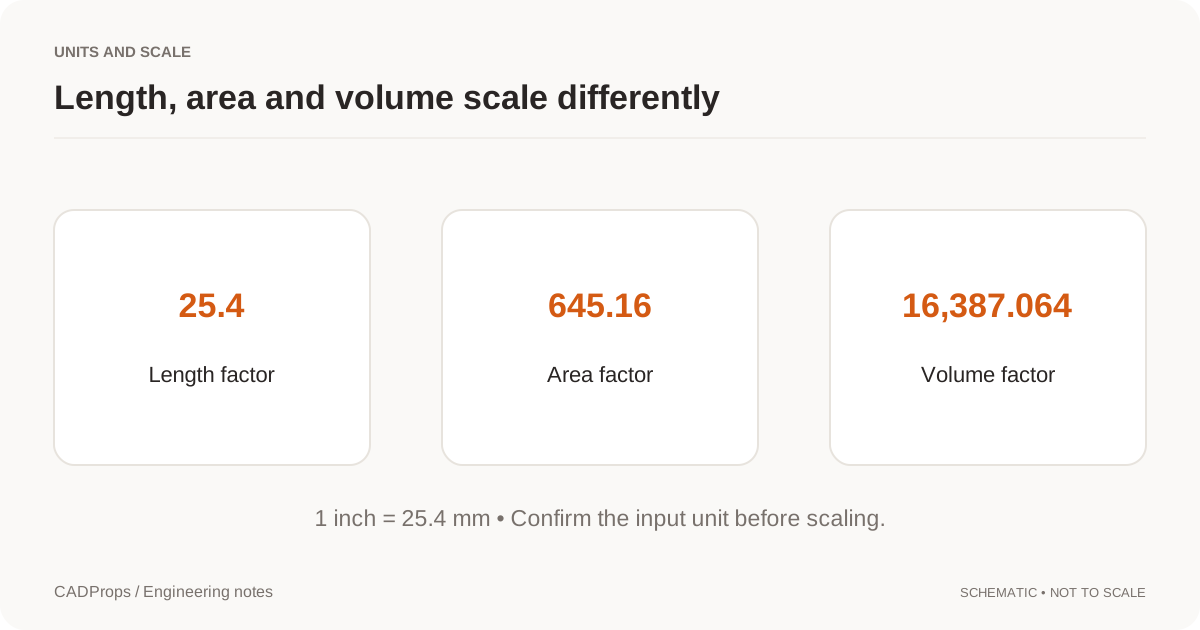
A length factor of 25.4 gives an area factor of 25.4², or 645.16, and a volume factor of 25.4³, or 16,387.064. Applying the length factor to an area or volume creates another error.
For another common example, 1 cm equals 10 mm, but 1 cm³ equals 1,000 mm³. An illustrative volume of 125,000 mm³ is therefore 125 cm³. At an assumed density of 2.70 g/cm³, that corresponds to 337.5 g. The arithmetic is valid only when the volume and density refer to the intended material and geometry.
Check the next application too
After correcting an export/import setting, reopen the output in the actual receiving workflow. Measure the known length again and record the unit. For a mesh handoff, do not rely on a filename such as part-mm.stl as the only unit instruction; communicate the intended scale and verify it after import.
Do not use automatic fit-to-screen as a test. It is a camera operation. Two models of very different physical size can occupy the same number of pixels on different viewers.
Keep the original and record the correction
Save the original unchanged. If a correction is necessary, record the factor, direction, reason and the software setting used. Confirm that each body or component has the intended transform. For assemblies, a correction applied only at one level may leave relative placement inconsistent.
CADProps processes self-contained STEP/IGES geometry, supported static meshes and bounded ZIP packages. STEP pairs support solid differences; other 3D inputs support visual comparison. SolidWorks, Siemens NX / UG NX PRT and Inventor IPT/IAM support validated STEP conversion and viewing of the converted geometry. Package assembly references in ZIP; partial geometry is flagged. DWG and DXF use the separate 2D viewer for bounded preview and basic measurement. Open the STEP workspace or open the DWG viewer.
STEP units and document display units are different
A normal STEP product model can carry explicit engineering-unit definitions. STEP Tools' documentation, for example, exposes STEP SI-unit entities such as metre, and NIST's STEP File Analyzer reports dimensional information together with its interpreted units. STEP Tools on STEP SI units · NIST STEP File Analyzer guide.
That does not mean every CAD application must display the file using the same unit label as the source.
A receiving application may convert the geometry to the document's preferred display unit. A 487 mm length can correctly appear as 0.487 m or about 19.173 in without any physical rescaling.
An Autodesk Fusion support discussion illustrates this distinction: a user's imported STEP appeared in metres instead of millimetres, but the measured physical size was correct. The accepted solution was to change the document display units rather than scale the geometry. Autodesk Community discussion.
So before applying a 25.4× correction, ask a more basic question:
Is the physical size wrong, or is only the unit display different?
Use one trusted dimension to decide
Suppose a drawing says a bracket is 220 mm long.
- Import shows 220 mm: plausible.
- Import shows 0.220 m: also plausible.
- Import shows 8.661 in: also plausible.
- Import shows 220 in: wrong physical scale.
- Import shows 8.661 mm: wrong physical scale.
This check is safer than searching the file for the string “mm” or forcing the receiving document into your preferred template unit.
STEP workflows can also use different conventions for other dimensional quantities. Autodesk Support documents, for example, that Inventor normalizes STEP angle units to radians for interoperability even when a source document displays degrees. Autodesk Support on STEP angle units.
For quoting and machining, verify length scale first because it drives envelope dimensions, hole sizes, area, volume and mass.
Compare a declared-unit file with a unitless derivative
The inch-declared STEP case normalizes 1 × 2 × 3 inches to 25.4 × 50.8 × 76.2 mm. The STL unit example instead contains bare 1 × 2 × 3 coordinates that CADProps interprets as millimetres. The identical coordinate numbers do not carry identical unit evidence across the two formats.
This is why a correct STEP import and a wrongly scaled STL derivative can coexist. Check the export convention at the point where the unitless mesh was made. Do not rescale the correctly normalized STEP to make it agree with the faulty mesh.
Record the first stage where a trusted dimension changes physical size: source, export, import or explicit transform. Correct that stage when possible, then reopen the final output in the actual receiver. Keep the original and document any coordinate scaling. The display-unit selector only changes how a physical quantity is expressed; it is not a general repair operation for incorrectly authored coordinates.
Original article: CADProps · https://www.cadprops.com/guides/cad-model-wrong-scale-25-4/