

You can open a supported CAD file in CADProps without creating an account. Signing in becomes useful when you want the file in a personal library or need to send someone a viewing link. This walkthrough separates those two jobs so you can decide when to sign in.
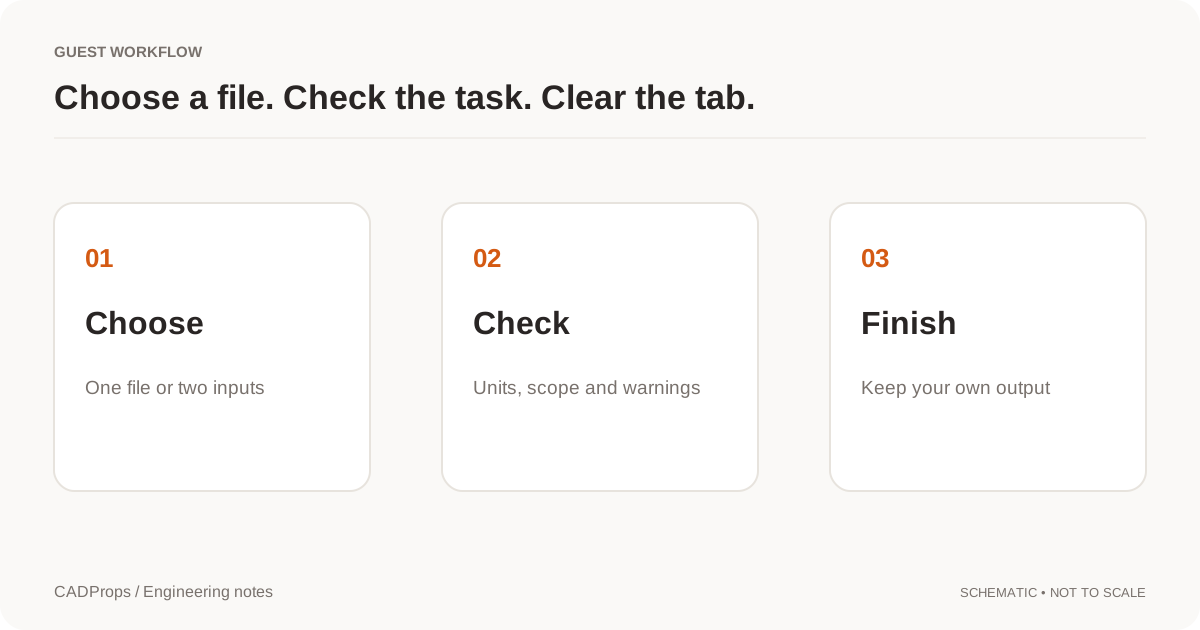
1. Choose a file and wait for processing
Use Open CAD file or the large upload area on the homepage, then choose a file from your computer. You can also drag a file into the upload area. CADProps uploads it to the server for processing and opens the workspace. If you want to see the controls first, try a real sample instead.
Check supported formats and limits before uploading a native assembly or an unusually large file. A top-level assembly may need referenced parts packaged together. If a file cannot be processed, the workspace shows a failure or incomplete-model warning; a visible preview is not proof that every component loaded.
2. Inspect the result before using a number
Rotate and zoom the model to check that its shape, orientation and loaded parts match your expectation. Open the property panel for the bounding dimensions and any available surface area, volume or mass estimate. Measurement features depend on the format and geometry. STEP and IGES properties may come from CAD geometry; mesh results are approximate, and volume requires suitable closed geometry.
Confirm the units and, for a mass estimate, the material density you enter. Do not use a plausible-looking number as a manufacturing check until you have confirmed the model scope and scale. The measurement guide explains those checks in more detail.
3. Decide whether the session is enough
You can view, measure, compare supported files and download available results without signing in. A guest upload belongs to the temporary browser workspace and expires after the period shown there, normally one hour. Closing the browser does not immediately delete server files; clearing the guest workspace removes its working copy. See the privacy policy for the separate handling of private guest originals.
If you need to return to the file from another device, select Log in. CADProps offers an email sign-in code and may offer Google sign-in when configured. Eligible, unexpired guest files can be moved into your account if there is room under its storage and file limits. Once signed in, new uploads are saved in My files. Files that are expired, still processing or over the account limit may not be moved, so check the library before leaving the workspace.
4. Share only when the model is ready
After a supported 3D model finishes processing, select Share in the workspace. If you are a guest, the sign-in dialog opens first. You can then create a 7-day or 30-day viewing link, with an optional password. The recipient can view the fixed snapshot without an account; the original CAD file is not offered through that link. Follow the sharing walkthrough for the exact checks before sending it.
The public tools and guides remain available without login. Your personal file library and shared-model viewer are private routes and are excluded from search indexing.
Original article: CADProps · https://www.cadprops.com/guides/get-started-with-cadprops/