

If a spacer is sandwiched between two plates, an assembled view may show only its edge. Open the CADProps STEP viewer, check that the three components are present, then use Explode to spread them apart for a review picture.
Separate the parts just enough to see the stack
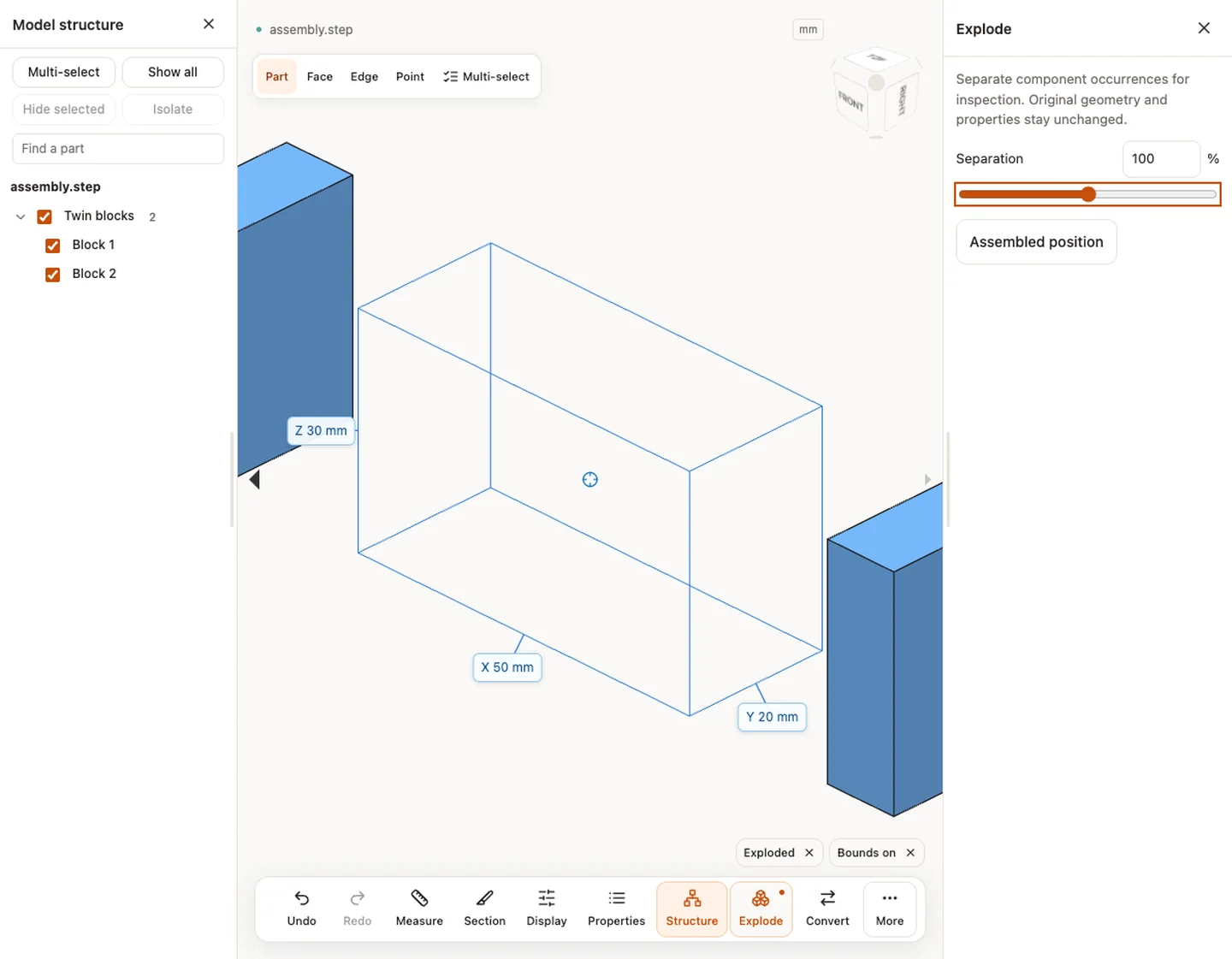
- Open a self-contained STEP and check Structure. Restore hidden parts with Show all. Explode needs at least two visible component occurrences.
- Open Explode and increase Separation. Rotate the view so the parts remain in their assembly order without blocking each other.
- Stop when the spacer is visible. If you only need to inspect the spacer and one mating plate, use Isolate instead of trying to hide them with a larger separation.
Send a picture and keep the dimensions separate
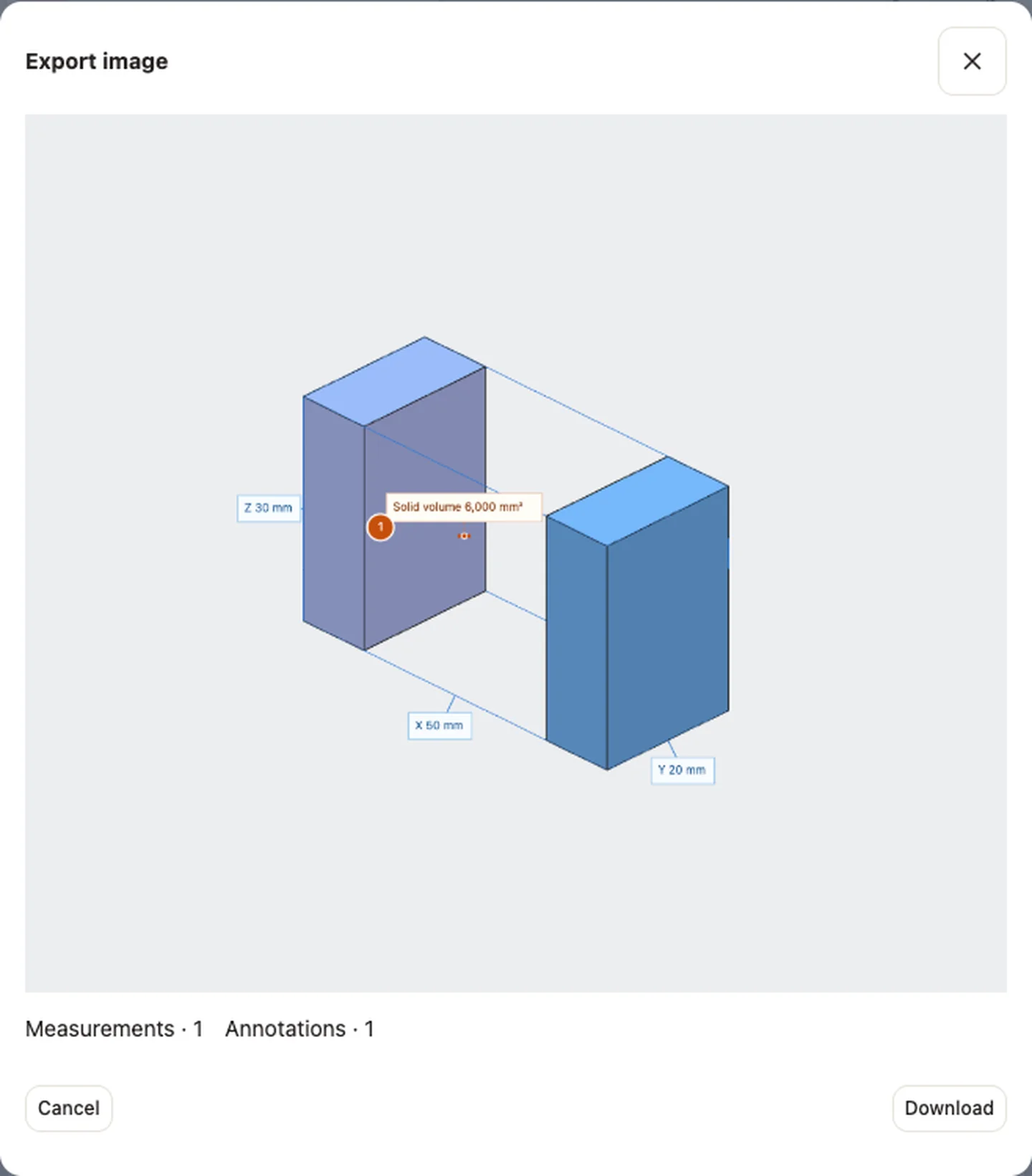
For an email review, finish any active measurement or annotation mode, open Share, and choose Export current view as an image. Check the preview before downloading the PNG. Include the file revision in the message so the recipient can match the image to the assembly.
Choose Assembled position before checking a real clearance or fit. The gap in the exploded view is an illustration. CADProps measurements refer to the original geometry, and a CAD export still uses the assembled model. If the task is to confirm a missing component, use the model tree and loading warnings. Increasing separation cannot recover a part absent from the file.
Original article: CADProps · https://www.cadprops.com/guides/explode-step-assembly-for-review/