

The STEP opens, but another component covers the bracket you need to inspect. In the CADProps STEP viewer, open Structure, select the bracket in the model tree, then choose Isolate. The viewer hides the other components so you can turn the bracket and see its mounting faces. Choose Show all when you need the surrounding assembly again.
Find the right occurrence before isolating it
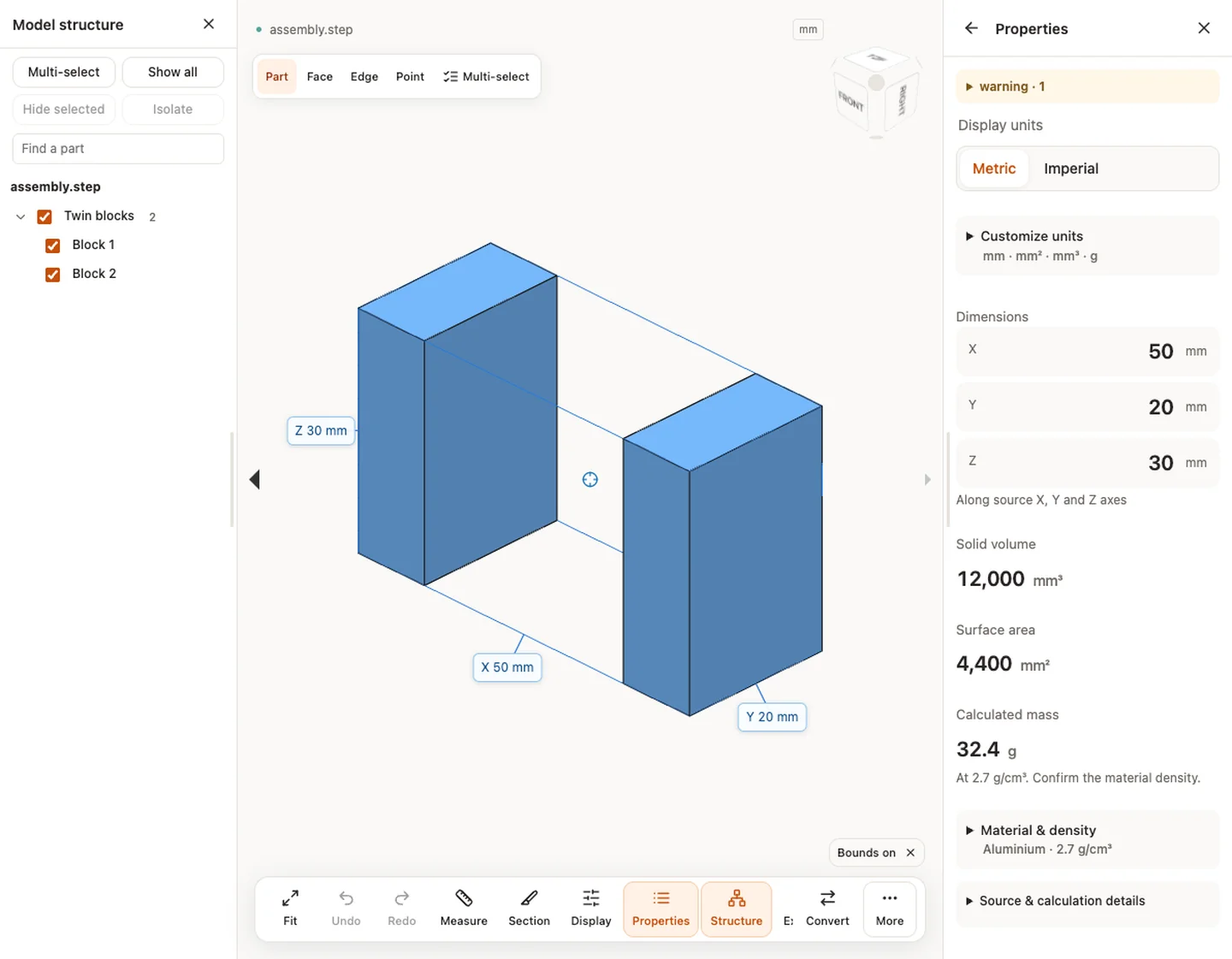
- Open the STEP and wait for the model tree. Expand the assembly or search for the component name.
- Select the row and check which geometry highlights. If several copies have the same name, use their positions to identify the intended occurrence before isolating.
- Choose Isolate. For a fit check involving two parts, enable Multi-select, select both rows and isolate them together.
- Use Show all before recording a whole assembly view or deciding that a component is absent.
Inspect a component and its mating part together
Imagine a fixture with four clamps that all use the same name. If you are checking the clamp nearest the locating pin, select a candidate row and look at the highlighted position. Repeat until it is the clamp you intended. Then use Multi-select to add the baseplate and isolate the two together. Rotate the view to see the contact face while keeping the baseplate as a reference. This is a visual check of the exported positions. Compare a dimension or inspect the geometry separately if the task requires a numerical fit check.
If the component is missing from the tree
First restore visibility. If the component still has no row, inspect any loading warnings and compare the received STEP with the intended component list. A flat export may expose bodies without the original component hierarchy. If a part is absent from the exported geometry, ask the sender to reopen the exported STEP and confirm the intended assembly and components before sending a replacement.
Use isolation to inspect geometry, especially faces that are hard to pick in the full assembly. It is a visibility change. If the recipient needs a standalone file for that component, request a separate part export from the authoring system and verify its revision and dimensions. For counts and aggregate properties, see the repeated-instance STEP example.
Original article: CADProps · https://www.cadprops.com/guides/isolate-part-in-step-assembly/