Multi-format CAD tools · View without an account · Sign in to convert
CADProps · CAD tools

Compare CAD Files Online: STEP Geometry & Properties

Compare two 3D models visually and inspect their properties. STEP pairs additionally support automatic solid differences.

View without an account Temporary workspace

Capabilities and limits

  • Compare two 3D models visually and inspect their properties. STEP pairs additionally support automatic solid differences.
  • Solid comparison requires supported closed B-Rep geometry; visual overlay is a separate comparison method.
  • Files are uploaded for server processing; support depends on format, version and geometry.
  • Viewing and measuring do not require an account. Sign in to convert, save files across devices or create share links.
On this page

Compare two 3D models visually and inspect their properties. STEP pairs additionally support automatic solid differences.

Upload two versions once

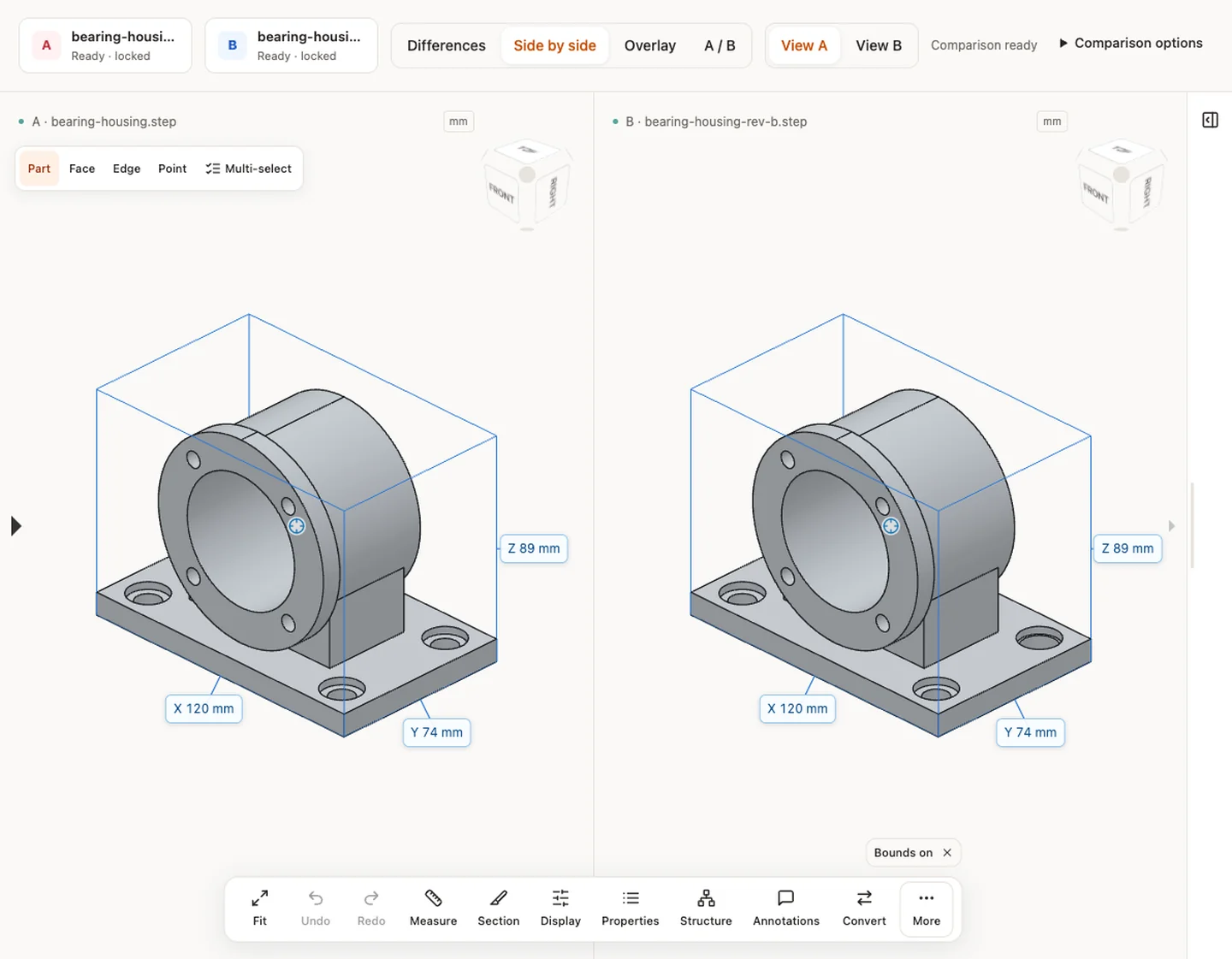
Upload A and B; the pair remains fixed until you start a new comparison. STEP pairs calculate red/blue solid differences automatically. Other 3D formats use visual side-by-side, overlay or A/B views.

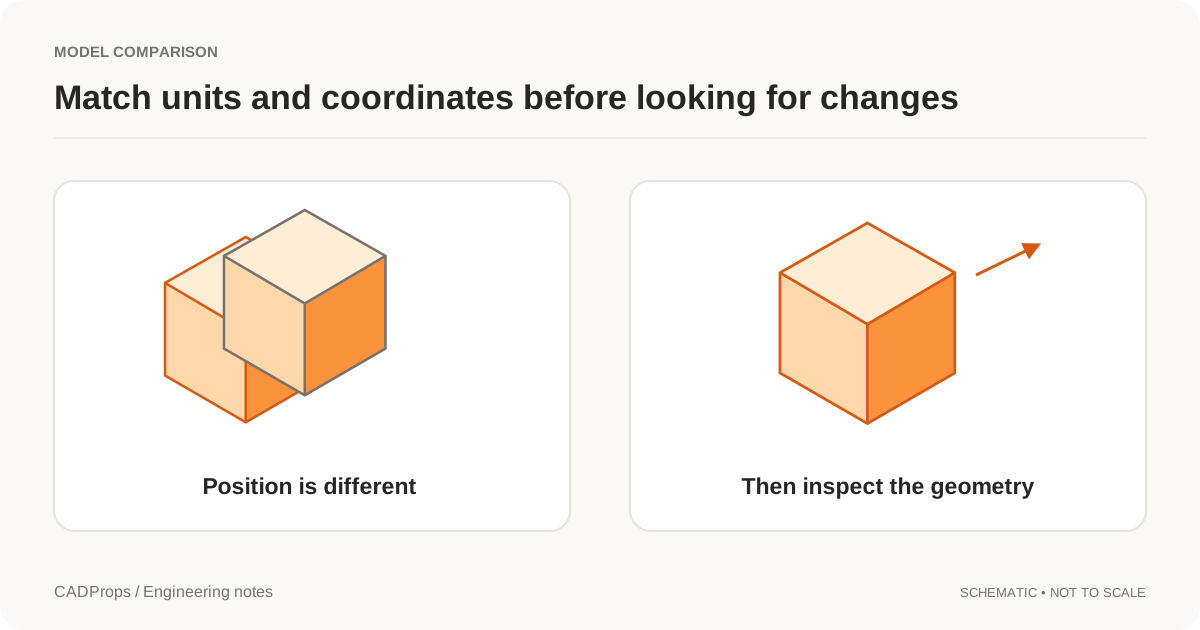
Preserve coordinates

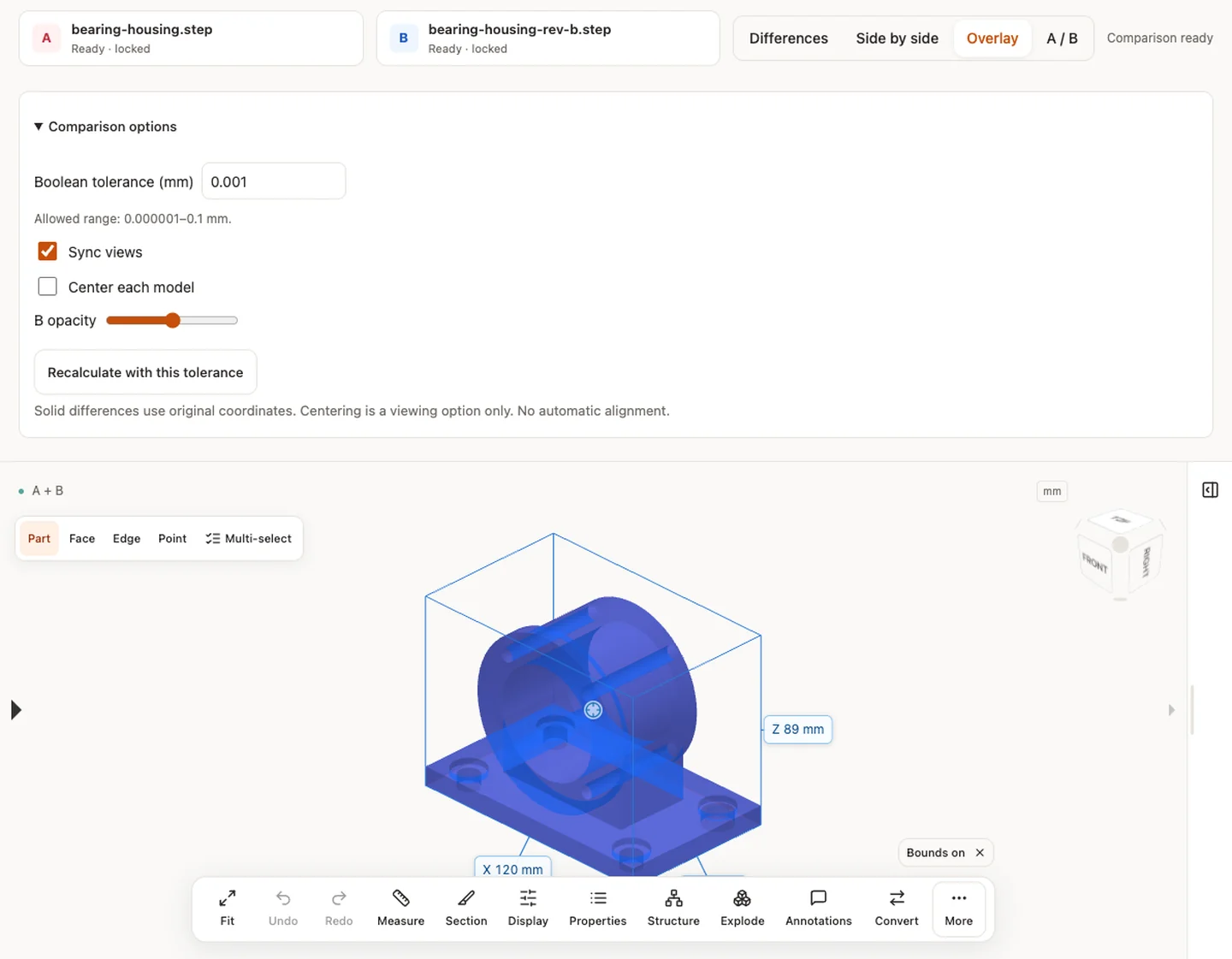
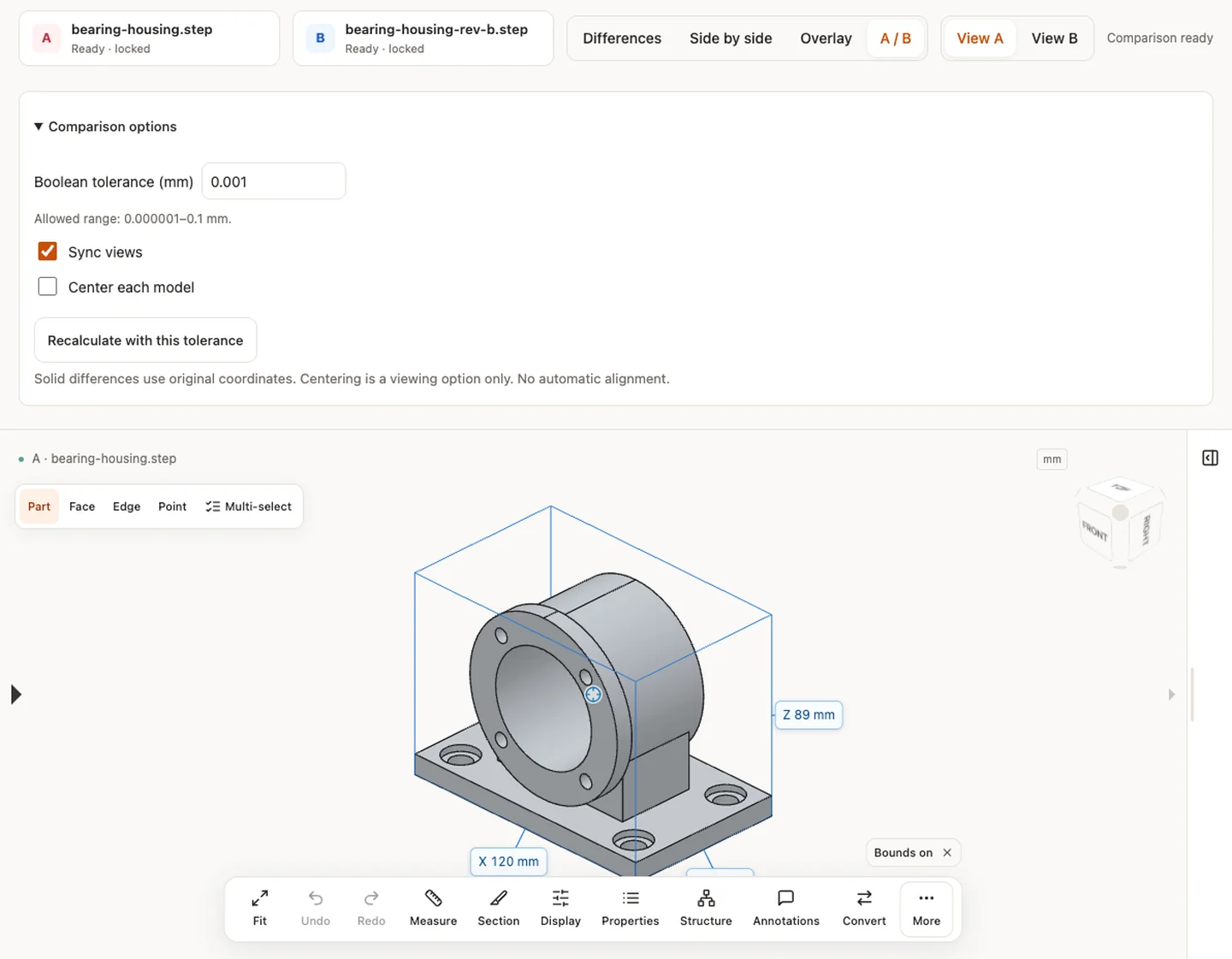
No automatic alignment is performed. Centering is a display option, not a geometric registration.

Know the geometry

Mesh results are approximate; STL/OBJ assume mm. Do not compare physical dimensions before verifying source units. DWG and DXF drawings use the separate 2D viewer for bounded preview and basic measurement; they are not 3D mesh inputs.

Input formats: STEP / STP

Open this tool

General steps for uploading, viewing, sectioning, measuring, converting and exporting are explained once in How it works. This page covers what is specific to this file type.

Real CADProps screenshots

The screenshots show the English interface. Captions and instructions describe the same operations.
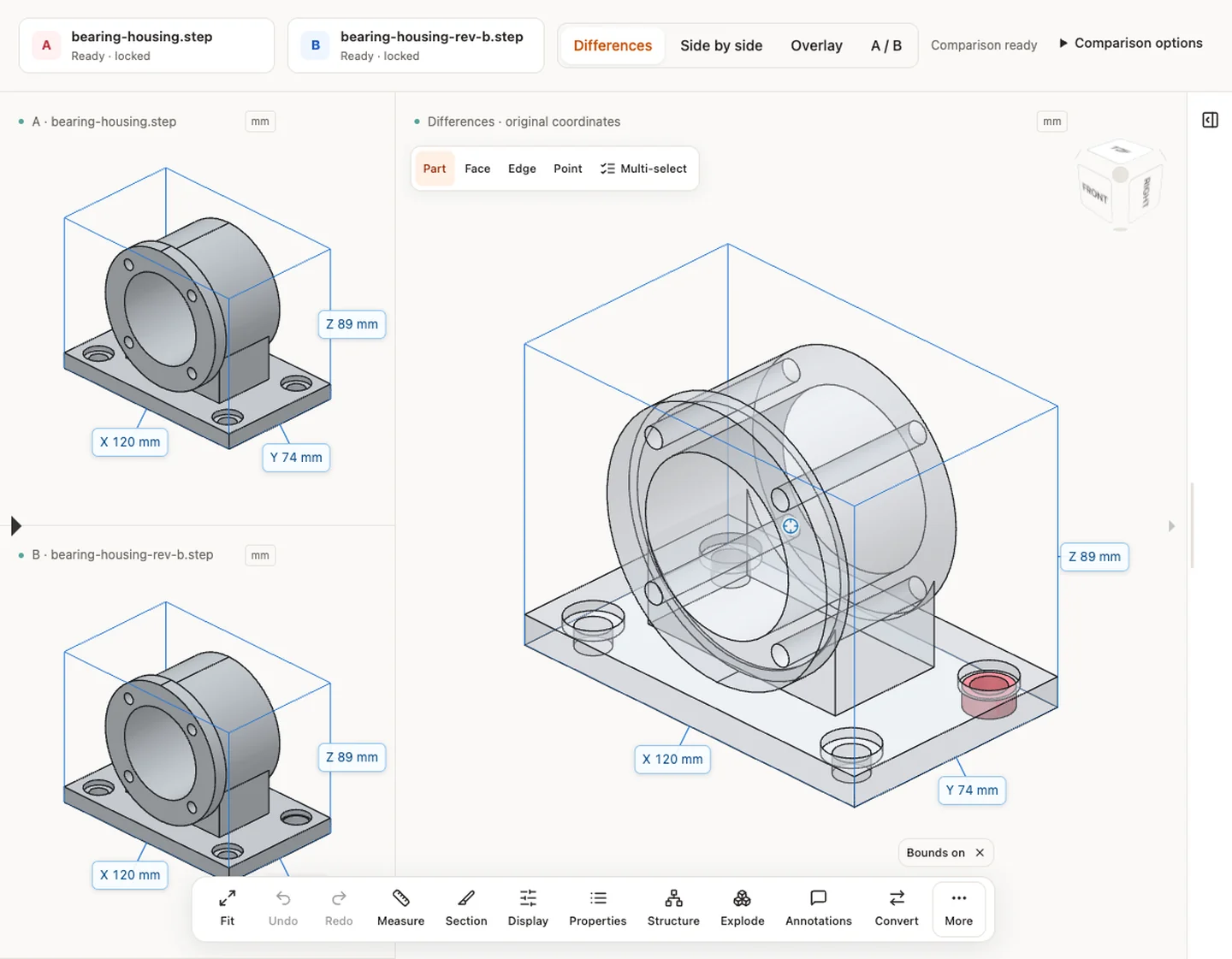
Solid differences — bearing-housing.step / bearing-housing-rev-b.step

Sample source and verification

Side by side — bearing-housing.step / bearing-housing-rev-b.step

Sample source and verification

Overlay — bearing-housing.step / bearing-housing-rev-b.step

Sample source and verification

Inspect the model — bearing-housing.step / bearing-housing-rev-b.step

Sample source and verification

When a result needs another check

Viewing can start without an account. Conversion, account storage and share creation require signing in. Temporary files expire after the displayed retention period. Read the privacy statement for server processing and deletion, and the accuracy notes before using numerical results. Do not assume that hiding a part, clipping it or exploding an assembly changes the exported source geometry.

When a result needs another check · Input formats

Continue with a related task

Original article: CADProps · https://www.cadprops.com/tools/compare-cad-files/
A reproducible example

Comparing two copies of the generated block produces zero added/removed volume and 24,000 mm³ common volume at the default 0.001 mm Boolean tolerance.

Repository-generated samples are synthetic test models. Verify your own model's units and geometry before using results.

Supported formats
All formats and limits →

Questions about this task

Which CAD files can I compare using solid differences?

Two valid closed STEP models can produce A-only, B-only and common material. Other supported 3D inputs provide visual comparison.

Are CAD models aligned automatically before revision comparison?

No. Boolean comparison uses source coordinates. Display centering is not geometric registration or manufacturing tolerance certification.

Are my CAD revisions uploaded to a server for comparison?

Selecting a file starts temporary server processing. For guests, access to the workspace copy is limited to the browser session; it can be deleted early and expires after the displayed period. Signed-in files are saved to the account library when space is available; otherwise they remain temporary.