View without an account
 Temporary workspace
Upload a DWG or DXF file to look at it in the browser without AutoCAD. CADProps reads the drawing on its own servers, shows model space and every paper layout, and lets you filter layers, measure supported geometry and export the displayed layout as PDF, SVG or DXF. The source DWG is never modified.
What a DWG opens as
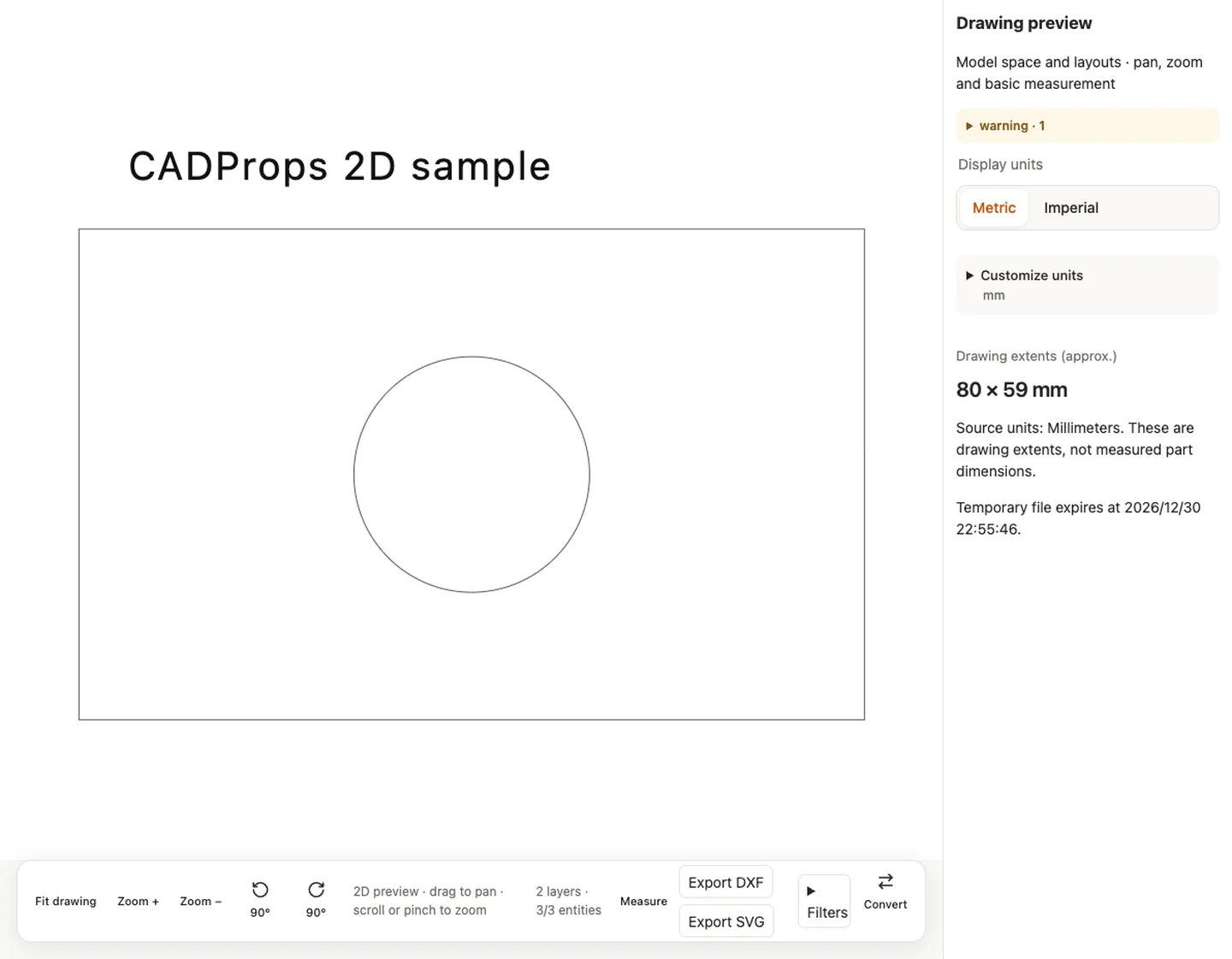
- 2D drawings. Model space and paper layouts are listed in the same tab order as AutoCAD. Lines, polylines, arcs, circles, ellipses, splines, hatches, dimensions and text are drawn as a vector scene you can pan, zoom, rotate by 90° or show on a dark background.
- Drawings that also contain 3D solids. The 2D content is shown, and the warning names what this 2D preview leaves out, such as 3D solids, regions, images or underlays.
- Files that hold only 3D solids. When there is no usable 2D drawing, CADProps shows the ACIS solids stored in the DWG as an approximate mesh. Volume, area and exact STEP export are not offered for that preview.
- Files that cannot be drawn. If the drawing cannot be read but carries a saved thumbnail, the thumbnail is shown and marked as such.
DWT templates open like DWG files. Support still depends on the DWG version and content, so check the warnings before you rely on the preview.
Measure a drawing
Measurement, selection and editing work on layouts drawn only with lines, polylines, arcs, circles, ellipses and text. When a layout also holds dimensions, hatches, splines or block references, CADProps shows the complete drawing preview instead, so nothing is left out, and a notice says that selection and measurement are unavailable in that layout. You can still pan, zoom, rotate and export it as PDF or SVG.
In a layout that supports it, choose Measure and pick a tool: distance, horizontal, vertical, angle, radius, diameter, polyline length or the area of a closed polyline. Radius and diameter snap to the nearest circle or arc; length and area pick the polyline under the pointer.
Measurements use the drawing's declared units. Many DWG and DXF files are saved as unitless. In that case CADProps shows the drawing but asks for a scale first: choose Set scale, pick two points a known distance apart and enter that distance. The same tool rescales a detail view drawn at another scale. Results measured this way are labelled with the custom scale.
Find content in a dense drawing
Open Layers to hide or show layers and entity types. Hiding a title block or a hatch layer makes a crowded sheet easier to read and does not change the file. Switch layouts to see each sheet as it was set up in the drawing. If a layer you expect is missing, see why DWG layers are not showing.
Simplified for speed
CADProps aims to show a drawing quickly, so some details are drawn more simply than in AutoCAD, and the preview notes say so:
- A hatch pattern that would need more than 50,000 line segments is shown as a shaded fill.
- Text uses the viewer's sans-serif font instead of SHX or AutoCAD fonts. Characters such as Chinese, Japanese or Cyrillic stay readable, but letter shapes and text widths differ slightly.
- Plot styles and other print-only appearance are not reproduced.
Dimensions, text content and geometry outlines are drawn from the file's values, so they remain usable for checking a drawing.
What is not shown
External references (xrefs) are not loaded, so upload the referenced drawings separately or ask for a bound DWG. Proxy objects, OLE frames, images, underlays and other unsupported entities are skipped and named in the warning, and the preview is marked incomplete. Very large drawings are refused above 50 layouts or 150,000 entities.
Edit and export
In a layout that opens for editing, select a line, polyline, arc, circle, ellipse or text to delete, move, copy, rotate or mirror it, or change its style, with undo and redo. Edits apply to the drawing CADProps displays, never to your DWG:
- PDF exports the selected layout as one vector page, with text drawn as outlines.
- SVG exports the displayed layout.
- DXF writes the displayed drawing scene, including your edits, as a new DXF file. It is offered only when every layout opens for editing, because dimensions, hatches and other entities outside the editable scene would be lost.
A step-by-step version, with what each format keeps, is in convert DWG or DXF to PDF, SVG or DXF.
CADProps does not write DWG files. When the recipient needs DWG, open the exported DXF in a CAD application and save it there. DWG vs DXF explains when each format is the better handoff, and the format compatibility matrix lists every format CADProps opens.
Input formats: DWG / DXF
General steps for uploading, viewing, sectioning, measuring, converting and exporting are explained once in How it works. This page covers what is specific to this file type.
Real CADProps screenshots
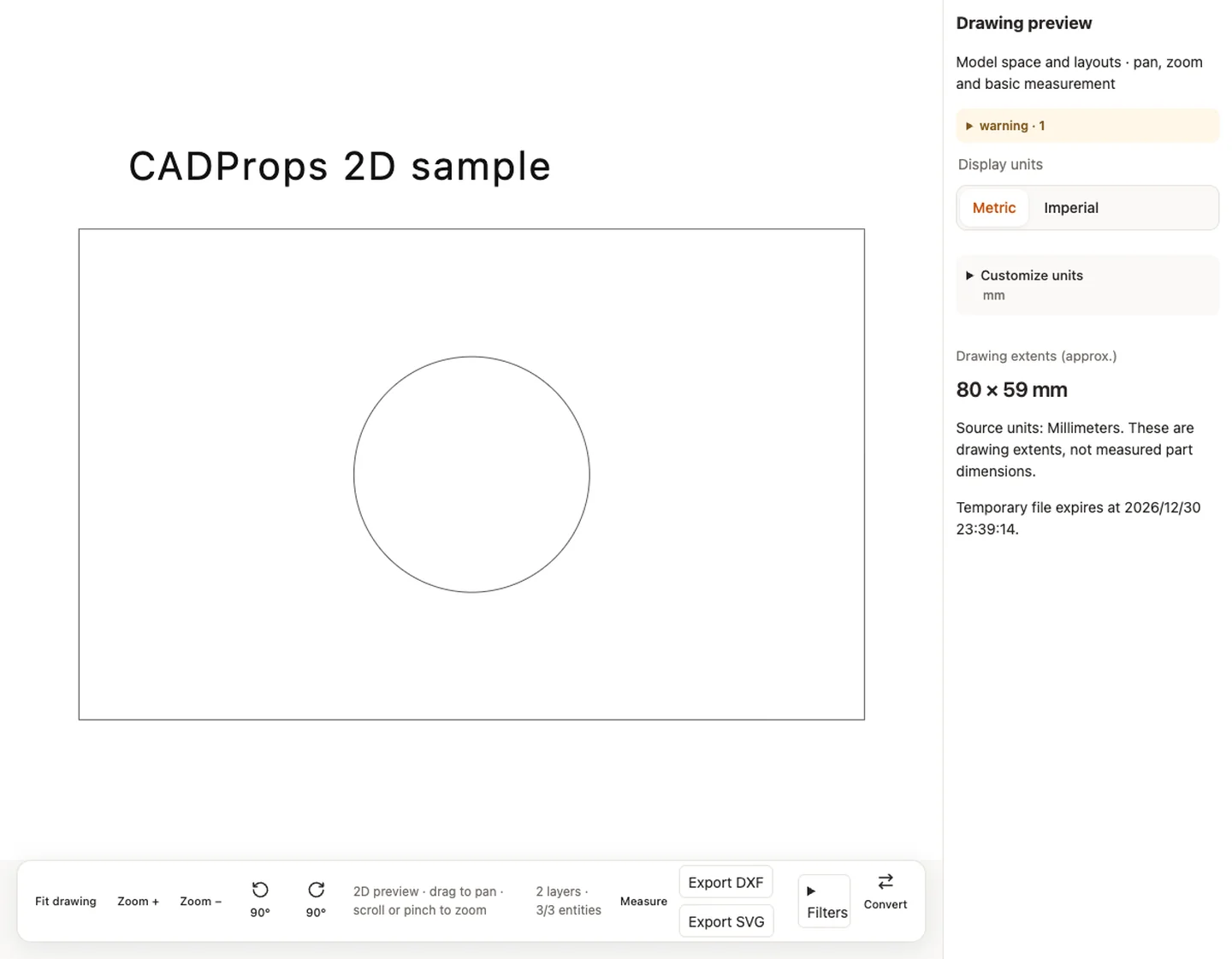
The screenshots show the English interface. Captions and instructions describe the same operations.
Sample source and verification
Sample source and verification
When a result needs another check
Viewing can start without an account. Conversion, account storage and share creation require signing in. Temporary files expire after the displayed retention period. Read the privacy statement for server processing and deletion, and the accuracy notes before using numerical results. Do not assume that hiding a part, clipping it or exploding an assembly changes the exported source geometry.
When a result needs another check · Input formats
Continue with a related task
- STEP File Dimensions Online: Measure X, Y, Z & Distances
- Batch STEP Properties: Export CAD Measurements to CSV
Original article: CADProps · https://www.cadprops.com/tools/dwg-viewer/