

Someone sends a DWG and you need a PDF to read on a phone, attach to a quote or mark up. Or a laser-cutting service asks for SVG. Or you have a DWG and an older program that only reads DXF. CADProps can produce all three from the DWG and DXF viewer without AutoCAD. Each output is drawn from the preview CADProps shows, so it is worth knowing what that preview keeps before you send the file on.
Export a layout in four steps
- Open the DWG and DXF viewer and choose your
.dwg,.dxfor.dwtfile. CADProps reads it on its servers and lists model space and the paper layouts in the same order as AutoCAD's tabs. - Pick the layout you need from Layout in the toolbar. Each export covers one layout, so a three-sheet drawing needs three PDF exports.
- Read any notice at the top of the drawing. It names content the preview leaves out, such as external references, images or 3D solids.
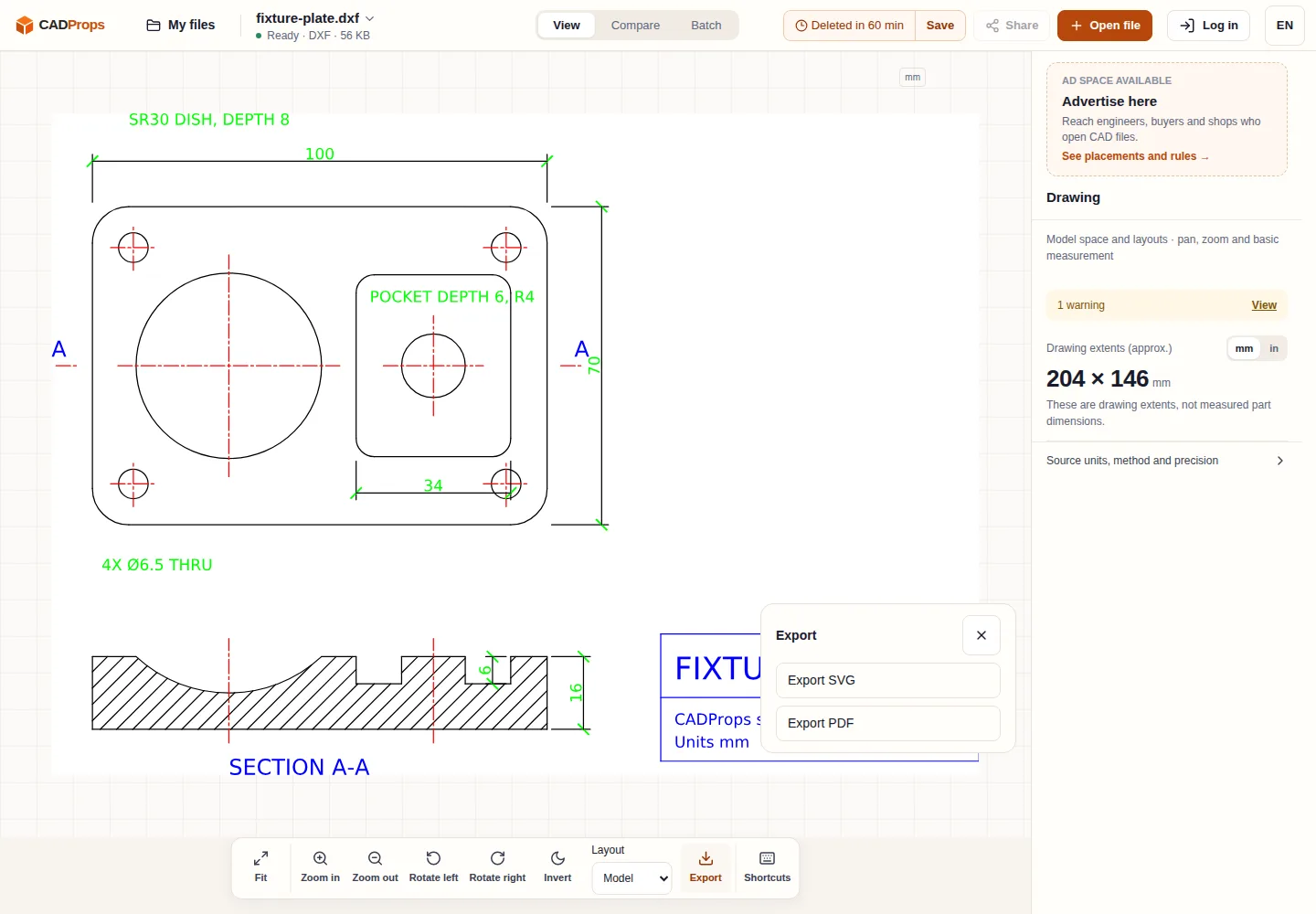
- Choose Export, then Export PDF, Export SVG or, when it is offered, Export DXF. The export works in a guest session too.
To try it first, download the fixture plate sample drawing, a DXF with layers, dimensions, a hatched section and an A4 layout.
What each format keeps
| Output | What you get | Good for |
|---|---|---|
| One vector page of the selected layout. Lines stay sharp at any zoom, and text is drawn as outlines, so it looks the same everywhere but cannot be searched or copied. | Reading, printing, attaching to an RFQ or a review | |
| SVG | The displayed layout as a vector image. | Laser and vinyl cutting software, web pages, documentation |
| DXF | A new DXF built from the drawing scene, including any edits you made in CADProps. | Programs that read DXF but not DWG |
The PDF page is sized to the drawn content of the layout, not to a paper size. The sample above exports as a 204 × 146 mm page, the extent of the drawing. When you print, choose the paper and scaling in the print dialog, and check one known dimension on the printout before you measure anything from paper.
Why DXF is not always offered
The editable scene behind the DXF export carries lines, polylines, arcs, circles, ellipses and text. Dimensions, hatches, splines and block references are outside it, so writing them back would lose them. When any layout contains them, CADProps shows the complete drawing preview instead of the editable scene, offers PDF and SVG, and leaves DXF out. Most production drawings use blocks and dimensions, so expect PDF and SVG to be the usual outputs.
CADProps never writes DWG. If the recipient needs DWG, open a DXF in a CAD program and save it as DWG there. DWG vs DXF explains which of the two to hand over.
Where the result differs from a plot from AutoCAD
The preview is built for fast viewing, so a few things are drawn more simply than a plot from the original CAD program:
- Plot styles (CTB and STB files) and lineweights set for printing are not applied. Lines keep their layer colours.
- Text uses a sans-serif font instead of SHX or the original TrueType font. The words and numbers are the same, but letter shapes and text widths differ slightly.
- A hatch that would need more than 50,000 line segments is shown as a shaded fill.
- External references are not loaded. Images, underlays, OLE objects and proxy objects are skipped and named in the warning.
- Hiding layers in Layers changes only the view. Exports still contain every layer the preview draws.
Dimension values, text content and geometry come from the file, so the export is reliable for reading a drawing. When the PDF has to look exactly like the issued drawing, for example as a contract document, ask the author to plot the PDF from their CAD program.
Check the export before you send it
- Open the PDF or SVG and compare the title block, revision and a few dimensions with the preview.
- Count the sheets. A layout you did not export is not in any file.
- If the drawing was saved without units, the numbers in the file are still right, but the scale may be wrong when it is placed elsewhere.
- If a layer you expected is missing in both the preview and the export, see why DWG layers are not showing.
Files are uploaded to CADProps for processing and kept for the retention period shown in the workspace. The format compatibility matrix lists the other drawing formats CADProps opens.
Original article: CADProps · https://www.cadprops.com/guides/convert-dwg-to-pdf-online/