

A PLT file is usually a drawing that was sent to a pen plotter and saved to disk instead of being drawn on paper. The language inside is HP-GL, or its later version HP-GL/2, which Hewlett-Packard designed for its plotters and which large-format printers, vinyl cutters and many CAD programs still use. You get one when someone chooses "plot to file" in AutoCAD or another CAD program with an HP-GL plotter driver, or exports a cutting job from sign-making software. The same content may also be saved as .hpgl, .hpg or .hgl.
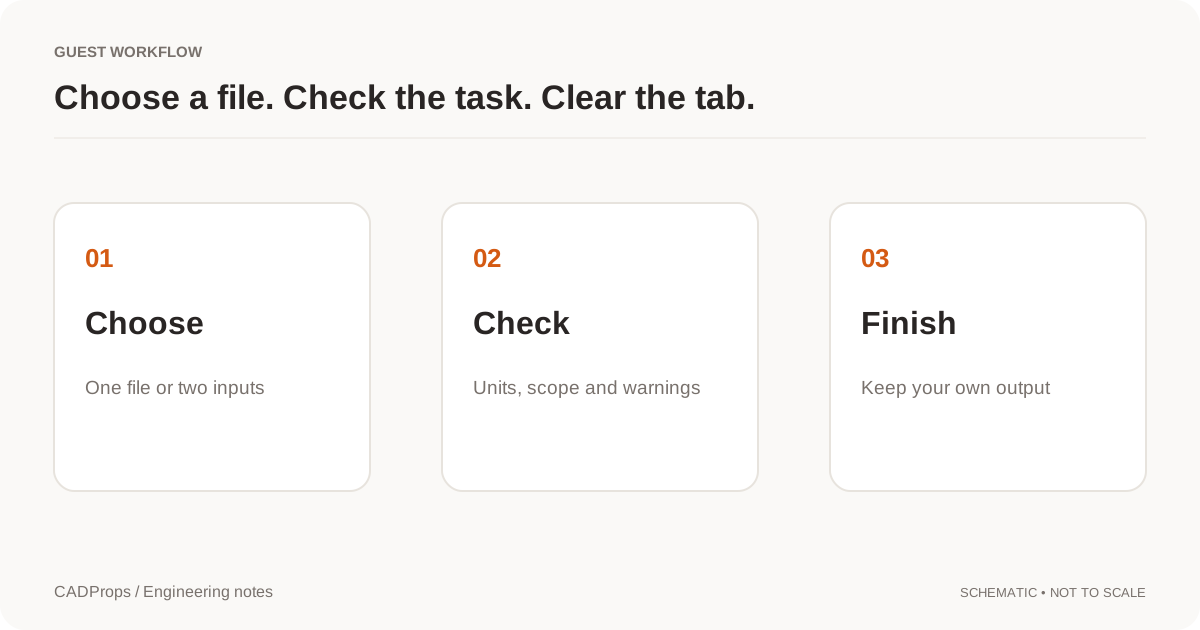
CADProps opens these files as a page you can look at in the browser. Choose Open file in the workspace and select the .plt; there is no plotter driver or CAD program to install.
What is inside a PLT file
HP-GL is plain text made of two-letter commands followed by numbers:
| Command | Meaning |
|---|---|
| IN | Initialise the plotter |
| SP2 | Select pen 2 |
| PU, PD | Pen up (move without drawing) and pen down (draw) to the listed points |
| PA, PR | Absolute or relative coordinates |
| CI, AA | Draw a circle, or an arc around a centre |
| LB | Write a text label |
| PW, LT | Pen width and line type |
Coordinates are in plotter units, 40 to the millimetre (0.025 mm each), unless the file sets its own scale. That is all a plot carries: pen moves, pens and labels. The layers, blocks, dimensions and real-world units of the original CAD drawing are gone, which is why a PLT is good for looking at a drawing and poor for editing it.
Open a PLT file in CADProps
- Choose Open file in the workspace and select the file. CADProps checks that the content really is HP-GL, so a renamed file of another kind is refused instead of drawn wrongly.
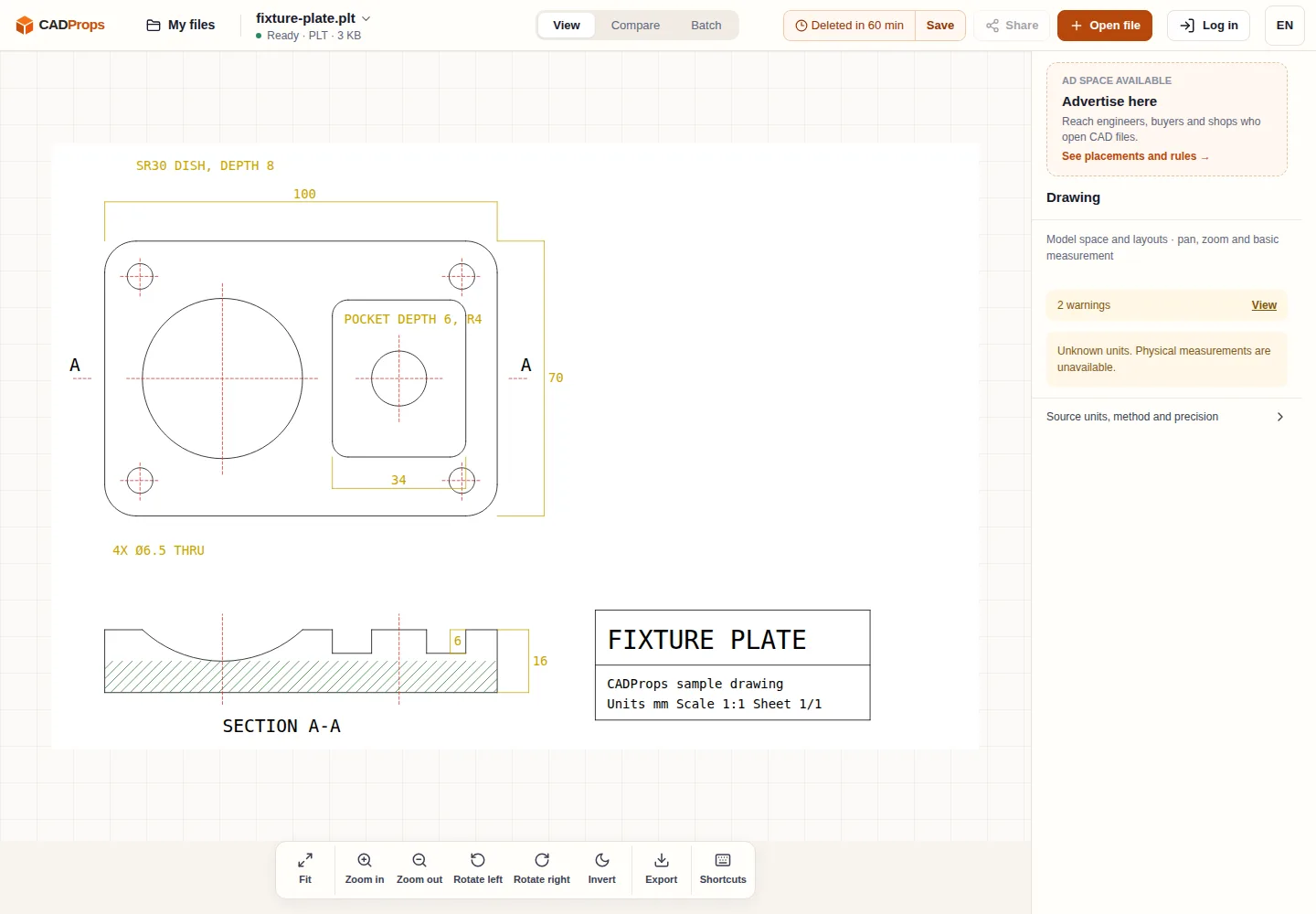
- The plot opens as a page. Pan, zoom, rotate it by 90°, or switch to a dark background with Invert.
- Read the warnings in the side panel. They say that the preview is simplified and name any plotter commands that were not drawn.
- To reuse the drawing elsewhere, choose Export and save the page as SVG.
To see how a plot compares with its source, download the fixture plate plot and the same sheet as a DXF drawing.
What the preview shows and simplifies
Lines, arcs, circles, rectangles, wedges, filled polygons and text labels are drawn, in the pen colours the file sets or the usual colours of an HP pen carousel. Printer job headers (PJL) and device escape codes that often wrap a plot sent to a large-format printer are skipped.
The preview is built to open quickly, so some details are approximated:
- Pen widths, line types and fonts are close to the plot but not exact.
- Very dense runs of tiny segments are merged where they could not be told apart on screen.
- Some plotter marks, such as symbol markers and some fill types, are not drawn. The warning names the commands that were left out.
Measuring from a plot
CADProps does not measure PLT files, and it reports the units as unknown. The file only knows plotter units, and the plot may have been scaled to fit the paper when it was made, so the distance between two pen positions does not reliably give the size of the part. Read the dimensions written on the drawing instead, or ask for the source drawing. A DWG or DXF opens in the DWG and DXF viewer, which measures in drawing units and can export PDF, SVG or DXF.
When a PLT file will not open
- It is not HP-GL. Some plotter drivers write PostScript, PCL or a raster format into a file still named
.plt, and some unrelated programs use the same extension. If CADProps says the content does not match, plot again with an HP-GL or HP-GL/2 driver, or ask for a PDF. - Nothing drawable was found. A file with only setup commands, or with all of its content in raster form, has no pen moves to show.
- The file is very large. A preview stops at two million drawing points.
The format compatibility matrix lists the other plot and vector formats CADProps previews, including CGM, EMF and WMF. Files are uploaded to CADProps for processing and kept for the retention period shown in the workspace.
Original article: CADProps · https://www.cadprops.com/guides/open-plt-hpgl-file-online/