

A G-code file is a plain-text program for a machine. Each line is a command such as G1 X40 Y12.5 F1800: move in a straight line to X 40, Y 12.5 at 1,800 mm per minute. 3D printer slicers (Cura, PrusaSlicer, OrcaSlicer, Bambu Studio, Simplify3D) write it from an STL or 3MF model, and CAM software (Fusion, Mastercam, FreeCAD Path, Estlcam and many others) writes it for mills, routers, lathes and lasers. The extension varies: .gcode and .gco are common for printers, while CNC programs are often saved as .nc, .ngc or .tap.
You can open one in the CADProps G-code viewer. Your browser reads the program and draws every move as a line, with a layer slider, colours by line type and the extents and path lengths of the job. The file is also uploaded so you can reopen or share it, but the drawing itself does not wait for the upload.
What the commands mean
Most of a file is made of a handful of commands:
| Command | Meaning |
|---|---|
| G0 | Rapid or travel move, not cutting or printing |
| G1 | Straight move at the feed rate; on a printer, with an E value it extrudes |
| G2, G3 | Clockwise and counter-clockwise arcs, given by a centre (I, J, K) or a radius (R) |
| G20, G21 | Coordinates in inches or millimetres |
| G90, G91 | Absolute or incremental coordinates |
| G92 | Set the current position to a new value, often used to reset the extruder |
| M3, M5 | Spindle on and off |
| M104, M109, M140 | Nozzle and bed temperatures |
| T1, M6 | Select and change tool |
Comments start with ; or sit in parentheses. Slicers use them for useful markers such as ;LAYER:12 and ;TYPE:Outer wall, which is how a viewer can colour walls, infill and supports differently.
A 3D printing file versus a CNC program
The two look alike but are read differently.
In a 3D printing file, the E axis is the filament. A G1 move whose E value grows lays down plastic; a move without new extrusion is travel. The model is built bottom-up, so layers are the natural way to inspect it: stepping through them shows where supports start, how infill is laid out and whether the first layer covers the bed as expected. The total net E movement tells you how much filament the job feeds, as a length.
In a CNC program, there is no extrusion. G0 rapids position the tool above the work and G1, G2 and G3 moves cut. Z steps down pass by pass, so stepping through Z levels shows the step-down and the order of operations. The lines are the centre of the tool, not the edge of the cut: a 6 mm end mill following a line removes 3 mm on each side of it.
CADProps decides which kind a file is from its content. A file with extrusion moves is treated as a print; anything else is treated as a CNC or laser program.
How to open a G-code file online
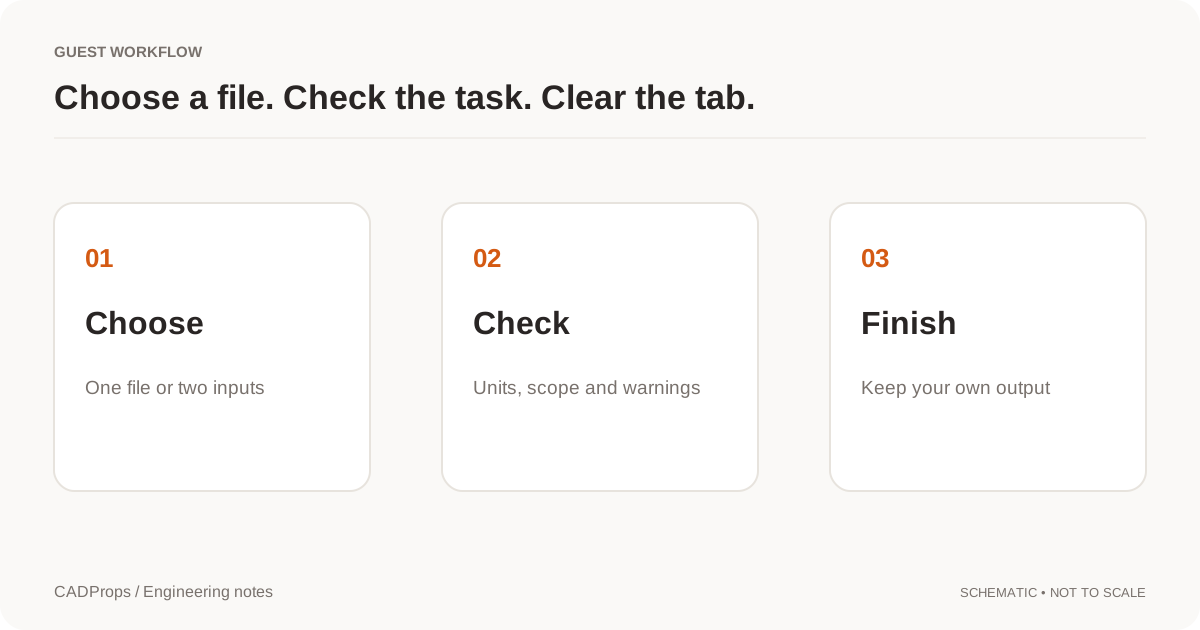
- Open the G-code viewer and select or drop the file.
- Drag the progress bar to move through the program; the layer or Z step follows it. The arrow buttons beside the bar step one whole layer at a time, and This layer only shows a single layer or Z step.
- Press play to watch the program run in file order.
- Use Line types to hide categories, and Travel or Rapids to show non-printing moves.
- Press Reference model and choose the model the program was made from: STEP, IGES, a native CAD part or a mesh such as STL or 3MF. It is placed against the toolpath and cut at the current layer as you play, so you can see whether the path matches the part.
- Check the extents and lengths in the details panel. The units come from G20 or G21; if the file has neither, millimetres are assumed and the panel says so.
Large files stay quick because nearly straight runs of short moves are merged before drawing. The numbers in the panel are still calculated from every move.
Why a G-code file might not draw correctly
- It is binary or resin output. Prusa
.bgcodeand resin printer slices (.ctb,.sl1and similar) are not text G-code. Export plain G-code from the slicer instead. - It relies on macros. LinuxCNC and Fanuc macro programs that compute positions with
#variables, expressions or subprogram calls cannot be drawn line by line. Those lines are skipped and a warning appears; the controller's own preview is the right tool for them. - It uses drilling cycles. G81 to G89 are drawn as a simple plunge and retract at each hole, without pecks or dwells.
- It uses work offsets. Moves under G54 to G59 are drawn in one coordinate system, so a program that machines several fixtures may show them overlapping.
- The scale looks wrong. A program without G20 or G21 is assumed to be in millimetres. If a part looks 25.4 times too small, the program was probably written in inches; see the scale factor guide.
What a preview cannot tell you
A G-code preview shows the path the program asks for. It does not simulate material removal, check the tool against clamps or machine limits, or know your printer's firmware settings. Treat it as a quick check that the right file was sliced or posted, and use your slicer, CAM software or machine controller for anything that decides whether the job is safe to run.
If you are preparing parts for a shop rather than running them yourself, send the model, not the G-code: shops program their own machines. The CNC quote checklist covers what to include, and the 3MF versus STL comparison explains which model file suits a print service.
Original article: CADProps · https://www.cadprops.com/guides/open-gcode-file-online/