

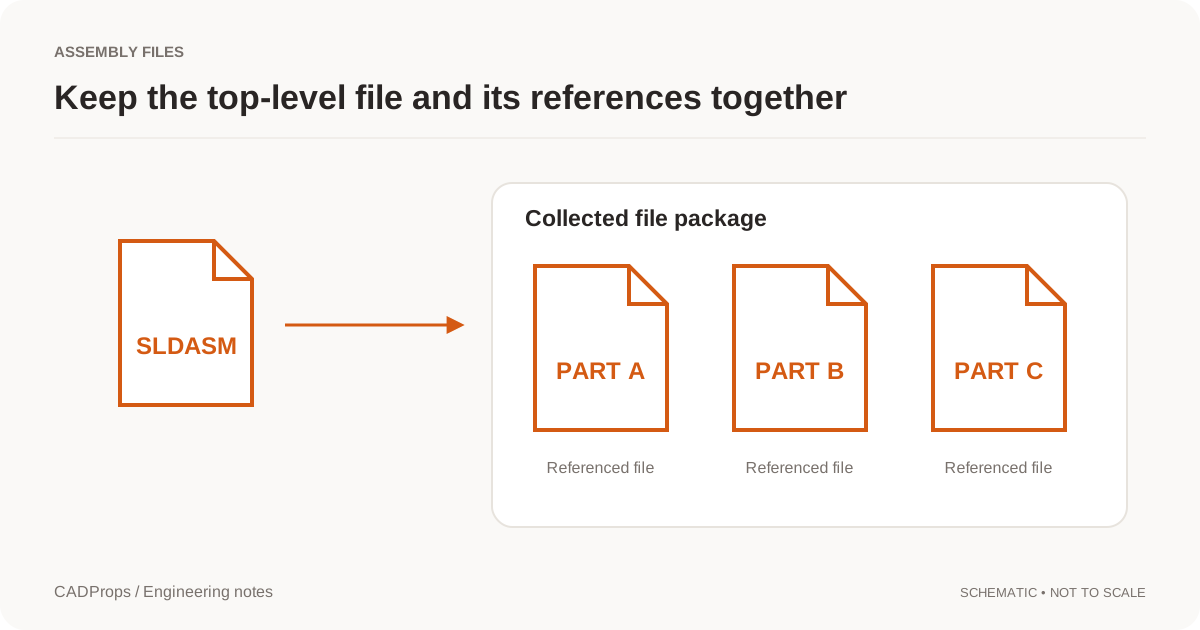
An IAM file is an Autodesk Inventor assembly document. It can reference IPT parts and nested IAM subassemblies, so the top-level file alone may not contain everything required for a complete assembly view.
Use the Inventor viewer after collecting the assembly and its dependencies into one ZIP package with relative paths preserved.
IAM is an assembly, not a self-contained part
A standalone IPT is usually much simpler to hand off than an IAM assembly.
The IAM stores assembly organization and relationships, while component geometry may live in separate files.
If you received only an IAM and the viewer reports missing components, the assembly may be valid but incomplete.
Ask the sender for the referenced IPT and IAM files from the same released project/configuration.
Prepare the assembly package
Before uploading:
- identify the intended top-level IAM;
- collect all referenced IPT files;
- include nested IAM files;
- preserve relative folder structure;
- keep files from one known revision.
Avoid flattening directories when references or duplicate filenames may depend on the original structure.
ZIP the package and upload the archive rather than an isolated root assembly.
Inspect completeness before measuring
After processing, check the component tree and warnings first.
A good sequence is:
- confirm the assembly root;
- review missing-reference warnings;
- compare expected component count if known;
- inspect the overall model;
- verify units;
- compare one known dimension;
- only then use volume, area or mass.
A partial assembly can still look convincing.
Why missing parts matter
Missing components can affect:
- assembly dimensions;
- surface area;
- solid volume;
- density-based mass;
- supplier review;
- downstream STEP conversion.
A plausible bounding box does not prove that every component loaded. Internal parts can be missing without changing the outer envelope much.
Use the IAM missing-parts guide when the package is incomplete.
Verify scale and configuration
Confirm one known dimension from the drawing or source system.
If the visible model is at the wrong scale, resolve the source/import unit interpretation before calculating properties or converting the assembly.
Also record which configuration or design state the package is intended to represent. A neutral browser view cannot infer release status from geometry alone.
Convert IAM to STEP for cross-CAD use
When the recipient does not use Inventor, STEP is often a useful neutral handoff.
Use the Inventor to STEP converter only after assembly completeness is understood.
The export is a mesh STEP of the loaded components, not exact surfaces. When the recipient needs solid geometry, ask for a STEP export from Inventor.
Then verify:
- overall dimensions;
- component/body scope;
- placements;
- critical holes or interfaces;
- receiving-system import.
A STEP file produced from a partial IAM package is still partial.
What STEP will not preserve
STEP does not recreate Inventor sketches, constraints, parameters or feature history as native editable Inventor data.
Keep the original IAM/IPT package when future design editing or traceability matters.
Treat the STEP as a derivative tied to the source revision.
What if the IAM will not open?
Check:
- source really is Autodesk Inventor IAM;
- save version is supported;
- referenced files are present;
- folder structure is preserved;
- intended assembly root is clear;
- upload package is complete.
If neutral geometry is sufficient, a fresh STEP export from Inventor can be the quickest workaround.
A practical no-Inventor assembly workflow
- Collect the IAM and dependencies.
- Preserve relative folders in ZIP.
- Open the package.
- Resolve missing-component warnings.
- Verify units and one known dimension.
- Use properties only after scope is clear.
- Convert to STEP if required.
- Verify the derivative in the destination workflow.
The key question is not whether an assembly renders. It is whether the visible geometry is the complete intended product structure.
Check repeated and internal components deliberately
Do not rely only on the outer housing. Select an internal part and a repeated component in the tree and check their placement against the expected assembly. A missing internal part can leave the envelope unchanged while changing any total property.
Keep unique part definitions, occurrence count and order quantity separate. Two placements of one IPT are two occurrences in the product; they are not automatically two distinct part numbers or the number of units being purchased. Use the released BOM for procurement semantics.
If the loaded representation is a converted mesh, label its available properties as approximate. The preview may be useful for checking placements while not providing analytic face/edge measurement. Reopen a separately generated STEP before treating the result as a precise neutral solid handoff.
When the native route fails, request a complete source-system STEP exported from the named assembly state. Preserve a short record of the failure and the replacement export. The absence of an IAM warning in the new file does not alone prove that the STEP contains every intended occurrence.
Original article: CADProps · https://www.cadprops.com/guides/open-iam-without-inventor/