

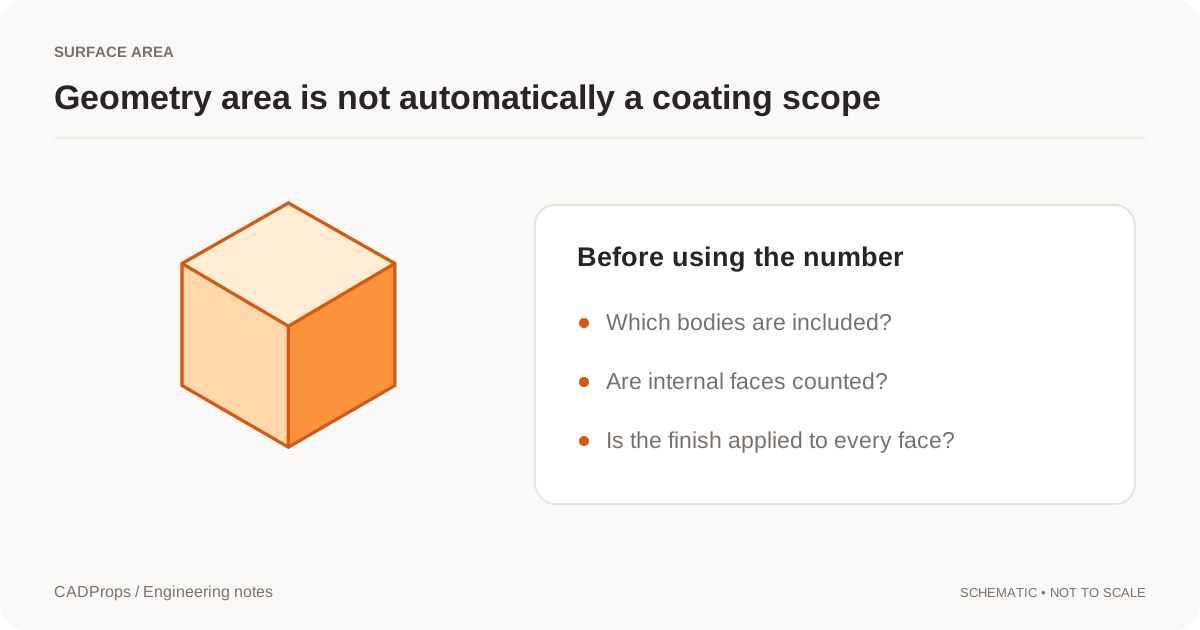
A STEP file can provide the geometric surface area of its represented faces. That number is useful for engineering reports, comparison work and as an input to some manufacturing estimates.
But total CAD surface area is not automatically the same as paintable, plated, blasted or otherwise processable area.
Use the STEP surface-area calculator for the geometry result, then define which faces and bodies that result actually represents.
What STEP surface area means
A CAD surface-area calculation adds the areas of the selected B-Rep faces.
For a simple rectangular block measuring 20 x 30 x 40 mm, the outside surface area is:
2 x (20x30 + 20x40 + 30x40) = 5,200 mm2
Real parts add complexity.
Holes contribute wall area. Pockets add floors and side walls. Internal cavities have surfaces. Multi-body models and assemblies add the areas of their included geometry.
The number is only meaningful when the scope is clear.
Surface area can exist when volume does not
An open shell can have perfectly measurable faces even though it does not define an enclosed solid volume.
That means this combination is possible:
- surface area: available,
- solid volume: unavailable.
That is not automatically a contradiction.
It often tells you that the reader has usable surface geometry but not a closed solid suitable for volume integration.
See STEP volume zero for the closure checks.
Use CAD faces rather than the display mesh when possible
A 3D viewer usually tessellates curved CAD surfaces into triangles for rendering.
The display mesh and the underlying CAD geometry are different representations.
When a STEP B-Rep is available, surface area should come from the CAD geometry path rather than from how finely the model happens to be tessellated for display.
Open CASCADE's BRepGProp tools provide surface-property calculations for B-Rep geometry. BRepGProp documentation.
If an area comes from a mesh, label it as an approximation instead of presenting it as the original CAD-surface result.
Verify area units separately from length units
Area conversions use squared factors.
Useful examples:
| From | To | Conversion |
|---|---|---|
| mm2 | cm2 | divide by 100 |
| cm2 | mm2 | multiply by 100 |
| mm2 | m2 | divide by 1,000,000 |
A 10x change in linear scale creates a 100x change in area.
A 25.4x inch/mm length error creates a much larger area error because the factor is squared.
Always verify a known linear dimension before relying on a derived area.
Define which faces count
For engineering geometry, you may want every face in the selected body.
For manufacturing, the relevant area may be different.
A coating process might exclude:
- mating faces,
- masked faces,
- inaccessible internal cavities,
- threaded regions,
- faces covered by another component.
A plating process may include internal surfaces that another finishing process excludes.
Do not ask a geometry kernel to infer manufacturing process intent.
Keep the raw geometric area separate from the process rule that modifies it.
Assemblies create another scope decision
For assemblies, decide whether you need:
- the sum of all component-instance areas,
- unique-part area by part number,
- area of selected components,
- exposed outside area of the assembled object.
These are not the same calculation.
Two touching components can each have full face area even though their mating faces are not exposed in the assembled product.
State the interpretation before using the number for cost or material estimates.
Hidden display state is not necessarily calculation scope
Hiding a component in the viewer usually changes the display. It should not silently redefine an engineering property total unless the tool explicitly says visibility controls the measurement scope.
Use selected body or component scope where available, and record that selection with the result.
Surface area is not volume or weight
Surface area measures faces.
Volume measures enclosed space.
Weight or mass requires valid volume plus material density.
Two parts can have similar volume but very different surface area because of fins, holes, ribs or deep pockets.
Choose the property that matches the question rather than using whichever number is easiest to obtain.
The STEP volume guide covers enclosed volume.
A practical STEP surface-area workflow
- Open the STEP file and confirm the expected model.
- Verify one known dimension and units.
- Select the intended body, part or assembly scope.
- Calculate surface area from the CAD geometry.
- Record whether internal faces and repeated instances are included.
- Keep process-specific exclusions separate.
- Save units, revision and warnings with the result.
A surface-area number becomes useful when another person can tell exactly which geometry it describes.
Build a finishing-area estimate from an explicit scope
Suppose a finishing supplier needs only exposed external faces, with two mating interfaces masked. The complete CAD area is a starting geometric quantity. A process estimate must identify the included faces and subtract or exclude the agreed masked regions using an appropriate engineering workflow.
CADProps does not automatically infer paint, plating, masking or accessibility rules from the model. Do not describe the total property as “coating area” without that separate scope decision. Hiding a part for a screenshot also does not, by itself, document what a quoted process includes.
Use the 600 mm² open-surface example to check the distinction between area and volume. Its face area is meaningful although no solid volume is available. Adding thickness for a mass estimate creates a different assumption, while the original face area remains the measured surface quantity.
When reporting square centimetres, divide mm² by 100; when reporting square metres, divide by 1,000,000. Keep the raw geometric result and process-adjusted estimate in separate columns, with the rule and unit visible in each.
Original article: CADProps · https://www.cadprops.com/guides/surface-area-from-cad-file/