

A STEP file can contain enough geometry to calculate the physical volume of a part. The important condition is that the selected geometry must define a usable closed solid.
A model can look solid on screen while still containing open shells or disconnected surfaces. Rendering and volume calculation have different requirements.
Use the STEP volume calculator for the number, and use the checks below to decide whether that number is meaningful.
What STEP volume measures
Solid volume is the enclosed three-dimensional space represented by the selected CAD solid or solids.
It is not the same as the volume of the model's bounding box.
Suppose a model fits inside a 100 x 60 x 20 mm box. The box volume is 120,000 mm3. A bracket inside that box may contain holes, pockets and large empty regions, so its actual solid volume can be much smaller.
For material and mass work, use the geometry-based solid result rather than the envelope.
Confirm the selected geometry is a valid solid
Before trusting volume, inspect the model state.
Useful questions are:
- Did the expected bodies load?
- Are they solids, shells or surfaces?
- Is the assembly complete?
- Are there geometry warnings?
- Is the property tool measuring the intended body or the entire loaded model?
Open CASCADE's BRepGProp documentation notes that volume-property routines rely on geometric preconditions such as suitable closed boundaries and consistent orientation. BRepGProp documentation.
If the prerequisites are not met, the right result may be unavailable rather than zero.
Verify units before converting the result
Volume units are cubic, so unit errors become large very quickly.
Useful conversions include:
| From | To | Factor |
|---|---|---|
| mm3 | cm3 | divide by 1,000 |
| cm3 | mm3 | multiply by 1,000 |
| mm3 | m3 | divide by 1,000,000,000 |
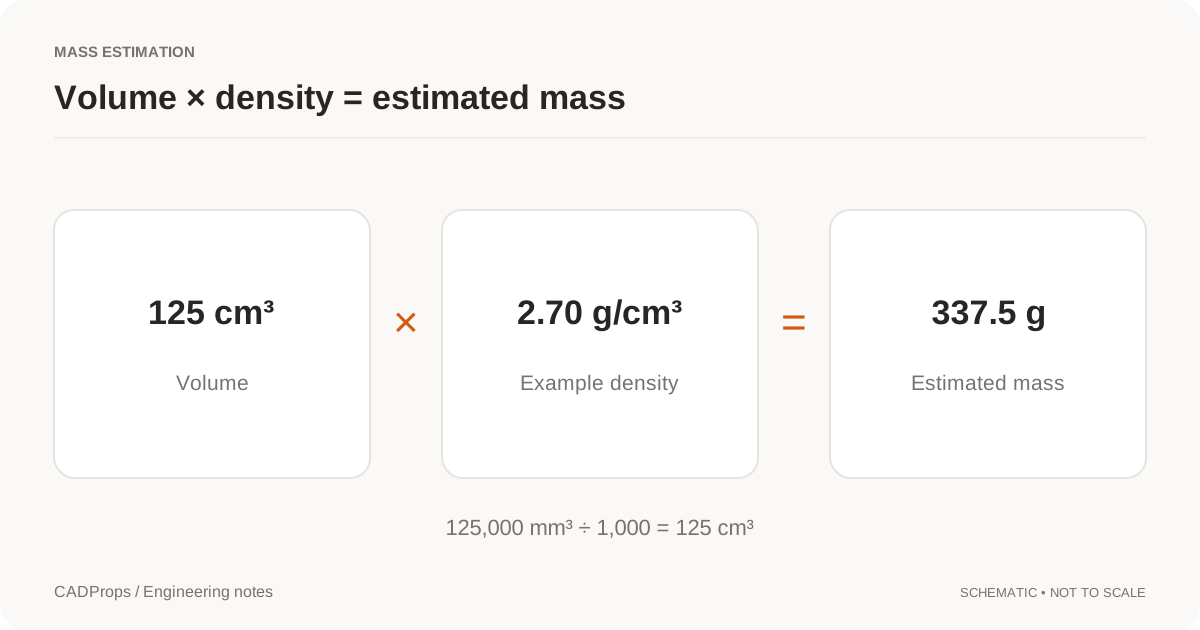
For example, 125,000 mm3 equals 125 cm3.
Do not apply a linear conversion factor directly to volume. A length factor is cubed when converting cubic units.
Before using volume, verify one known linear dimension in the model.
Decide whether you need one body or the whole model
A STEP file can contain one solid, multiple bodies or an assembly.
The correct scope depends on the task.
For a multi-body part, decide whether every solid represents material that belongs in the total.
For an assembly, repeated component instances normally contribute repeatedly to ordinary property totals. Missing components make the total incomplete.
Keep that scope beside the result.
A useful record might say:
Housing assembly; 12 resolved instances; volume 846,320 mm3; no missing components reported.
That is much more useful than an isolated number.
Do not substitute bounding-box volume
Multiplying X x Y x Z gives the volume of the axis-aligned envelope, not the material in the part.
Bounding-box volume can be useful for packaging, rough stock discussions or sanity checks. It should not silently replace a failed solid-volume calculation.
If the solid result is unavailable, report the reason.
Why can volume be zero or missing?
Common causes include:
- open shells,
- separate unclosed surfaces,
- invalid topology,
- wrong selected scope,
- missing assembly components,
- unsupported representation,
- geometry-processing failure.
The STEP volume zero guide walks through these cases.
Do not turn every failure into the numeric value zero. Zero and unavailable mean different things.
Use volume to calculate mass only after geometry is trusted
For a homogeneous material:
mass = volume x density
The units must be compatible.
For example, if the volume is 125 cm3 and the assumed density is 2.70 g/cm3, the estimated mass is 337.5 g.
The calculation is straightforward. The engineering assumptions are not.
The density should come from the intended material specification or another appropriate source. A color or filename is not enough to certify material.
Use the STEP weight guide for a fuller mass workflow.
Assembly overlap and physical union are different questions
Ordinary assembly property totals can sum the volume of component instances.
If two solids overlap geometrically, summing their independent volumes can count the overlap twice. That is different from calculating the volume of a Boolean union.
Know which interpretation your process needs.
For standard assembly review, per-component totals may be appropriate. For a fused physical shape, a separate union calculation is a different operation.
Sanity-check the result
Compare volume with the rough physical size.
A small machined bracket should not have the volume of a room. A large housing should not have the volume of a grain of sand.
This does not replace geometry validation, but it catches unit and selection errors quickly.
Record enough information to reproduce the calculation
Save:
- filename or revision,
- selected body or assembly scope,
- units,
- volume value,
- geometry status,
- warnings,
- calculation method.
When comparing revisions, use the same scope and units on both models.
A practical STEP volume workflow
- Open the STEP file.
- Confirm expected bodies and assembly completeness.
- Verify one known dimension.
- Check whether the intended geometry is a valid solid.
- Calculate volume from the CAD geometry.
- Keep unavailable separate from zero.
- Apply density only after the volume is trusted.
- Save the result with its scope and units.
That is the difference between getting a number and getting a volume result that another engineer can actually use.
Reproduce three useful volume outcomes
Use permitted samples before interpreting an unfamiliar assembly. The public block has 40 × 30 × 20 mm extents and 24,000 mm³ of solid volume. Its envelope happens to equal its material volume because the block fills that box.
The repeated-instance case contains two 6,000 mm³ blocks and reports 12,000 mm³ total. Its envelope product is 30,000 mm³ because there is empty space between the occurrences. This demonstrates why envelope multiplication does not generalize from a single block to an assembly.
The open-surface case has 600 mm² of area and unavailable volume. No density input can turn that face into a valid solid calculation.
Reopen each properties CSV and compare its status and units before combining rows. A spreadsheet total containing unresolved blanks is a total of available results, not proof that every requested part was measured. Keep an exceptions count beside any batch volume sum.
Original article: CADProps · https://www.cadprops.com/guides/calculate-step-volume/