

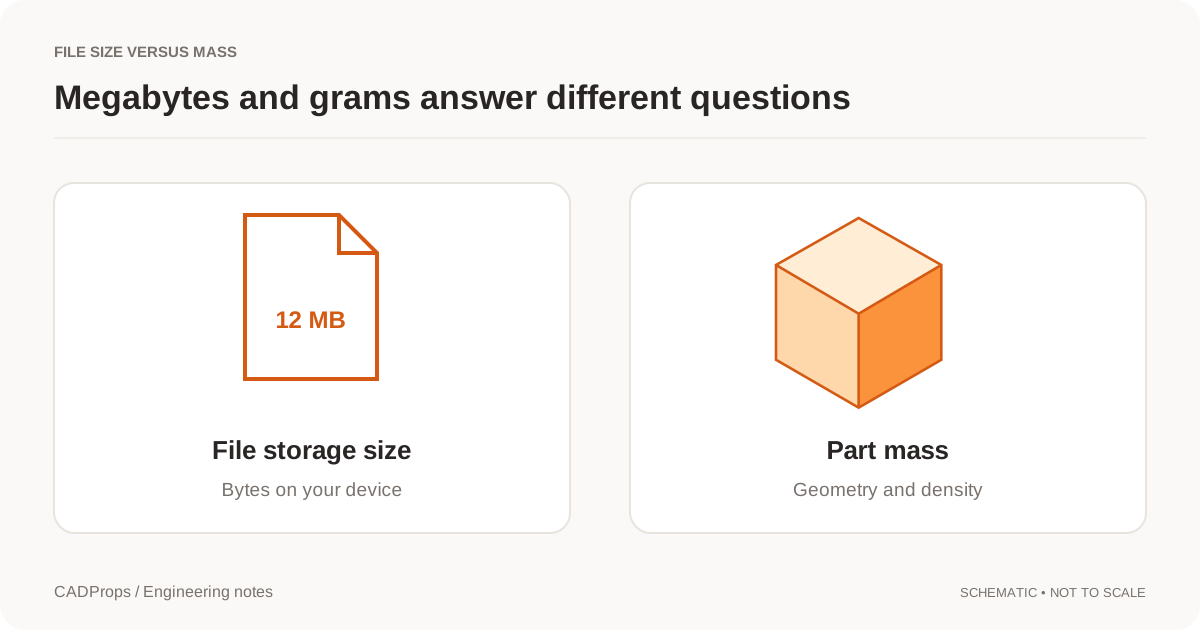
A 40 MB model is not necessarily heavier than a 400 KB model. The file size measures how much data is stored. The part's mass depends on its physical volume and material density. They describe different things, even when someone calls both of them “weight.”
That distinction matters when a request says, “Can you reduce the weight of this STEP?” Ask whether the person means email attachment size, browser performance, shipping mass or the physical design. Each problem needs a different action.
Why file size can change without changing the part
A CAD file can contain geometry, assembly organization, attributes and display information. Reader documentation treats these as different data categories. A file with detailed display data may be larger than another representation of the same shape. STEP data categories in a translator guide.
Export settings, repeated component representation and stored presentation data can all affect a package. A compressed archive can reduce transfer size without changing the model inside it. None of those changes inherently remove material from the manufactured part.
The reverse also happens. A simple block can have few geometric entities but a large physical volume. A finely detailed small part can require much more descriptive data while containing far less material.
The calculation you actually need
For a homogeneous solid, use mass = volume × density. Keep the units compatible before multiplying.
Consider an illustrative part with a volume of 125 cm³ and an assumed density of 2.70 g/cm³. Its estimated mass is 337.5 g. Here the density is an input to the example, not a certified property of an unspecified alloy.
| Input | Example value | What it means |
|---|---|---|
| File size | 8.2 MB | Storage or transfer size |
| Solid volume | 125 cm³ | Geometric volume of the selected solid |
| Assumed density | 2.70 g/cm³ | User-supplied material input |
| Estimated mass | 337.5 g | Volume multiplied by density |
Renaming or zipping the file does not change the 337.5 g estimate. Changing the material input does, even if every geometric face stays the same.
File metadata and calculated mass are not interchangeable
A saved mass field is a statement stored with a document. A newly computed value depends on the geometry and density used for that calculation. Keep the two sources separate when checking an imported model.
If a saved value differs from a new estimate, investigate the configuration, body selection, material assumptions and calculation method. Do not automatically replace one with the other. One may describe a different scope or use an explicit override.
For an assembly, apply the appropriate density to each component or material region and account for the instances included. Multiplying one density by an entire mixed-material assembly is only a rough scenario, not a defensible bill of mass.
Watch for invalid volume before choosing a material
A viewer can display an open shell without there being a valid closed solid for volume calculation. A density dropdown does not fix that problem. The geometry calculation must establish its prerequisites first.
Open CASCADE warns that volume routines rely on conditions such as closure and consistent orientation and do not automatically verify every precondition. Geometry-property documentation. If the tool reports an invalid solid, resolve that before trusting the mass estimate.
Ask the right follow-up question
For a large attachment, ask about file-size limits, compression and what the recipient needs to receive. For a slow browser preview, ask about display complexity and whether a lighter derivative is enough. For a heavy physical component, discuss geometry or material changes with the responsible engineer.
Those discussions should not be combined into a single “compress” button. Reducing the display mesh may help viewing but is not a structural redesign. Removing holes can simplify a model yet add material if it changes the solid.
Use the weight calculator layout when the question is about mass, and the file-size guide when the problem is transfer or storage. Start by naming the quantity; the rest of the workflow becomes much clearer.
Reproduce a mass calculation without using megabytes
The public block has an analytic volume of 24,000 mm³, or 24 cm³. Using a declared illustrative density of 2.70 g/cm³ gives 64.8 g. The density is an assumption for this calculation, not evidence of the sample's material.
Download a properties CSV, check the volume unit and compare the arithmetic. Now imagine placing the unchanged STEP in a ZIP: transport bytes may change, but the geometric volume and density input stay the same. There is no physical mass reduction to infer from the compressed file size.
| Intended improvement | Variable that must change |
|---|---|
| Smaller attachment | Encoding, packaging or approved data scope |
| Lighter manufactured part | Material volume, material density or both |
| Lighter parcel | Part mass plus packaging and other contents |
If a volume is unavailable, stop before assigning mass. Replacing it with zero would make the spreadsheet appear to contain a lightweight part when it actually contains an unresolved calculation. Keep file size, solid volume, density and estimated mass in separately named columns.
Original article: CADProps · https://www.cadprops.com/guides/cad-file-size-vs-part-weight/