
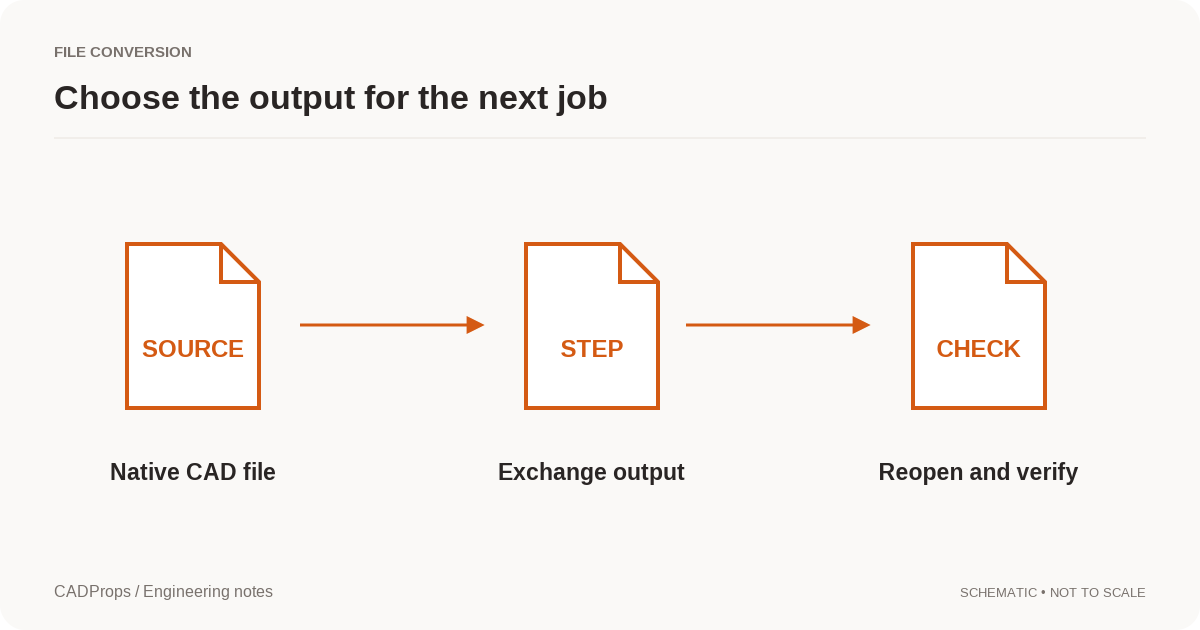
Sending native SolidWorks .sldprt or .sldasm files to a CNC machine shop, injection molder or partner using Siemens NX, CATIA, Inventor or Fusion often stalls at the very first step: incompatible native versions or missing assembly children. Converting SolidWorks files cleanly to neutral STEP (AP214 / AP242) resolves the CAD vendor lock-in—without requiring a local SolidWorks workstation or eDrawings Pro license.
When you use SolidWorks to STEP, CADProps reads the Parasolid B-Rep stream embedded inside SolidWorks parts directly inside an isolated server worker, checks solid closure and bounds against the saved display geometry, and exports either STEP (Solid) (exact/solid or qualified open surface) or honest STEP (Mesh) when only display tessellation is usable.
Single .sldprt part vs .sldasm assembly conversion rules
SolidWorks separates individual part geometry from multi-part assembly structure, and preparing the wrong input archive is the #1 reason assemblies fail to convert cleanly:
- Single
.sldprtfiles: Upload the.sldprtfile directly. Single part files embed their active configuration's Parasolid transmit B-Rep body alongside a saved display cache, so no sibling files are needed unless the part relies on external derived/split-body file links. - Assembly
.sldasmfiles (ZIP packaging required): An.sldasmfile stores component transforms, mates and instance references pointing to external.sldprtand nested sub-assembly.sldasmfiles rather than embedding every solid inside one monolithic blob. To convert an entire assembly cleanly, zip the top-level.sldasmtogether with every referenced.sldprtand nested.sldasm, preserving their original relative folder layout. - Never flatten directory trees blindly: If two sub-assemblies reuse generic filenames in separate folders, flattening folders inside a ZIP causes component collisions or broken references.
Step-by-step: convert SolidWorks to STEP online without SolidWorks
- Open SolidWorks to STEP Converter (or inspect first in SolidWorks Viewer): Drop your single
.sldprtor zipped.sldasmpackage into the upload box (up to 95 MiB per uploaded file; expanded ZIP cap is 200 MiB / 50 entries). - Wait for preview and check completeness notices: Confirm all parts loaded, check detected source units (
mm,inorcm), and note whether CADProps verified B-Rep solids (exact/solid) or only a display mesh fallback. - Inspect missing-reference or surface warnings before exporting: If
.sldasmwarns of missing components, compare the missing list against your local folder and re-zip with the omitted.sldprtparts before spending conversion points. - Select
STEP (Solid)in Convert (Sign inrequired): Signed-in accounts selectSTEP (Solid)(listed first whenever eligible) orSTEP (Mesh)/STL/OBJ/3MF/GLBas needed and download the validated.stpoutput. - Reopen and cross-check the converted STEP: Open the exported
.stpin STEP Viewer to verify exactX × Y × Zbounds, closed-solid count, volume and mass—and compare against a previous engineering revision cleanly with Compare CAD Files.
How CADProps decides between STEP (Solid) and STEP (Mesh)
CADProps refuses to masquerade triangulated display approximations as precision CNC solids. Every SolidWorks conversion goes through geometric verification:
- Certified
STEP (Solid)(stp): Issued when the embedded Parasolid B-Rep rebuilds cleanly into valid closed solids (BRepCheck_Analyzerclean, independent OCCT readback verified within strict area/volume tolerances against saved display references). Qualified open exact surfaces (exact/surface) and partial solid assemblies (listing omitted open/broken bodies inmissing_components) are flagged transparently. - Honest
STEP (Mesh)(stp-mesh): When a file contains only display tessellation or bodies that fail B-Rep closure certification, CADProps does not silently pass a broken B-Rep. Instead, use STEP (Mesh) (which fits editable reconstructed mesh surfaces where safe or falls back to faceted STEP, classified explicitly as mesh output) or export cleanSTL/3MF/GLB.
Decision table: choosing STEP, IGES or mesh exports from SolidWorks
| Output Format | Best Engineering Use Case | Solid Volume & Precision | Assembly Hierarchy | Practical Limitation |
|---|---|---|---|---|
STEP (Solid) (AP214/AP242) |
CNC milling/turning, mold tooling, cross-CAD engineering exchange | Exact B-Rep closed solids & analytic holes/fillets | Preserved across multi-part .sldasm ZIPs |
Feature history, sketches and mates are not editable |
STEP (Mesh) (stp-mesh) |
Visual CAD placeholders from display-only .sldprt/.sldasm |
Approximate mesh facets / fitted patches | Preserved across loaded components | Not suitable for precision CAM toolpaths or tight bores |
IGES (.igs) |
Legacy surface-oriented tooling or older CAM systems | Open exact surfaces / B-Rep | Flattened / grouped | Prefer STEP (Solid) for watertight solid handoff |
STL / 3MF |
3D printing (FDM, SLA, SLS) & visual meshing |
Approximate watertight mesh | Single mesh / grouped solids | No analytic cylinder/plane CAD features |
GLB / glTF |
Lightweight browser visualization & web portals | Visual triangle mesh | Scene node tree | Visualization only |
Troubleshooting common SolidWorks-to-STEP conversion errors
- "The assembly requires sibling files" or missing parts in
.sldasm: Only the root.sldasmwas uploaded, or child.sldprtfiles live in subfolder paths omitted from the ZIP. Use SolidWorks Pack and Go (or zip the root assembly folder keeping relative subfolder paths intact) and check SLDASM Missing Parts. step_requires_closed_solidor partial solid warnings: A imported loft, thin cosmetic skin or zero-thickness sheet body in the.sldprtis an unclosed surface rather than a manifold solid. Check whethermissing_componentsflags a secondary cosmetic body while primary machined solids still export cleanly—or repair open gaps inside SolidWorks Check before re-exporting.- Exported STEP appears 25.4× or 1,000× the wrong size: Verify whether the active SolidWorks document modeled geometry in inches (
IPS) vs millimetres (MMGS). Always compare one known hole diameter or overall plate length inside STEP Viewer immediately after downloading. - Only the active saved SolidWorks configuration converts: A
.sldprtwith five family configurations stores cached geometry primarily for the active configuration saved when exporting. Switch to the target configuration and save cleanly in SolidWorks before converting. - Confusing
.slddrwdrawings with 3D parts: An.slddrwfile is a 2D drawing sheet containing at most an embedded preview thumbnail—it cannot export 3DSTEPorSTL. See SLDDRW Viewer Online and ask for.sldprtor.step.
Preparing a SolidWorks Pack and Go ZIP archive cleanly
- Include every referenced sub-part and Toolbox component: Inside SolidWorks choose File → Pack and Go (or copy the project folder), check Include Toolbox components if custom fasteners matter for clearance, and zip the folder preserving subdirectories.
- Watch the archive envelope limits: CADProps unpacks bounded ZIP packages up to 50 entries and 200 MiB expanded (
95 MiBupload cap). Omit non-CAD build logs, simulation databases or oversized render textures before zipping. - Avoid nested ZIP files or symlink entries: Keep
.sldasmand.sldprtfiles directly inside the single top-level ZIP archive for reliable path resolution.
Comparing converted STEP revisions before release
Whenever you replace an old vendor .sldprt export with a new STEP revision—or verify that converting native SolidWorks to STEP did not alter external envelopes—run both files through Compare CAD Files:
- Side-by-side & overlay modes let engineers spot shifted bosses, missing fillets or mismatched axis origins at a glance.
- Exact STEP Red/Blue Solid Diff highlights added and removed material volumes directly in 3D space between Revision A and Revision B.
Frequently asked questions about converting SolidWorks to STEP
- Do I lose my SolidWorks feature tree or mates when converting to STEP? Yes—by definition
STEP AP214/AP242exchanges evaluated boundary representation (B-Rep) solids, assembly placements and names, never parametric sketches, Design Tables or mate constraints. Keep the native.sldprt/.sldasmwhenever future parametric edits are needed. - Which SolidWorks versions can CADProps convert to STEP? Modern SolidWorks files built on Parasolid transmit streams convert cleanly in-house when valid closed B-Rep bodies and verified units are embedded in the file. Very old releases or Save without preview/display data variants can have stricter limits.
- Can I batch-convert 20 SolidWorks files to STEP in one click? No—Batch CAD Processing unlocks multi-file measurement summaries and CSV export for paid members, whereas format conversion runs per uploaded part or assembly ZIP inside Convert.
- Why does
STEP (Solid)show first in Convert whileSTEP (Mesh)sits below it? CADProps prioritizes exact B-RepSTEP (Solid)whenever your file qualifies mathematically, reservingSTEP (Mesh)for models that lack rebuildable closed B-Rep solids. - How long are uploaded SolidWorks files and exported STEPs kept? Guest files expire automatically after the workspace timer; signed-in accounts retain saved inputs and derived exports inside their account library under Privacy policy.
Original article: CADProps · https://www.cadprops.com/guides/how-to-convert-sldprt-sldasm-to-step/