

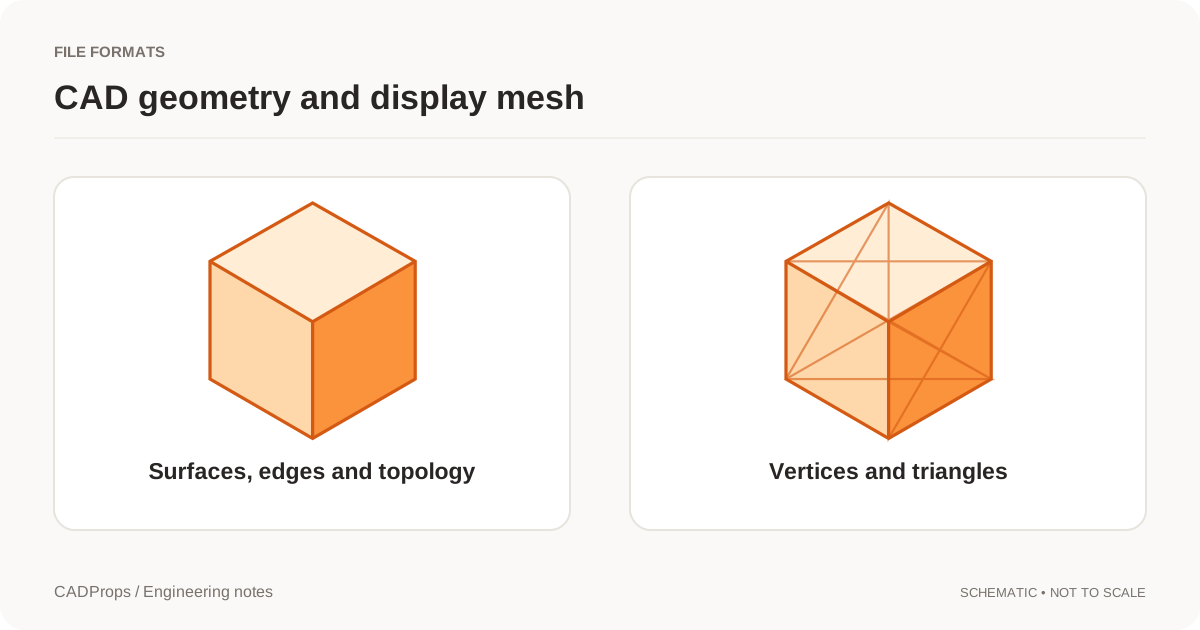
You import a STEP file and see a solid body, but not the original sequence of sketches, extrusions and patterns. That is not, by itself, evidence that the conversion failed. A geometric exchange and an editable native design document serve different purposes.
Separate the shape from the recipe
A native modeling document can carry the operations and relationships used to build the design. An exchange file can describe the resulting geometry and other supported product data without reproducing that same editable construction history. The CAD Exchanger SolidWorks-to-STEP notes distinguish native design information from neutral-format exchange capabilities.
This does not mean every STEP file is only one anonymous lump. STEP can carry assemblies, names, attributes and product manufacturing information depending on the protocol, export and reader. NIST's STEP analyzer description is a useful reference for the range of information the format can represent. Inspect the actual deliverable instead of assuming that all information either survives or disappears.
A model tree is not necessarily a feature tree
A viewer might show components, bodies, faces or scene nodes. None of those automatically represents the original sketches, constraints and parametric operations. A tree labelled “Body 1” can be honest and useful. A fabricated list of extrusions and fillets is not.
Likewise, a tool may identify geometric candidates such as holes or blends. Recognition can support a downstream task, but it does not prove that the original author created the feature in that way, with the same references or design intent.
| What you see | What it may represent |
|---|---|
| Assembly tree | Components and instances |
| Body list | Loaded geometric bodies |
| Faces and edges | Geometric or topological entities |
| Native feature history | Source operations, if actually supplied and supported |
| Recognized features | New inferences from geometry, not necessarily the original history |
Decide what the receiver needs
For downstream machining preparation or geometry review, an agreed STEP exchange can be suitable if it carries the required geometry and other information. For parametric editing, ask whether the recipient needs the native document, its dependencies and a compatible application version. An online viewer is not automatically a native CAD editor.
If the task is only browser presentation, a mesh deliverable may be appropriate; it should not be represented as a replacement for editable source geometry. Keep the original source with the exported deliverables and record what each file is for.
| Receiver's task | Useful deliverable | What it cannot establish alone |
|---|---|---|
| Inspect or quote the current shape | STEP plus the controlling drawing or requirements | The original modeling operations or all manufacturing requirements |
| Change a sketch dimension or feature relationship | Native source, matching application version and dependencies | A STEP body does not restore the author's parametric history |
| Show the model in a lightweight browser preview | A clearly labelled visualization derivative | Mesh appearance is not proof of precise CAD geometry |
Ask the sender for the native source only when the next task actually needs native editing. If the receiver needs a neutral solid instead, specify the expected configuration, bodies, units and revision so that a geometrically valid but wrong export is still caught.
Check conversion quality without demanding the wrong thing
Confirm units, component scope, orientation, geometry availability and the information explicitly requested in the handoff. Reopen the exported file in the receiving workflow. When appropriate, compare dimensions or mass properties as partial checks, while recognizing that matching totals do not prove complete geometric equivalence.
A missing feature history and a missing body are different issues. The former may be expected for the chosen exchange. The latter can indicate an incorrect configuration, suppressed component, unresolved dependency or a failed translation.
For a concrete check, suppose the source assembly has a housing and four fasteners, but the imported STEP shows only the housing. A matching outer bounding box would not resolve the missing-fastener question. Compare the expected and imported component scope, then inspect the fasteners or request a new export from the intended configuration. Conversely, if all expected bodies and critical geometry are present but sketches are absent, report the normal exchange limitation rather than calling the file incomplete.
Explain the result in the interface
Use labels such as “assembly structure,” “loaded bodies” and “imported properties” when that is the data available. Keep “original feature tree” for a capability actually verified with the reader. The SolidWorks viewer and conversion interface explain these distinctions. Validated native formats and conversion combinations are available; support depends on the source file version and readable geometry. Importing or converting geometry does not restore the original parametric feature history.
Choose the deliverable for the proposed edit
If the next engineer must change a sketch dimension while preserving dependent features, request the compatible native source and its references. If the next task is checking the current envelope, a validated neutral derivative can be sufficient. State the task before asking for more data.
Directly editing imported faces or recognizing a hole creates a new operation in the receiving system; it does not prove recovery of the original author’s constraints. Keep any edited result under a new revision and compare critical geometry. CADProps supplies inspection and supported exchange paths, not native parametric model authoring or reconstruction of a SolidWorks feature tree.
Original article: CADProps · https://www.cadprops.com/guides/step-export-no-feature-tree/