


An X_T file is a text Parasolid model. If you receive one from a supplier, colleague or CAD system and do not have the original authoring application, the first job is usually simple: open the file, confirm that the expected geometry is present, and check its physical scale.
Upload the .x_t file to CADProps and it opens in the browser without Parasolid software. The file is read in-house as an exact B-Rep; exact STEP export needs a complete B-Rep, so omitted or approximated faces disable it.
Open the matching tool. Viewing is available without an account; sign in when the conversion workflow requires it.
Open X_T and check the imported scope
Files named .xmt_txt and .xmt_bin are accepted as aliases of text X_T and binary X_B respectively, with the same Parasolid reading and geometry limits.
Open the original X_T in the Parasolid viewer. Wait for the model canvas, then open Properties and compare X/Y/Z with one known dimension. Inspect the component list and warnings before using area or volume. X_B is read directly, so upload it as received rather than renaming it. If reading fails, record the authoring release and request a compatible export. Conversion does not reconstruct native features.
You do not need to begin by converting it blindly. Open the file in the X_T viewer, inspect the model, then decide whether viewing is enough or whether the next workflow needs STEP.
Open the original X_T file first
Keep the received file unchanged. Upload the X_T directly rather than renaming it to STEP, STP or another extension. Changing a filename does not translate the model data.
Once the file is processed, check:
- Does the expected part appear?
- Are the expected bodies present?
- Does the orientation look plausible?
- Do the overall dimensions match a known size?
- Are there warnings about unsupported or incomplete geometry?
A clean shaded model is useful, but it is not a complete engineering verification.
X_T and X_B are different Parasolid forms
Parasolid commonly appears as text X_T and binary X_B. They are related formats, but they are not the same file representation.
CADProps reads both forms in-house; upload an X_B as received instead of changing its extension to X_T.
If the sender can export again, ask for the format your receiving workflow explicitly supports.
Verify units with a known dimension
A browser automatically fitting the part to the viewport can make almost any model look reasonable. Use a known dimension instead.
If a bracket should be around 100 mm long, compare that expectation with the reported overall size. A large scale mismatch deserves investigation before you calculate volume, weight or convert the file.
Record the unit with the number. A value without mm, inch or another unit is not enough for a defensible handoff.
Measure geometry after the source passes the basic checks
Once the X_T geometry is readable, use the viewer and measurement tools for the job at hand.
Useful checks include:
- overall X/Y/Z extents,
- body scope,
- surface area,
- valid solid volume,
- density-based mass when you supply the material density.
Keep the calculation method and scope visible. A mass estimate from an assumed density is not a material certificate stored in the Parasolid file.
When should you convert X_T to STEP?
Convert when the next system accepts STEP more reliably than Parasolid or when a supplier or customer specifically requests a neutral STEP deliverable.
Use the X_T to STEP converter, then verify the result instead of assuming the translation preserved everything you care about.
At minimum, compare one known dimension, expected body count, a critical hole or pocket, orientation and the receiving-system import result.
STEP does not reconstruct the original feature tree. The feature-tree guide explains why a neutral export can be geometrically useful without remaining natively editable.
What if the X_T file will not open?
Do not immediately label the file corrupt.
Ask for the source application, the source release or version, whether the file is X_T or X_B, whether it came from a part or assembly workflow, and a fresh STEP export when neutral geometry is sufficient.
Keep the original attachment for comparison. Repeatedly resaving a failed input through unrelated tools can make it harder to identify where the problem began.
| Observation | Next check |
|---|---|
| An X_B was renamed X_T, or the reverse | Restore the original extension and upload it again |
| The reader rejects an X_T from an unfamiliar release | Record the source application and saved version; request a fresh compatible export |
| A model opens with missing or unexpected bodies | Compare the loaded scope with the sender's expected body or assembly list |
| Geometry appears at an implausible scale | Compare one known dimension and its unit before measuring or converting |
For example, a nominal 100 mm bracket reported near 2,540 mm suggests a 25.4 scale mismatch. It is a diagnosis to verify with the sender, not a reason to silently rescale the file or certify its other dimensions.
X_T versus STEP
Parasolid is a geometry kernel format used by multiple CAD systems. STEP is a neutral product-data exchange family.
Which one is better depends on the receiving workflow. If both sides already use a Parasolid-compatible path, X_T can be an efficient handoff. If the recipient has a qualified STEP workflow, a STEP derivative may be easier to exchange.
See Parasolid vs STEP for the broader comparison.
A practical X_T inspection workflow
- Keep the original X_T unchanged.
- Open it in the X_T viewer.
- Confirm expected geometry and body scope.
- Verify a known dimension and units.
- Use geometry properties only after those checks.
- Convert to STEP only if the downstream workflow requires it.
- Recheck the converted result.
The goal is not merely to make the model appear on screen. The goal is to know which file, geometry, scale and scope you actually inspected.
Know which geometry reached the viewer
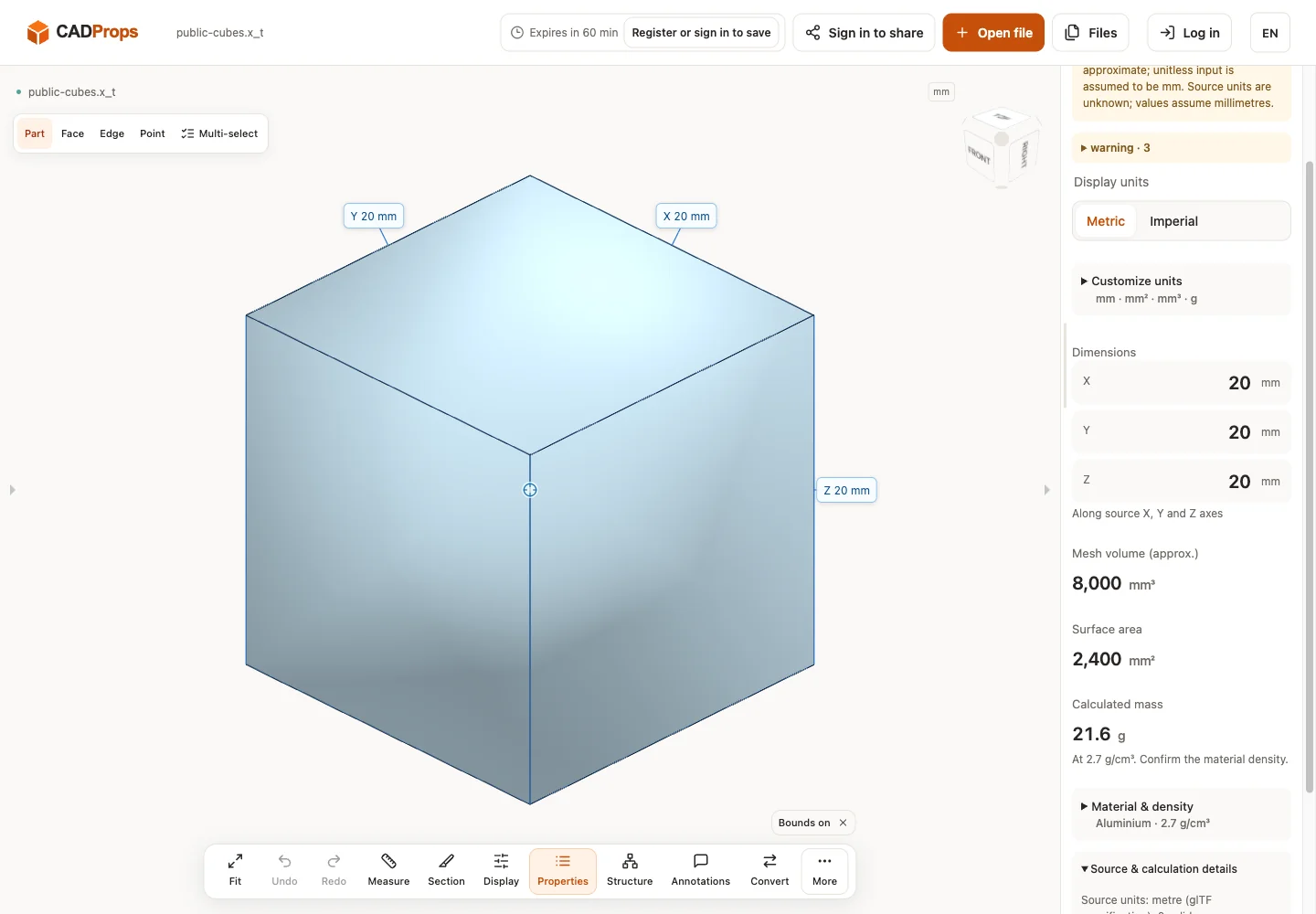
The original X_T may contain precise kernel geometry, while the current native viewing route supplies a converted triangle preview. Read the result's representation and warnings before choosing a measurement method. The public cube check below is a mesh preview; it does not make B-Rep edge selection or Solid Differences available for that result.
If the next task requires a precise solid, use the supported STEP conversion route, then reopen that output and check its geometry independently. Rendering the X_T and successfully writing STEP are separate outcomes. A converter may read enough display data for a preview while failing to produce the required solid derivative.
For a failed conversion, keep the original and record the source release and failure stage. Ask the sender for a compatible X_T or a direct STEP export rather than routing through STL. A triangle intermediary cannot recover the original analytic representation. Keep the publicly tested file and its observed result separate from claims about arbitrary Parasolid releases.
Actual public-file check
Reproduce: download the original model from the source link, open it in the matching viewer, wait for the canvas and inspect Properties and warnings. The screenshot is the actual English interface on 2026-10-01 at www.cadprops.com.
Public model source · Onshape / Parasolid 34.1.198 · public-cubes.x_t
| Observed X / Y / Z (mm) | Observed volume (mm³) |
|---|---|
| 20 × 20 × 20 | 8000.0011 |
These results are converted triangle previews. Dimensions, area and any mesh volume are approximate; source-unit interpretation must be checked against a known physical length. B-Rep edge/diameter measurement and Solid Differences are unavailable for this result. This single-file check does not establish support for every version or geometry.
SHA-256: bb9c15ee54e6ee8e5cd2e9159c00b72d80fe8d0b4165384301354b3e00f4bd70
Open the matching tool. Viewing is available without an account; sign in when the conversion workflow requires it.
Original article: CADProps · https://www.cadprops.com/guides/open-x-t-file-online/