

A STEP export can be incomplete even when the SolidWorks assembly opens correctly.
That is a different problem from receiving an SLDASM with unresolved references. In the export case, the source assembly may be complete, but the state or scope being exported does not contain every component the receiver expected.
Before blaming STEP, compare three things separately: the source SolidWorks assembly, the state or configuration being exported, and the actual STEP file that was produced.
First decide whether the part is missing before or after export
If the component is already absent in SolidWorks, fix the source assembly first. If it is visible in SolidWorks but absent in the STEP, inspect the export scope and assembly state. If it is present in the STEP in one reader but absent in another, the problem may be import compatibility rather than the export itself.
Do not use one shaded screenshot as proof. Check the component or body scope explicitly.
Selected entities can change what gets exported
SolidWorks documents that export behavior can depend on selected faces, bodies or assembly components. If entities are selected before export, the software can export only the selected objects rather than the entire document. See SolidWorks export behavior.
A simple failure mode is therefore easy to miss: an engineer selects one subassembly while inspecting it, starts Save As or export, and the resulting STEP contains only that selected scope.
Before exporting, clear unintended selections and confirm whether the export dialog is asking for selected objects or all bodies or components.
Hidden, suppressed and lightweight components are different states
SolidWorks distinguishes lightweight, hidden and suppressed components. Its export documentation notes that lightweight parts may need to be resolved, and hidden or suppressed parts can trigger prompts when exporting.
The useful rule is not "always include everything." It is: know which assembly state the deliverable is supposed to represent.
A suppressed alternate component may be intentionally excluded. A hidden purchased part may still be required in the released geometry. Record the intended configuration or state before export.
Configuration is part of the deliverable definition
A SolidWorks assembly can have configurations representing different sizes, options, suppression states or product variants.
If the receiver expects Variant B but the neutral file was exported from Default, both files can be geometrically valid while one is the wrong deliverable.
Before export, identify the intended configuration, confirm expected major components, check suppression states, verify the drawing and revision belong to the same configuration, and include the configuration name in the handoff note when it matters.
Missing references and missing export scope need different fixes
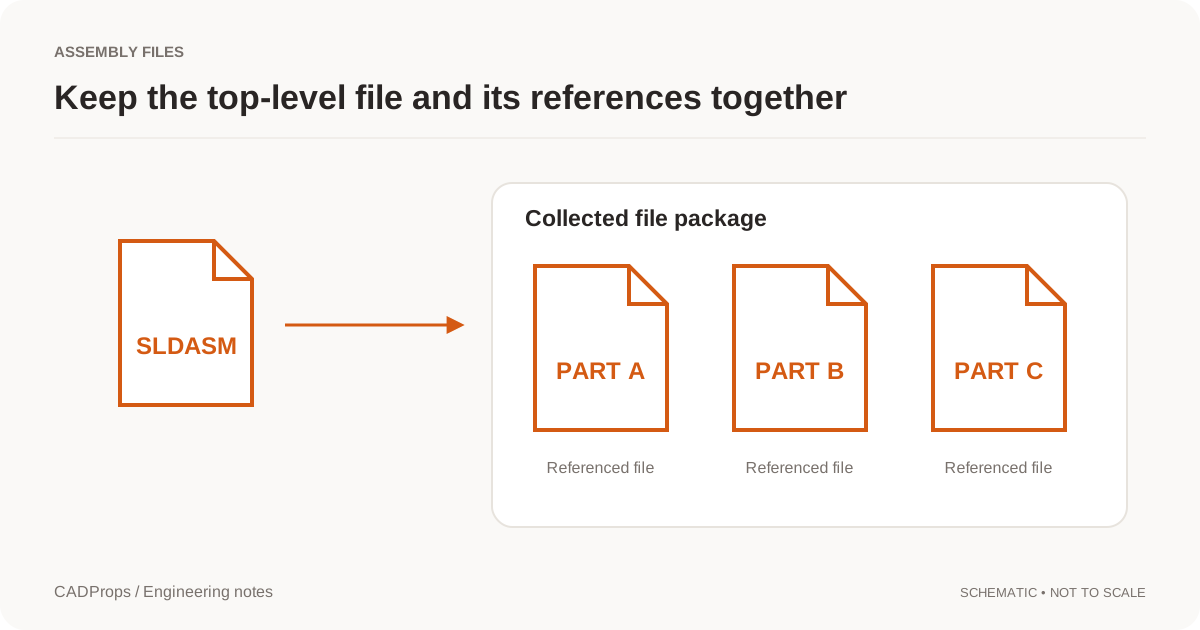
The existing SLDASM missing parts guide covers native dependency failures: referenced SLDPRT files are absent, paths are broken, or a ZIP package is incomplete.
This guide covers a different case: the native assembly is complete, but the exported neutral file has the wrong scope.
| Symptom | Likely direction |
|---|---|
| SolidWorks reports unresolved component references | Rebuild the native package |
| Component is suppressed in the intended export state | Confirm whether exclusion is intentional |
| Only one selected component appears in STEP | Check selected-object export scope |
| Source is complete but STEP lacks visible components | Recheck configuration, resolution and export options |
| STEP is complete in one importer but incomplete in another | Investigate receiving translator compatibility |
Reopen the STEP independently
The export operation finishing without an error does not prove the deliverable is complete.
Open the actual STEP in the STEP viewer or another independent reader and verify expected overall dimensions, expected bodies or components, obvious purchased parts or repeated instances, one or more critical interfaces, and units and orientation.
A matching bounding box is not enough. Missing internal brackets or fasteners may not change the outer envelope.
If possible, compare against a BOM, component list or a known assembly screenshot from the released configuration.
Do not confuse feature-tree loss with missing geometry
A STEP file normally does not recreate the original SolidWorks sketches, mates and feature history. That is expected neutral-exchange behavior.
Missing parametric history is not the same as a missing solid body. Ask whether geometry scope is correct, required components are present, placements are correct, and the source configuration and revision are known.
A repeatable export handoff
- Open the released SolidWorks assembly.
- Confirm the intended configuration.
- Resolve components required for export.
- Clear unintended entity selections.
- Check suppressed or hidden components against the deliverable scope.
- Export STEP using the agreed options.
- Reopen the exported STEP.
- Compare component or body scope and one known dimension.
- Send the STEP with revision and configuration context.
If the receiver also needs native editing, send a complete collected native package separately. Do not treat STEP as a substitute for every SolidWorks dependency.
CADProps can inspect supported SolidWorks packages and validated STEP conversions, but it cannot decide which suppressed configuration option an engineering release intended. That decision must remain explicit in the handoff.
Original article: CADProps · https://www.cadprops.com/guides/solidworks-step-export-missing-components/