

A SOLIDWORKS part or assembly can be perfectly valid and still refuse to open in an older SOLIDWORKS release.
That is a version-compatibility problem, not proof that the SLDPRT or SLDASM is corrupt.
The first useful question is not “which converter should I try?” It is: which SOLIDWORKS release saved this file, and which release is trying to open it?
SOLIDWORKS' current help documents a limited previous-release interoperability path: Service Pack 5 of the previous release can open parts and assemblies from the next consecutive release in read-only mode, with reduced FeatureManager data. Interoperability is not a general backward-save system. See SOLIDWORKS future-version interoperability.
What “future version” means in practice
Native CAD formats evolve with the application. A file saved in a newer release can contain schema, feature or application data that an older release was never designed to write.
That creates three different situations:
| Situation | What to expect |
|---|---|
| Same SOLIDWORKS release | Normal native editing if the file itself is healthy |
| Previous release SP5 opening the next consecutive release | Read-only access to supported part/assembly data with reduced functionality |
| Older than the supported consecutive-release bridge | Native opening may fail; use a newer system or a neutral export |
The exact behavior depends on release and service pack. Do not assume that installing any SP5 makes every future SOLIDWORKS file backward compatible.
Read-only access is not the same as native editability
The documented previous-release workflow is deliberately limited.
SOLIDWORKS says a future-version part or assembly opened in the previous release SP5 has reduced FeatureManager information. You can perform several review-oriented tasks, but you cannot edit the future-version part or assembly as though it were a native file from the older release.
That distinction matters when somebody says, “It opens, so we can work on it.”
You may be able to inspect configurations, dimensions or properties while still lacking the feature-tree access needed for editing, design changes or downstream automation.
If the job requires modifying sketches, features, mates or design intent, use the appropriate current SOLIDWORKS release or ask the sender to provide a supported native workflow.
Drawings have a different compatibility boundary
Do not assume that SLDPRT, SLDASM and drawing files have identical future-version behavior.
The SOLIDWORKS help page specifically distinguishes future-version parts and assemblies from future-version drawings. The previous-release bridge is not a universal “open everything from next year” feature.
For a manufacturing handoff, identify each deliverable separately: native part or assembly, drawing, neutral STEP derivative, and released inspection document.
One file opening successfully does not prove the others are compatible.
Do not rename or “downsave” by changing the extension
Changing the filename from SLDPRT to STEP does not translate the data.
Similarly, a third-party viewer that can render geometry does not magically create an older editable SOLIDWORKS feature tree. It may be reading geometric data through a different translator.
If the native file is newer than your authoring environment, preserve the original unchanged and ask for one of these:
- the same native file opened in a compatible SOLIDWORKS release;
- a STEP export from the intended configuration and revision;
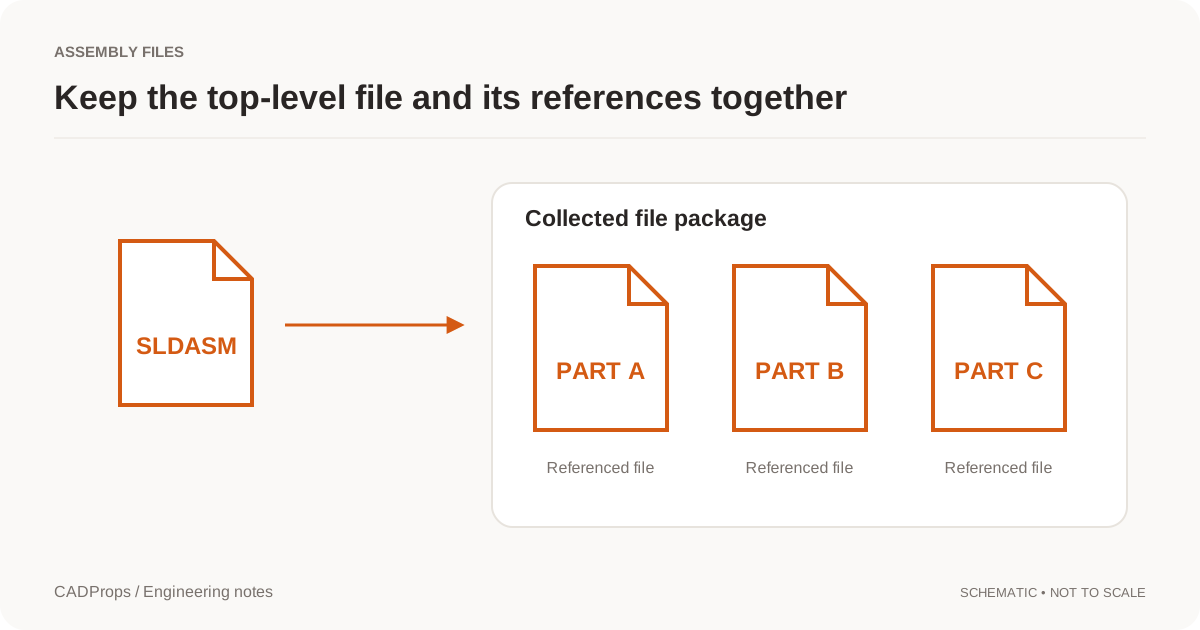
- a collected assembly package if external references are required;
- the released drawing or PMI source when manufacturing requirements are not fully embedded in geometry.
The CAD conversion checklist explains what to verify after neutral export.
A viewer can answer a different question
Sometimes you do not need to edit the model. You only need to inspect geometry, check dimensions, review a supplier file or decide whether the attachment is the expected part.
In that case, a compatible viewer can be useful even when your local SOLIDWORKS installation is too old.
CADProps supports tested SOLIDWORKS native inputs for browser inspection and STEP conversion through the SolidWorks viewer and SolidWorks to STEP converter. Native-version support still depends on what the reader can actually parse. CADProps does not claim that every future SOLIDWORKS release will open before it has been tested.
If the file is rejected, report the source SOLIDWORKS release instead of repeatedly resaving or renaming the same attachment.
Assemblies add a second problem: dependencies
A future-version SLDASM can have both version compatibility and missing-reference problems.
If the reader understands the assembly format but the package is missing SLDPRT dependencies, the result can still be incomplete. Conversely, a complete Pack and Go package can still fail because the native release is newer than the reader supports.
Diagnose these independently:
| Check | Question |
|---|---|
| Source version | Which SOLIDWORKS release saved the root assembly and parts? |
| Dependency completeness | Are referenced SLDPRT and nested SLDASM files present? |
| Intended configuration | Which suppression/configuration state should the receiver see? |
| Geometry verification | Does the readable result contain the expected components and dimensions? |
Use the SLDASM guide for packaging and the missing-parts guide for unresolved references.
When STEP is the practical workaround
If the receiver needs geometry rather than native SOLIDWORKS editing, a fresh STEP export from the sender's current release is often the cleanest handoff.
Ask the sender to export the intended configuration, confirm units and revision, and keep the native files as the source record.
Then reopen the STEP independently and check overall dimensions, expected bodies or components, one or more critical interfaces, orientation and units, and whether the assembly scope matches the released configuration.
STEP will not recreate the original SOLIDWORKS feature history, but it can remove a native-version dependency when the downstream task only needs interoperable geometry.
The safest workflow is simple: identify the native save version first, separate compatibility from missing references, and request a neutral derivative only when that matches the downstream job.
Original article: CADProps · https://www.cadprops.com/guides/solidworks-future-version-file/