

A SolidWorks part normally uses the SLDPRT extension. If you only need to inspect geometry, check dimensions or create a neutral handoff, you may not need the full SolidWorks authoring environment.
Open the matching tool. Viewing is available without an account; sign in when the conversion workflow requires it.
From upload to a usable property check
Choose the original SLDPRT in the SolidWorks viewer. After the canvas appears, rotate the model and open Properties. Check a known length, body scope and import warnings. A readable preview does not recover sketches, configurations or the editable feature tree. Record the saving release if the reader rejects the part; a new STEP export from the authoring application is the practical fallback.
Open the original file in the SLDPRT viewer, confirm the expected geometry and scale, then decide whether viewing is enough or whether the next workflow needs STEP.
Keep the original SLDPRT unchanged
Do not rename an SLDPRT file to STEP, STP or another extension. Renaming changes only the filename.
Upload the original part and check the expected shape, body count, orientation, overall dimensions and any warnings. If a drawing or sender gives you a known dimension, use it to verify scale.
A model that looks plausible on screen can still be the wrong revision, wrong configuration or wrong physical size.
Check the SolidWorks save version
Native CAD readers are version-sensitive. A tool that supports SolidWorks files generally may still reject a model saved by a newer release or a source variant outside its tested path.
If an ordinary-looking SLDPRT fails, ask which SolidWorks version created or last saved it.
Do not immediately label the file corrupt. When neutral geometry is sufficient, a fresh STEP export from the source SolidWorks system can be the cleaner handoff.
SLDPRT is a part; SLDASM is an assembly
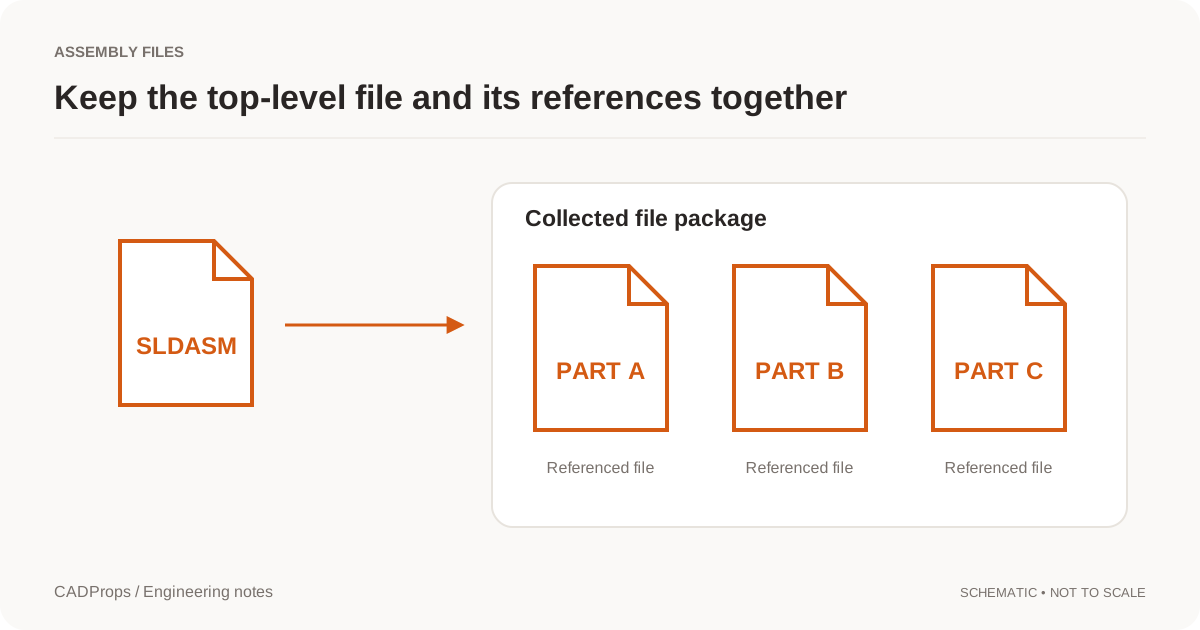
SLDPRT describes a part. SLDASM describes an assembly and can reference many SLDPRT parts and nested assemblies.
If you received an SLDASM, do not treat it like a self-contained part. Use the SLDASM without SolidWorks guide and package its dependencies together.
Missing assembly references can make a visible model incomplete while still producing believable dimensions and mass for the loaded subset.
What can you inspect without SolidWorks?
A browser inspection workflow can be useful for:
- visual geometry review,
- overall dimensions,
- supported local measurements,
- body scope,
- valid solid volume,
- surface area,
- density-based mass scenarios,
- conversion to STEP.
It does not recreate the original feature tree, design equations, configurations or parametric edit history.
If the task is a design change, use SolidWorks or the responsible authoring workflow.
Verify units before using properties
Fit-to-view automatically adjusts the camera, so screen size is not a unit check.
Measure one known feature or compare the overall size with the drawing. Resolve any scale mismatch before calculating volume, mass or releasing a converted file.
A density-based mass calculation is a new calculation. It should not be mistaken for a material definition or certified mass stored in the native model.
Convert SLDPRT to STEP for cross-CAD use
If the recipient does not use SolidWorks, STEP is often a practical neutral geometry format.
Use the SLDPRT to STEP converter, then verify:
You get an exact STEP when the part's Parasolid body is rebuilt into a closed, valid solid with verified units (it is rejected if its bounding box clearly disagrees with the saved display); otherwise the export is a mesh STEP built from the display triangles.
- one known dimension;
- expected bodies;
- a critical hole, pocket or mating face;
- orientation;
- the result in the receiving CAD/CAM system when practical.
STEP is an exchange derivative. It does not preserve the original SolidWorks feature history as native editable features.
What if the SLDPRT will not open?
Check the problem in this order:
- confirm it is really an SLDPRT;
- confirm the SolidWorks release;
- obtain a fresh copy if transfer corruption is possible;
- confirm the intended configuration or revision;
- ask for STEP when neutral geometry is sufficient.
Repeatedly running an unreadable file through unrelated converters can produce more derivatives without explaining the original problem.
Keep viewing separate from approval
Being able to render the model does not establish the controlling revision, tolerance, material or manufacturing acceptance criteria.
For supplier review, keep the drawing or agreed specification with the model and record the exact filename/revision that was inspected.
A practical no-SolidWorks workflow
- Open the original SLDPRT.
- Confirm the expected part and revision.
- Verify scale with a known dimension.
- Inspect only the geometry needed for the task.
- Convert to STEP only when the recipient needs neutral CAD.
- Verify the converted result.
- Keep the native source for traceability and future editing.
That workflow gives you a defensible inspection path without pretending a browser viewer is a complete SolidWorks replacement.
Why two files from the same release can behave differently
A release label is useful troubleshooting context, but it is not a blanket compatibility result. Two files saved by the same release can contain very different geometry and features, so one readable part does not show that every part from that release will open.
When a part fails, identify whether the source could be read, whether converted geometry was produced and whether STEP output was written. Keep the successful preview and the export outcome as separate checks. Request the intended configuration and a fresh source-system STEP when the native path cannot supply the required geometry.
A converted triangle result supports approximate display and mesh checks, not recovery of sketches, configuration logic or analytic B-Rep measurement. Do not treat its mesh volume as the native application's certified mass property. If the task needs a precise STEP solid, reopen the actual derivative and verify its scale, body scope and geometry before using it in another CAD/CAM system.
Actual public-file check
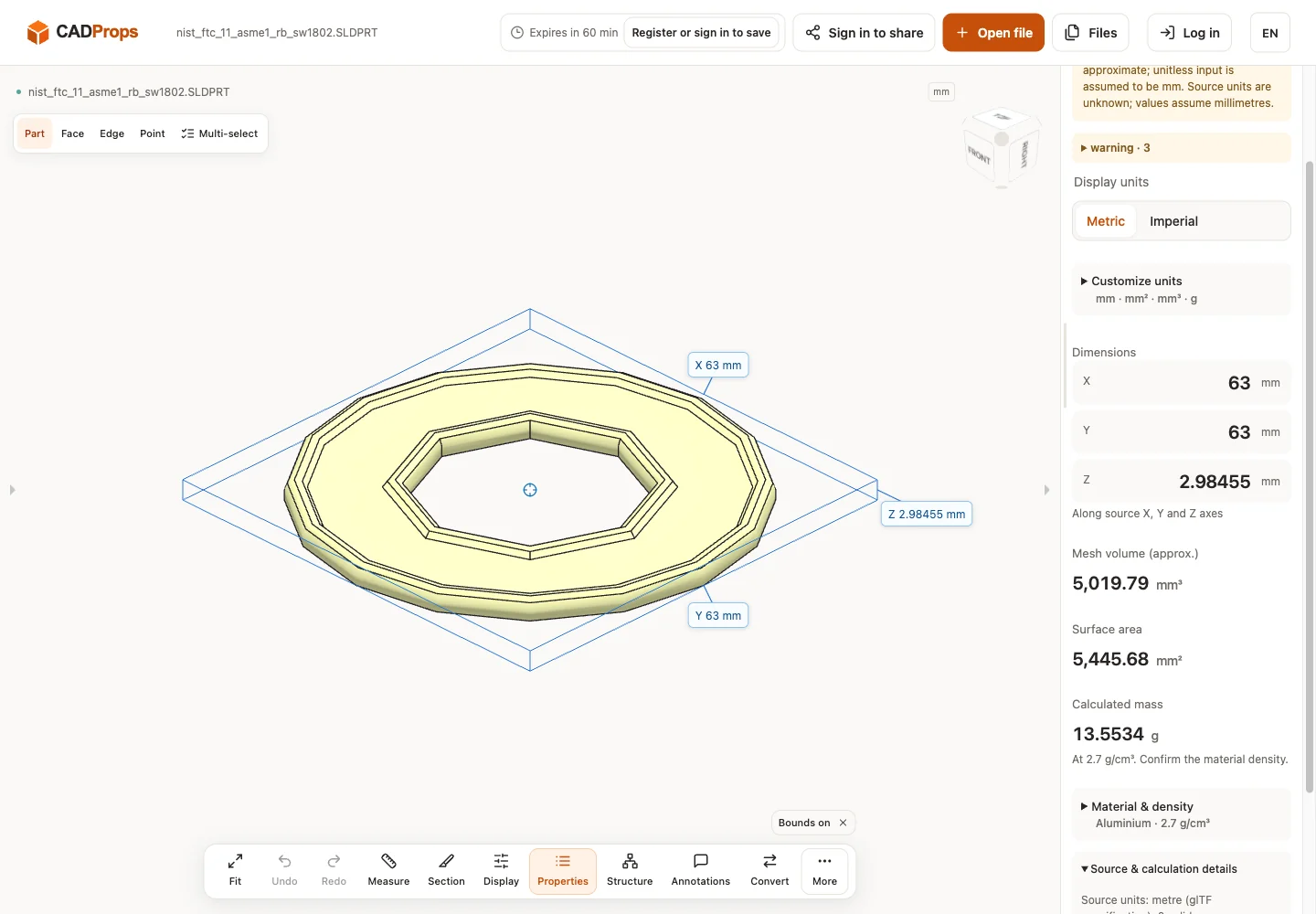
Reproduce: download the original model from the source link, open it in the matching viewer, wait for the canvas and inspect Properties and warnings. The screenshot is the actual English interface on 2026-10-01 at www.cadprops.com.
Public model source · SolidWorks MBD 2018 · nist_ftc_11_asme1_rb_sw1802.SLDPRT
| Observed X / Y / Z (mm) | Observed volume (mm³) |
|---|---|
| 63 × 63 × 2.98455 | 5019.7854 |
These results are converted triangle previews. Dimensions, area and any mesh volume are approximate; source-unit interpretation must be checked against a known physical length. B-Rep edge/diameter measurement and Solid Differences are unavailable for this result. This single-file check does not establish support for every version or geometry.
SHA-256: 07f8b1f55d6adba7c76901bc1655f2d04e14509ffc2d82426c3ce28af67f7db5
Open the matching tool. Viewing is available without an account; sign in when the conversion workflow requires it.
If you only need a neutral copy, ask the sender for a STEP export and open the STEP file in the browser with the STEP viewer.
Original article: CADProps · https://www.cadprops.com/guides/open-sldprt-without-solidworks/