

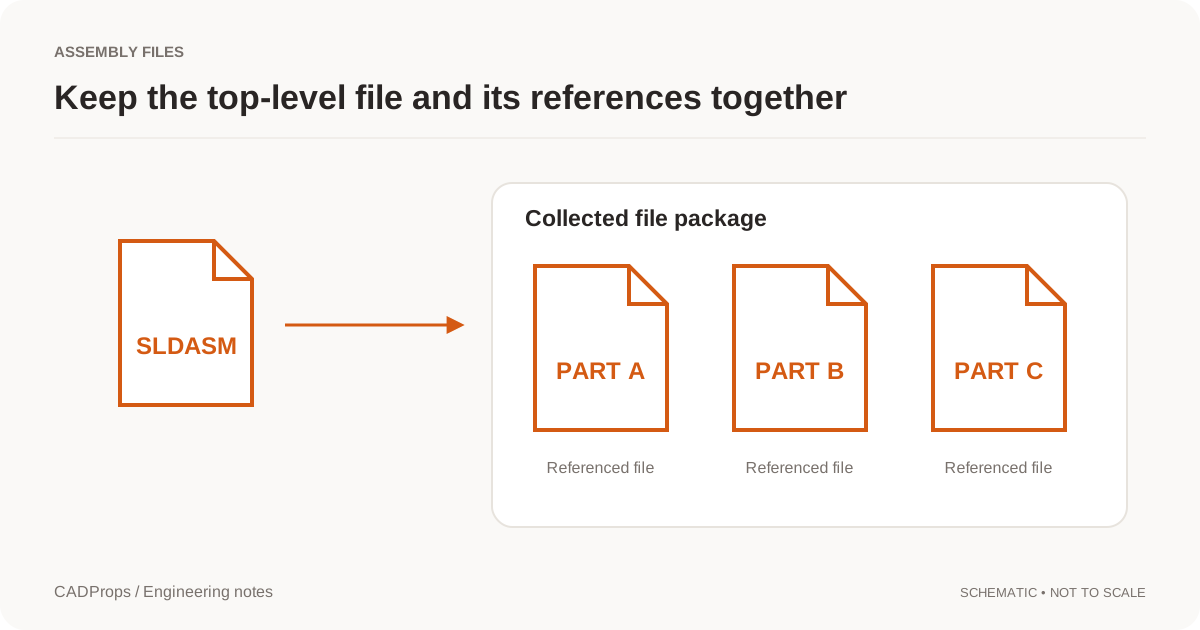
An SLDASM file is a SolidWorks assembly document. It usually depends on separate SLDPRT part files and can also reference nested SLDASM subassemblies.
Open the matching tool. Viewing is available without an account; sign in when the conversion workflow requires it.
Keep the root assembly and its references together
Preserve relative directories when ZIP-packaging SLDASM with its SLDPRT and subassembly references. Choose the top-level root when prompted. After loading, compare the component list with the expected assembly and read missing-reference warnings. Properties cover the parts actually loaded; they are not complete assembly totals when components are missing. Record the saving release and request a self-contained STEP if native read-back fails.
That means the top-level SLDASM alone is often not enough for a complete browser view or conversion.
Use the SolidWorks viewer after collecting the assembly and its local references into one ZIP package.
SLDASM is not a self-contained part file
The assembly stores product structure and placements, but the component geometry may live in referenced files.
If you received only the SLDASM and the viewer reports missing parts, the file may be perfectly valid. The handoff is simply incomplete.
Ask the sender for the referenced SLDPRT and nested SLDASM files, ideally collected from the same released configuration.
Do not rename the assembly to SLDPRT or STEP. File renaming does not resolve references or translate the data.
Prepare a complete assembly package
Before uploading:
- identify the intended top-level SLDASM;
- collect referenced SLDPRT parts;
- include nested SLDASM subassemblies;
- preserve the relative folder layout;
- keep all files from the same revision/configuration.
Avoid flattening folder structures if duplicate filenames or relative references are possible.
ZIP the package without changing internal paths.
Open the assembly and inspect completeness first
After upload, check component warnings before measuring anything.
A useful review order is:
- confirm the root assembly;
- inspect the component tree;
- look for missing-reference warnings;
- check the overall shape;
- verify units;
- compare one known dimension;
- only then use volume or mass.
An incomplete assembly can still look convincing. A housing, motor and bracket may load while dozens of fasteners are missing.
Why partial assembly properties are dangerous
A partial SLDASM can produce valid numerical properties for the components that loaded.
Those numbers are not necessarily valid totals for the intended assembly.
Missing parts can affect:
- overall dimensions,
- total surface area,
- solid volume,
- density-based mass,
- center-of-envelope assumptions,
- supplier review conclusions.
Keep incomplete status beside every derived property.
The SLDASM missing-parts guide explains how to diagnose unresolved references.
Check the source configuration
SolidWorks assemblies can have configurations. The same SLDASM source can represent different included/suppressed components or geometric states.
If the sender expects a specific released configuration, record it with the package.
A neutral browser workflow cannot safely infer that the visible configuration is the approved manufacturing configuration unless the handoff provides that context.
Convert SLDASM to STEP when needed
If the recipient needs cross-CAD geometry rather than native SolidWorks editing, use the SolidWorks to STEP converter.
The export is a mesh STEP: the display triangles SolidWorks saved for the loaded components, not exact surfaces. When the recipient needs solid geometry for CAM or redesign, ask for a STEP export from SolidWorks.
Do this only after assembly completeness is understood.
After conversion, verify:
- component/body scope,
- overall dimensions,
- placements,
- important interfaces,
- one or two known features.
A STEP output from a partial SLDASM is still partial.
What STEP does not preserve
STEP is useful for neutral geometry exchange, but it does not recreate SolidWorks mates, design history, equations or parametric feature editing.
Keep the native SLDASM/SLDPRT package when those capabilities matter.
Use the converted STEP as a derivative deliverable tied to the source revision.
Troubleshooting an assembly that will not open
If the SLDASM does not process:
- confirm it is a SolidWorks assembly;
- identify the SolidWorks release;
- check whether references are present;
- verify the ZIP structure;
- confirm the intended root assembly;
- request a fresh STEP export if neutral geometry is enough.
Fix the handoff before repeatedly converting the same incomplete package.
A practical SLDASM workflow
- Collect the top-level SLDASM and dependencies.
- Preserve relative folders in ZIP.
- Open the package.
- Resolve missing-component warnings.
- Verify units and one known dimension.
- Use properties only after completeness is understood.
- Convert to STEP if the recipient needs neutral CAD.
- Reopen and verify the STEP output.
The central issue with assemblies is not whether something appears on screen. It is whether the geometry you see is actually the complete intended assembly.
Read a partial result without losing its warning
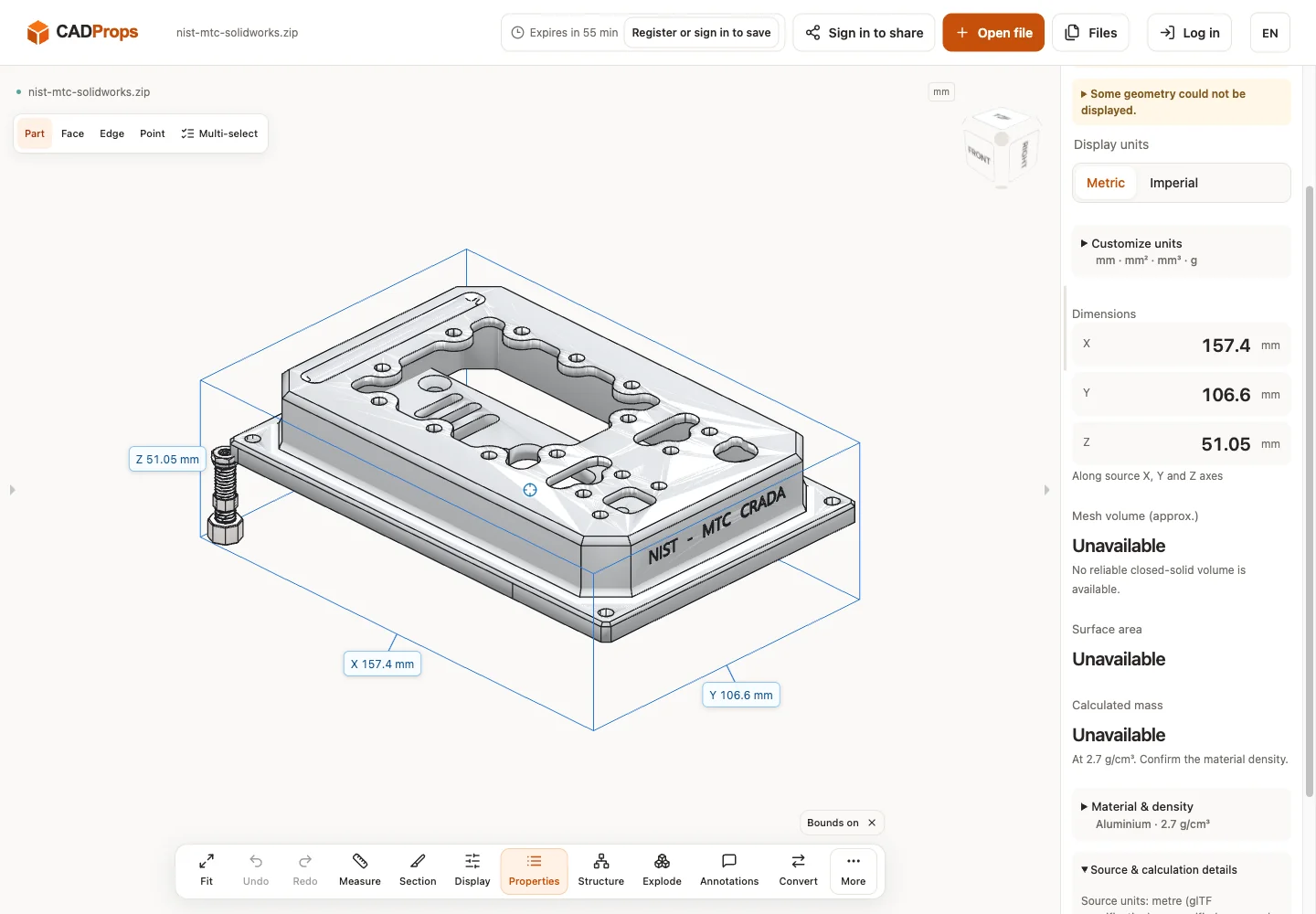
The public assembly test below produced Partial success even though the package contained ten model files. Presence in the ZIP did not guarantee that every component could be displayed. The observed envelope belongs to the loaded subset, and area, volume and mass were unavailable.
Investigate unresolved references separately from unreadable present files. A component missing at its relative path needs packaging repair. A located component that the reader rejects needs a version or geometry investigation. Flattening directories cannot solve the latter and may create new reference problems.
For a receiving record, keep the root, configuration, expected component list, warning and loaded scope together. If incomplete geometry is sufficient for a limited visual question, say which question it answers. If the next step needs full assembly totals or STEP delivery, stop and request a complete, readable package or a source-system export. Do not replace the warning with a plausible-looking screenshot.
Actual public-file check
Reproduce: download the original model from the source link, open it in the matching viewer, wait for the canvas and inspect Properties and warnings. The screenshot is the actual English interface on 2026-10-01 at www.cadprops.com.
Public model source · SolidWorks MTC assembly · nist-mtc-solidworks.zip
The ZIP retained the original SolidWorks folder and ten model files. The result was Partial success; some geometry could not be displayed. The displayed envelope was 157.4 × 106.6 × 51.05 mm; area, volume and mass were unavailable. No complete-assembly claim can be made.
SHA-256: d6c81bf4986c3eb76b02e454100019a25bb5efd2392c8c9fd84473ddabd72d8d
Open the matching tool. Viewing is available without an account; sign in when the conversion workflow requires it.
If the assembly will not load, a STEP assembly export can be opened in the online STEP viewer as a neutral fallback.
Original article: CADProps · https://www.cadprops.com/guides/open-sldasm-without-solidworks/