


If a supplier sends a STEP file with a note that says “use the model tolerances,” check the callouts before quoting. A hole can measure 35 mm and still have a separate size tolerance, position tolerance or datum requirement. The geometry gives you a nominal shape. Product and manufacturing information (PMI) carries the engineering instructions that were actually saved.
Open the original PMI
- Upload the original STEP AP242 part in the CADProps workspace.
- Once the 3D model opens, choose Source PMI in the toolbar. The model can appear while the server is still checking its PMI.
- Turn on Show PMI on model and choose a source view when one is available. Use All source PMI to see the callouts together. Select a callout in the list to center it.
- Compare a critical dimension, its tolerance and its datum against the released file or drawing. Use the graphical callout to read symbols and modifiers. Where CADProps can read structured values, the list also shows them.
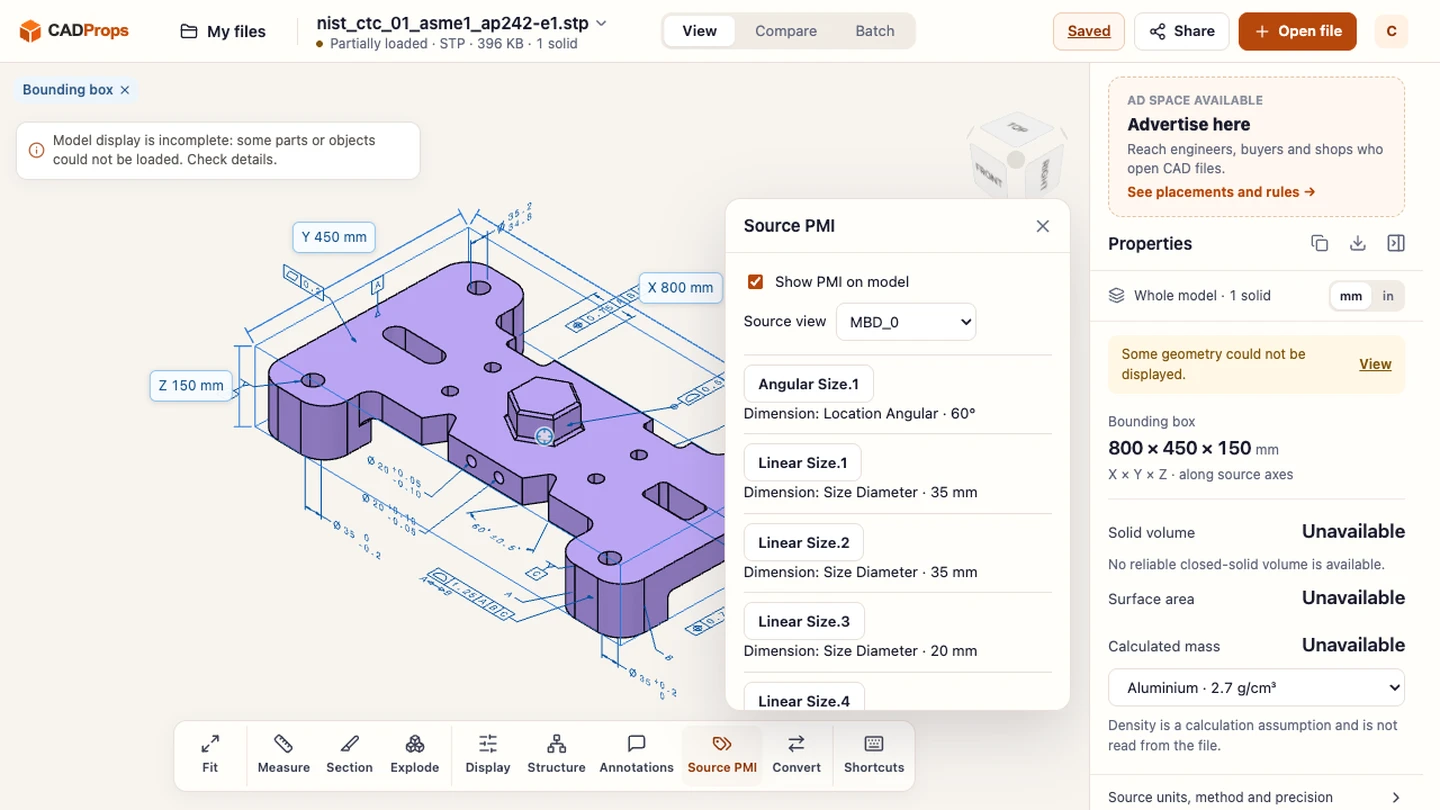
What the public sample shows
Use nist_ctc_01_asme1_ap242-e1.stp from the NIST PMI STEP files archive. The file supplies 23 graphical callouts in its MBD_0 view, including a 60° angle and datum labels A, B and C. A second public sample, nist_ctc_03_asme1_ap242-e2.stp, supplies 29 graphical callouts. NIST provides the model definitions and reference sheets so you can repeat the comparison.
A graphical callout describes what a person can see. Semantic PMI contains structured information a CAD or inspection system can interpret. One can exist without the other. Read the source callout and keep the original CAD file for the controlled manufacturing definition.
Check what was available from your file
| What the panel reports | What to check |
|---|---|
| Callouts and a source view | Check the critical callouts, datum labels and their positions against the source. |
| No source PMI found | Confirm the exporter published the annotation views. An AP242 header alone does not mean PMI is present. |
| Source PMI could not be verified | Use the original CAD application or request a new AP242 single-part export with graphical PMI. The model preview remains available. |
The panel opens the source callouts when CADProps can verify their graphical coverage. Read the value and units on the callout itself. For SolidWorks, CATIA, Inventor or NX files, export the part as STEP AP242 with graphical PMI in the source CAD application. Use Annotations to add separate CADProps review notes.
For offline review of eligible STEP files, follow the 3D PDF export guide.
Original article: CADProps · https://www.cadprops.com/guides/view-cad-pmi-online/