

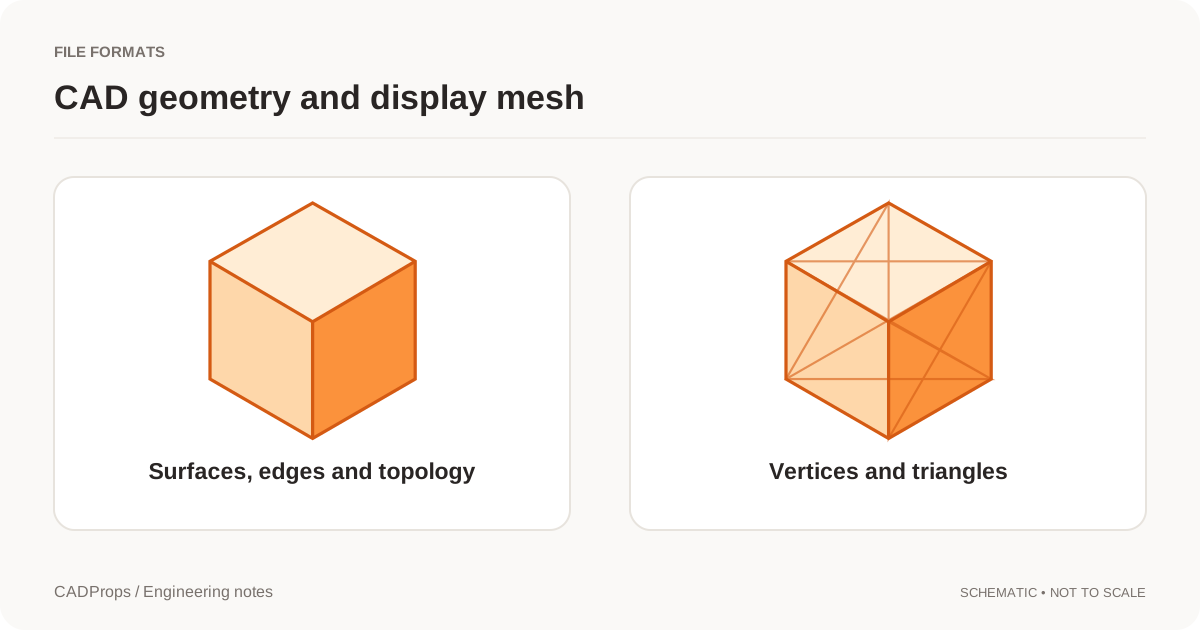
You converted an SLDPRT to STEP. The plate is the right size, but your CAM system will not select a mounting hole as a cylinder. Open the exported file and inspect the wall of that hole. If the wall consists of flat faces, the receiving software has no cylindrical surface to select. If it is one cylindrical face, check how the receiving software recognises holes and whether the geometry meets its feature rules.
Separate screen tessellation from the geometry in the file
Zoom in and switch to an edge display if it helps you find the suspect hole. A CAD viewer can draw a perfectly valid cylinder with triangles, especially at low display quality. Use the receiving CAD system's face information or geometry inspector to check the underlying face type. Select the wall, then try selecting another point around the circumference.
| What you find at the hole | Next step |
|---|---|
| The inspector reports a cylindrical face, or cylindrical segments with a common axis and radius | Verify the diameter and check the CAM feature rules. |
| Selecting the wall picks individual planar patches around the bore | Check whether the source was already faceted or the conversion used saved display triangles. |
| The receiving system exposes only a mesh or gives no face type | Check the export label and use a STEP reader that exposes the geometry type. |
A cylindrical hole can be split across faces. Conversely, stitched planar faces may form a closed body and report a volume. Check the surface type for the hole you need.
Convert and reopen the STEP in CADProps
In the CADProps SolidWorks converter, the exact STEP option depends on the uploaded model. An SLDPRT qualifies when its native body can be rebuilt as a closed, valid solid with verified units. If the eligible reconstruction is unavailable and the saved display is usable, the mesh STEP uses display triangles. CADProps also exports SLDASM as mesh STEP of the loaded components. For an exact assembly STEP, request an export from the authoring system.
- Upload the SolidWorks file, open Convert, and check which STEP option CADProps offers. Sign in to export. If you need an exact solid and only mesh STEP is available, request a solid export from the sender.
- Open the downloaded file in the STEP viewer. Compare a known size in Properties, check which bodies or components are present, and inspect any geometry warnings.
- Open the same downloaded file in the CAD or CAM application where the hole selection failed. Select the wall there and use its face inspector to confirm the surface type.
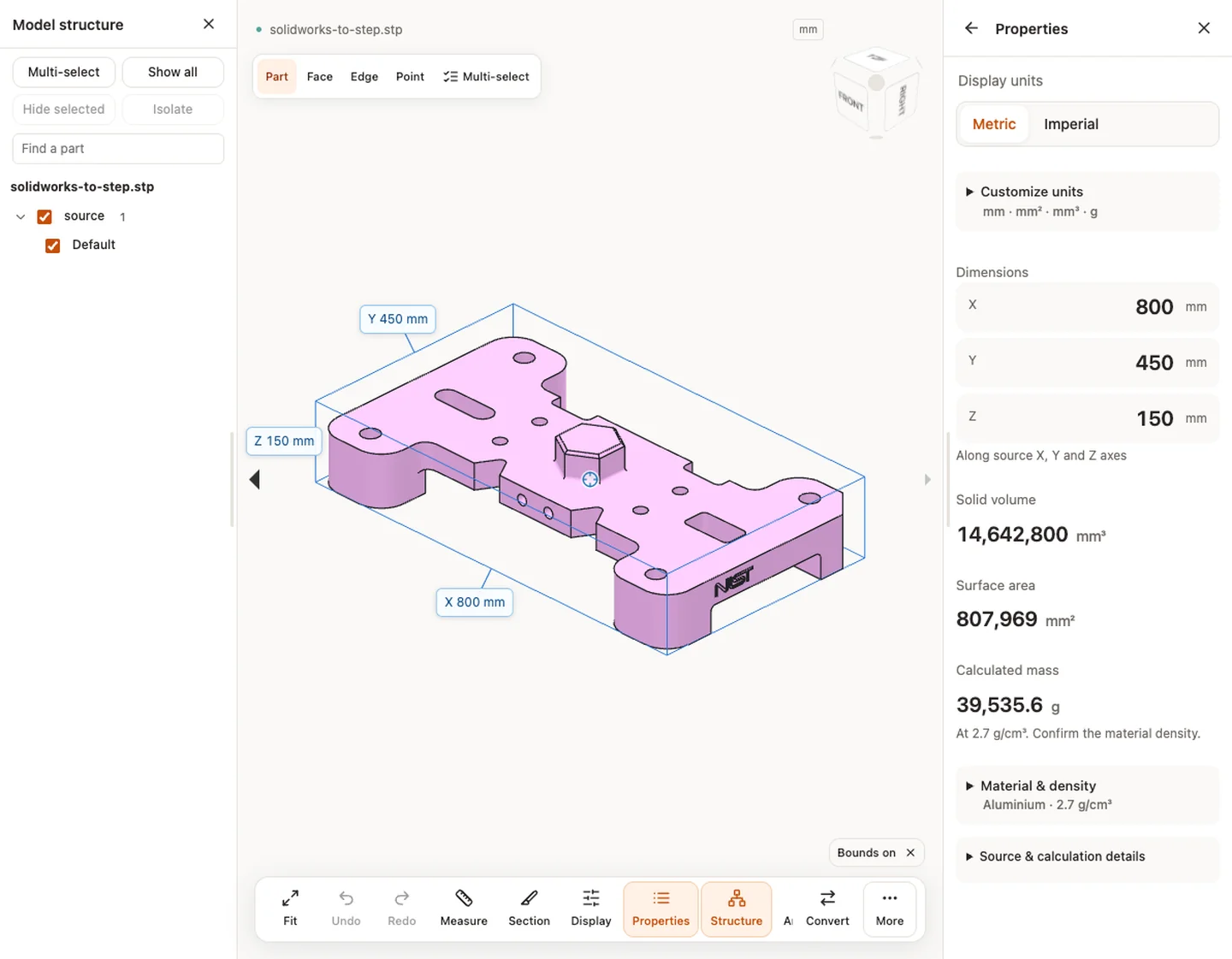
If you received a plain-text STEP without any export notes, the NIST STEP File Analyzer can list the entities. FACETED_BREP and polygon loops point to faceted geometry. An entity list is a starting point: a file can contain several representations or bodies, so tie the finding back to the particular part and hole you are trying to use.
Ask for the surface you need
If the wall really is faceted and the job needs a selectable cylinder, ask the sender to open the released source model, verify the correct configuration and export a solid STEP from it. Name the affected feature in your request, for example “the two 8 mm mounting bores on the baseplate.” Reopen the replacement in the receiving system and check the face type, diameter, and hole location against the drawing before relying on it.
If the wall is cylindrical but the CAM system still misses the feature, move on to STEP hole recognition. That guide covers geometry and feature recognition cases where the cylinder is present but the software does not identify it as the hole you expect.
Original article: CADProps · https://www.cadprops.com/guides/solidworks-step-faceted-holes/