
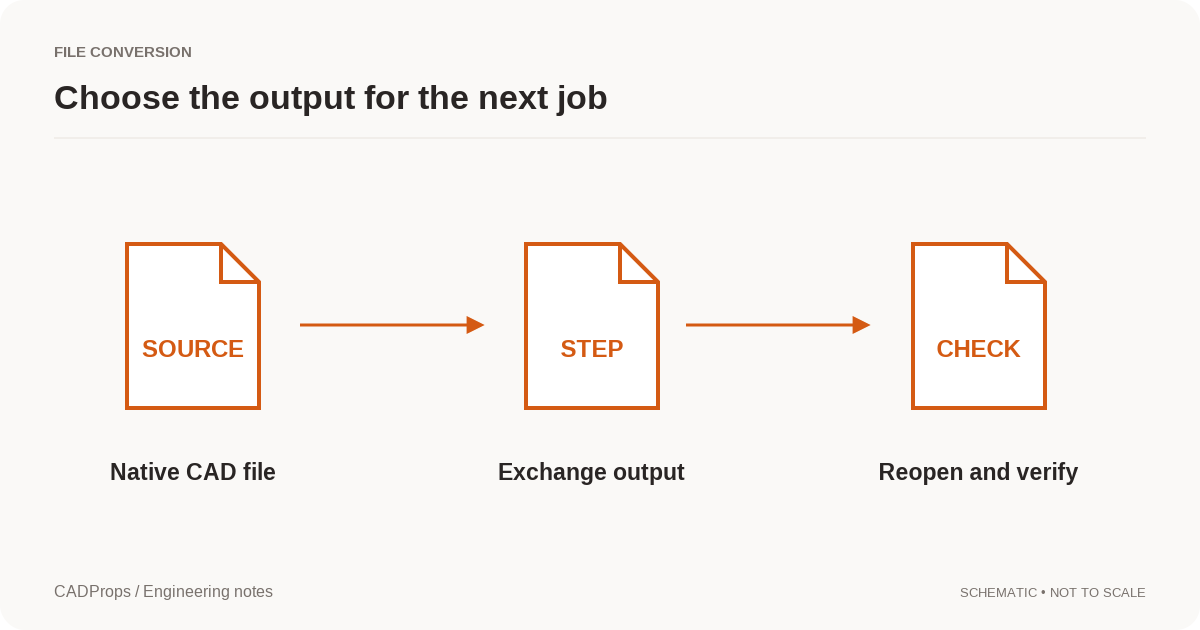
Automotive, aerospace and industrial tooling teams often receive Dassault Systèmes CATIA V5 .CATPart deliverables while their downstream CAM workstation, vendor ERP or supplier shop relies on neutral STEP (AP214 / AP242). Exporting neutral CAD cleanly via CATIA to STEP lets you bridge CATIA V5 parts into standard engineering workflows without a CATIA workstation licence.
Because .CATPart containers store exact trimmed B-Rep surfaces separately from tessellated display caches (CGR-style faceting) and thumbnails, understanding how CADProps qualifies .CATPart geometry helps you predict when a file yields exact STEP (Solid) versus honest STEP (Mesh) or visual mesh exports.
Inside a CATIA V5 .CATPart: trimmed B-Rep vs CGR display cache
Every .CATPart file encapsulates multiple internal data layers inside its V5_CFV2 / V5_CFV3 binary structure:
- Decoded trimmed B-Rep faces & topological shells: Parametric PartBody features evaluate down to analytical planes, cylinders, cones, spheres, tori and NURBS B-spline faces bounded by trimmed edge wires. When CADProps extracts clean closed shells with verified document units, it passes them through OCCT topology verification into exact
STEP (Solid). - Saved visualization tessellations (
CGR/ compressed triangle caches): Visualization-only exports or parts saved without readable trimmed B-Rep carrier tags store display triangle meshes without editable analytical faces. Those parts preview cleanly in 3D and exportSTEP (Mesh),STL,OBJ,3MForGLB. - Embedded OLE/raster thumbnails: Minimal or locked files stripped of both 3D B-Rep and display triangles carry only a thumbnail image (Why a CATPart Only Shows a Thumbnail).
Step-by-step: convert CATPart to STEP online without CATIA
- Inspect or drop your
.CATPartdirectly into CATIA to STEP (or preview first in CATIA Viewer): Upload the unmodified.CATPartup to 95 MiB in the browser. - Wait for preview readiness and check the geometry tier badge: CADProps first renders the fast 3D display scene, then verifies whether exact trimmed B-Rep faces (
exact/solidorexact/surface) decode cleanly. - Check
missing_componentsand unit notifications: Verify detected units (mmby CATIA V5 default or scaledin/cm) and check whether any open surface bodies were delivered alongside primary solids or excluded cleanly. - Choose
STEP (Solid)(when qualified) orSTEP (Mesh)after sign-in: SelectSTEP (Solid)for exact CAM/CAE exchange whenever B-Rep faces verify cleanly; chooseSTEP (Mesh)orSTL/GLBfor visualization or printing when only display tessellation is present. - Validate the exported
.stpin STEP Viewer: Reopen the converted file to confirm closed-solid counts, surface area, volume and estimated mass, or cross-check two revisions in Compare CAD Files.
Why a CATPart uses STEP (Solid) vs STEP (Mesh) vs thumbnail fallback
CADProps refuses to fake analytical B-Rep solids from polygon triangles. Each .CATPart follows strict geometric qualification:
STEP (Solid)(stp): Eligible when CATIA V5 trimmed B-Rep faces rebuild into watertight closed solids (or qualified exact open surfacesexact/surfacewhen requested/applicable) matching internal reference bounds. Partial assemblies or mixed multi-body parts deliver valid closed solids while naming excluded open/corrupt bodies inmissing_components.STEP (Mesh)(stp-mesh): When.CATPartcontainsCGR/display tessellation with zero decoded trimmed B-Rep faces, exact STEP rejects honestly withstep_requires_closed_solid(CATPart contains no decoded trimmed faces for exact STEP export), and Convert routes cleanly toSTEP (Mesh)or standard mesh exports (STL,OBJ,3MF,GLB).- Thumbnail-only files: If no 3D mesh or B-Rep exists in the container, no 3D conversion is possible—request a neutral STEP export directly from the CATIA V5 owner.
Output decision table for CATIA V5 workflows
| Output Target | Suitable For | Exact Holes / Fillets? | Requires Trimmed B-Rep? | Practical Notes |
|---|---|---|---|---|
STEP (Solid) (stp) |
CNC machining, mold tooling, SolidWorks/NX/Creo import | Yes — exact analytic surfaces & trimmed NURBS | Yes | Primary engineering exchange via CATIA to STEP |
STEP (Mesh) (stp-mesh) |
Packaging envelopes, clash envelopes when only CGR display exists |
Approximate fitted patches or facets | No | Classified transparently as mesh STEP |
STL / 3MF / OBJ |
3D printing, quick prototyping, rendering | Approximate triangle mesh | No | Verify watertightness before slicing |
GLB / glTF |
Browser embeds, mobile review & client sign-offs | Approximate visual mesh | No | Fast GPU streaming with colors preserved |
Ask for CATIA Save As → STEP |
Encrypted/unsupported V5 features or .CATProduct assemblies |
Yes — authored inside source CATIA | N/A | Required when .CATProduct lacks embedded child geometries |
Working with .CATProduct assemblies vs .CATPart parts
A frequent surprise for buyers unfamiliar with Dassault packaging is sending a bare .CATProduct assembly file without its referenced .CATPart children:
- A
.CATProductstores assembly hierarchy, constraints and instance matrices pointing to external.CATPartfiles. Without those child.CATPartfiles packaged together, 3D assembly geometry is absent (Open CATProduct Without CATIA). - Convert each standalone
.CATPartindividually—or ask the CATIA author to run File → Save As → STEP (AP214/AP242) inside CATIA V5 while the full.CATProductassembly is open in memory so every component exports into one unified STEP file.
Troubleshooting common CATPart conversion issues
- Error:
CATPart contains no decoded trimmed faces for exact STEP export: The file holds visualization/tessellation streams (CGR-style display data) or unsupported compressed V5 records rather than decodable trimmed B-Rep faces. Inspect the 3D display preview in CATIA Viewer, exportSTEP (Mesh)orSTL/GLBfor visualization, or request a STEP export from the author's CATIA seat for precision CAM work. - Volume unavailable while bounding dimensions show correctly: Your
.CATPartcontains open construction Open_Body / Geometrical Set surfacing sheets rather than closed PartBody solids. Turn on Section view in the workspace to see open shell boundaries cleanly. - Missing secondary ribs or pockets in converted STEP: Mixed multi-body CATParts with one corrupt hybrid body can deliver valid closed solids cleanly via partial qualification while listing skipped bodies under
missing_components. Review the warnings panel before sending the STEP to CNC machining. - Received
.CATDrawinginstead of.CATPart: A.CATDrawingis a 2D sheet linking back to.CATPart/.CATProductand can only display saved preview thumbnails (CATDrawing Viewer Online).
Verify converted STEP geometry before tooling or release
Never send an exported neutral file directly to a machine shop without a 30-second verification loop:
- Open the exported
.stpin STEP Viewer and confirm solid count, surface area and volume. - When replacing an earlier issue of the same part, upload Version A and Version B into Compare CAD Files to visually confirm added/removed solid regions in Red/Blue Boolean Diff mode before issuing tool steel orders.
Frequently asked questions about CATPart to STEP conversion
- Does converting
.CATPartto STEP preserve CATIA specification trees or sketches? No. STEP carries evaluated B-Rep solids, surface colors and part names, never editable sketches, pads, booleans or Knowledgeware parameters. - What is the difference between
.CATPartand.CGR?.CATPartis the native CAD part file carrying exact feature/B-Rep definitions plus optional visualization caches;.CGR(CATIA Graphical Representation) stores facet meshes only and cannot be converted into exact analytical STEP solids. - Can I convert a
.CATPartdirectly in the browser without installing anything? Yes—upload your.CATPartto CATIA to STEP in any modern desktop or mobile browser; conversion executes inside CADProps's isolated server worker. - How large can a
.CATPartfile be for conversion? Individual uploads up to 95 MiB are supported in the browser workspace. - Are uploaded
.CATPartfiles deleted automatically? Yes for temporary guest sessions (after the displayed countdown), while signed-in accounts control their own library and share links under Privacy policy.
Original article: CADProps · https://www.cadprops.com/guides/how-to-convert-catpart-to-step/