
Aerospace, automotive and Tier-1 tooling suppliers routinely exchange .CATDrawing files internally within CATIA V5 environments—and occasionally send one to an external supplier, inspector or buyer who has no CATIA V5 workstation available. Attempting to inspect a .CATDrawing outside CATIA raises immediate practical questions about missing links, embedded previews and neutral export choices.
CADProps opens .CATDrawing attachments safely in the browser by extracting the embedded saved preview thumbnail image stored in the file container, when present. Just as importantly, CADProps states honestly that full orthographic views, GD&T frames, title blocks and external CATPart/CATProduct projections are not decoded—nor can a 2D .CATDrawing be converted into a 3D STEP solid.
Inside a CATIA V5 .CATDrawing container
A .CATDrawing file is a binary Dassault Systèmes V5 container (V5_CFV2 / V5_CFV3 / Compound document structure) designed around associative generative drafting rather than standalone printable sheets:
- Associative links to
.CATPartand.CATProduct: Generative 2D projections, section cuts and breakout views inside a.CATDrawingstay linked by UUID and file reference to their parent 3D CATIA part or assembly unless explicitly isolated. - Proprietary V5 drafting streams: Geometric elements, datum symbols, roughness callouts, multi-sheet borders and detail views reside in internal CATIA V5 binary containers (
SurfacicReps,Containers,MainDataStreamvariants) without a portable public schema. - Optional saved thumbnail stream: When CATIA saves a document with preview generation enabled, a compressed preview raster image is embedded alongside header metadata for PLM portals and quick document browsers.
Because proprietary V5 drafting streams require an active CATIA runtime to resolve associative projections cleanly, CADProps reads only the verified embedded preview image rather than guessing vector entities or reconstructing broken projections.
Honest preview limits: what is visible vs what stays out of reach
Understanding this boundary up front saves quoting errors before cutting chips or building tooling:
- Visible in CADProps: When a
.CATDrawingcontains a valid embedded preview stream, CADProps renders that snapshot inside the 2D Viewer so you can confirm drawing subject matter, sheet orientation and rough component recognition without installing CATIA or V5 viewers. - Not decoded on purpose: Multi-sheet navigation, vector linework, legible small tolerance digits, BOM callout tables, layers, 2D calibration and PDF/DXF conversion from
.CATDrawingare excluded cleanly. - Zero 3D geometry: A
.CATDrawingcarries no 3D B-Rep surfaces or closed triangle meshes. If a supplier accidentally sent.CATDrawinginstead of the part file, ask for.CATPartor.step(AP214/AP242)—do not expect any converter to turn a 2D drawing file into 3D CAD.
Step-by-step online .CATDrawing check
- Upload the
.CATDrawingfile into View mode: Drop your.CATDrawingfile (free without login; 95 MiB file limit). - Confirm whether an embedded thumbnail is present: CADProps inspects OLE2/CFB and binary preview markers cleanly. If an image stream is saved inside the file, it renders with an explicit banner confirming it is a saved preview thumbnail only.
- Verify part identity rather than reading fine tolerances: Pan and zoom across the displayed preview to verify whether the attachment matches the requested part revision. If fine decimal tolerances or GD&T datums cannot be read clearly at thumbnail resolution, never extrapolate numbers—request a clean PDF export.
- Understand honest missing-preview behavior: When a CATIA site disables document thumbnail saving to trim PLM vault storage, CADProps returns
drawing_preview_missingcleanly with actionable guidance to ask for PDF, DXF/DWG or the 3DCATPart. - Pair 2D prints with 3D CATIA verification: Open accompanying
.CATPartsolids in CATIA Viewer or convert qualified.CATPartB-Reps to exactSTEP (Solid)via CATIA to STEP.
Format comparison: CATDrawing vs PDF vs DWG/DXF vs CATPart & STEP
Use this quick decision matrix to request the right deliverables from any CATIA V5 team:
| Deliverable Type | Purpose & Fidelity | How CADProps Handles It | Usable for Quoting & QA? | Next Step |
|---|---|---|---|---|
.CATDrawing (Native 2D) |
Proprietary associative V5 sheets | Displays saved embedded thumbnail only | Visual identification only | Request PDF or DXF/DWG export from CATIA |
.pdf (Exported Drawing) |
Resolution-independent vector prints | Native multi-page PDF viewing | Yes — crisp GD&T, tolerances & notes | Ask sender for Save As PDF from CATIA |
.dwg / .dxf (Neutral 2D CAD) |
Layered 2D geometry & annotations | Interactive 2D view, measure & SVG/PDF export | Yes — profile checking & 2D laser/waterjet export | Open in DWG & DXF Viewer |
.CATPart (Native 3D Part) |
Exact V5 B-Rep + optional CGR mesh |
Inspects 3D & exports STEP (Solid) when trimmed B-Rep decodes cleanly |
Yes — X/Y/Z bounds, solid volume & STEP handoff | Inspect in CATIA Viewer |
.step / .stp (Neutral 3D CAD) |
Industry-standard B-Rep solid/surface | Full 3D inspection, sectioning, volume & mass | Yes — universal CNC/molding source | Check in STEP Viewer |
Troubleshooting common CATDrawing problems
- "No saved preview image was found in this drawing" message: CATIA V5 Tools → Options → General → Document → Preview Image was turned off or cleared by a PLM script before check-in. Ask the sender to open the drawing in CATIA and run File → Save As → PDF (or DXF/DWG).
- Thumbnail is small or fuzzy around dimension callouts: CATIA document preview bitmaps are designed as file-browser icons, not manufacturing blueprints. Always obtain a vector PDF before signing off tolerances, surface finish symbols or welding notes.
- Supplier sent
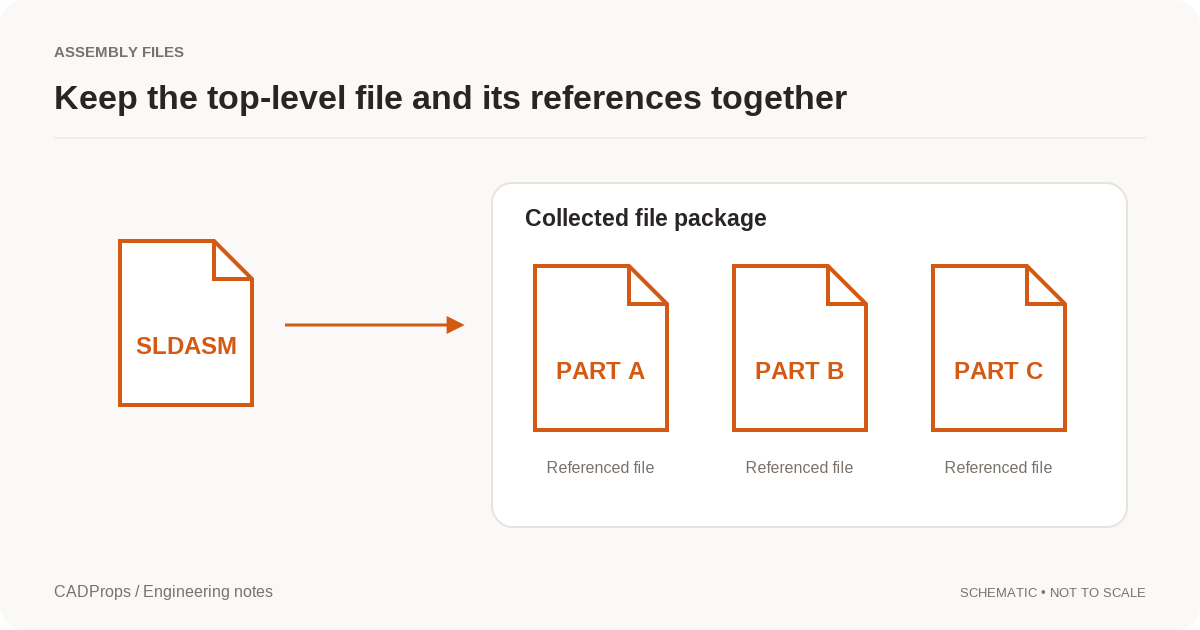
.CATDrawing+.CATProductwithout.CATPartfiles: Just as a.CATProductassembly needs its.CATPartchildren to display 3D geometry (Open CATProduct Without CATIA), a.CATDrawingdepends on linked.CATPartmodels inside CATIA. Ask for a self-contained STEP assembly alongside a multi-sheet PDF. - Need to extract 2D profile curves for laser or wire EDM cutting: Ask the CATIA user to export
DXF(1:1view scale, exploded/simplified geometry layers), then verify contour closure in CADProps with DWG Viewer and Check Closed DXF Contours.
Supplier handoff checklist for CATIA V5 packages
Save days of turnaround time by including these three bullet items in vendor RFQ instructions:
- Export all drawing sheets to vector PDF (not native
.CATDrawingalone). - Export 3D models as
STEP AP214orAP242(or supply native.CATPartparts alongside.CATProductassemblies only when necessary). - For flat blank cutting (sheet metal, gasket, laser), include a
1:1DXF in verified millimetres or inches.
Multi-sheet CATDrawing vs PDF and DXF exports from CATIA
- Multi-sheet limits in native previews: Even if an assembly package spans ten detailed inspection sheets inside a single
.CATDrawing, the embedded preview bitmap covers only a single saved thumbnail snapshot rather than paging cleanly through Sheet 1 to Sheet 10. - Why PDF stays essential for GD&T inspection: CATIA V5 Save As → PDF embeds crisp vector geometry, surface roughness symbols, weld callouts and revision tables across every sheet at any zoom factor.
- Combining 2D prints with 3D review: Pair exported PDF sheets with neutral STEP assemblies or CATIA Viewer
.CATPartuploads so both dimensional tolerances and 3D manufacturing clearances stay verifiable in the browser.
Frequently asked questions about CATDrawing files
- Can CADProps convert
.CATDrawingto PDF, DXF or STEP? No. CADProps safely reads the embedded preview image from.CATDrawingwithout executing proprietary CATIA libraries; ask the originator to save as PDF or DXF/DWG inside CATIA V5. - How do I open a
.CATPartthat came with the.CATDrawing? Upload the.CATPartinto CATIA Viewer or CATIA to STEP—supported V5 B-Rep parts display cleanly in 3D and exportSTEP (Solid)after sign-in. - Why does CATProps refuse to guess missing sheets or dimensions on
.CATDrawing? Fabricating partial or blurred numbers from an icon-sized preview risks scrapped hardware; CADProps separates verified vector drawings (DWG/DXF), PDF sheets and embedded thumbnails transparently. - Can I share an
.CATDrawingpreview link with a colleague? Yes—once the embedded thumbnail opens in the workspace, signed-in users can save it or create a controlled Share link; recipients need no account to inspect the preview. - What retention rules apply to uploaded
.CATDrawingfiles? Guest uploads expire automatically after the displayed retention window; see Privacy policy and Accuracy & calculation rules for details.
Original article: CADProps · https://www.cadprops.com/guides/open-catdrawing-without-catia/