

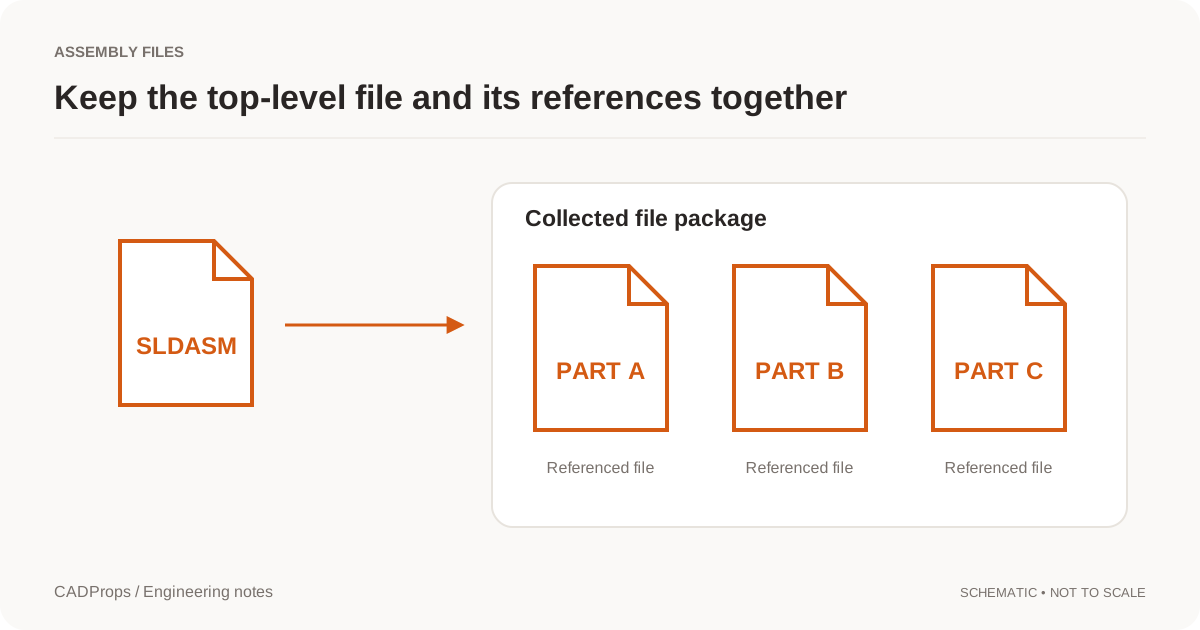
A CATProduct file is a CATIA V5 assembly or product document. It references separate CATPart files and nested products instead of holding their geometry, so the top-level CATProduct alone is not a complete model.
What CADProps shows: uploading a CATProduct shows the thumbnail CATIA saved in the file. CADProps does not rebuild the assembly in 3D, measure it or convert it to STEP. The CATPart viewer opens the individual parts.
Choose the route that answers your question
| What you need | Practical route |
|---|---|
| A quick look at what the assembly is | Upload the CATProduct and check the saved thumbnail |
| The shape and size of one part | Upload that CATPart in the CATPart viewer |
| The whole assembly in 3D, with placements | Ask the CATIA owner for a STEP export of the assembly, then open it in the STEP viewer |
| A neutral file for another CAD or CAM system | The same STEP export from CATIA; a CATPart can also be converted on its own with CATPart to STEP |
Do not rename a CATProduct to CATPart or STEP. Renaming does not translate the data or resolve its references.
Why the assembly is not rebuilt
A CATProduct stores the product structure: which parts are used, how often and where they sit. The geometry lives in the referenced CATPart files, and CATIA resolves those links when it loads the product. CADProps reads CATPart display geometry, but it does not resolve CATProduct placements, so it cannot assemble the parts in their positions.
Ask for the right STEP export
When you request a STEP from the CATIA owner, ask for:
- the intended top-level product and its revision;
- one STEP file of the whole assembly, not a STEP per part;
- the units and the application release used for the export;
- a note of any components left out on purpose.
Open the STEP in the STEP viewer. Check the component tree, one known dimension and one part whose position identifies the assembly state before using volume or mass.
Reviewing individual CATPart files
If you only have the CATIA files, upload the CATPart files one at a time. Each part shows the display geometry CATIA saved with it. When its B-Rep is reconstructed completely and matches that display, exact properties and exact STEP export are available; otherwise the values are approximate and the STEP export is a mesh STEP. See how to open a CATPart without CATIA.
Part-by-part review cannot tell you placements, repeated quantities or interferences. Treat it as a part check, not an assembly check.
Missing CATPart files
A STEP export made from an incomplete CATIA session is also incomplete. If the sender cannot find some referenced parts, the CATProduct missing-parts guide explains how to identify and request them.
What STEP will not preserve
STEP is useful for cross-CAD geometry exchange but does not recreate CATIA's parametric feature history, product links or native editing behavior. Keep the CATProduct and CATPart package for traceability and future native work.
Formats that are not substitutes
CGR, CATShape and CATIA V4 MODEL/SESSION files are not supported. Do not send them in place of a CATProduct or STEP unless the receiving workflow explicitly supports them.
Supported 3DXML exports with XML or CATIA V5 binary (UVR) .3DRep tessellations open in the 3DXML viewer, with package-local product references and placed meshes. Units are unverified and assumed millimetres; other binary representations, textures and exact B-Rep are unsupported. Mesh exports do not provide exact CATIA-to-STEP conversion.
Original article: CADProps · https://www.cadprops.com/guides/open-catproduct-without-catia/