

An assembly can look convincing in a viewer and still be a bad RFQ package.
A missing purchased component, suppressed subassembly, unresolved native reference or flattened STEP structure can change what the supplier thinks is included. The quotation problem is therefore not only "does the file open?" It is "can both sides point to the same scope and count the same things?"
Use this review before a supplier prices an assembly, fixture, machine module or multi-part product. It is a scope check, not an automatic BOM audit or manufacturability approval.
Start by defining what the supplier is pricing
Write the RFQ boundary in plain language before opening files.
Examples:
- manufacture all custom machined parts in the assembly, excluding purchased fasteners;
- quote only the three highlighted brackets, not the frame;
- quote one complete assembly including fabrication and final assembly;
- quote individual components from the package, with quantities taken from the released BOM.
The geometry cannot reliably answer that commercial question by itself. A complete CAD assembly may contain reference hardware, envelopes, fixtures or context models that are not part of the order.
Choose the assembly evidence you actually have
Two common handoffs need different checks.
Native assembly package
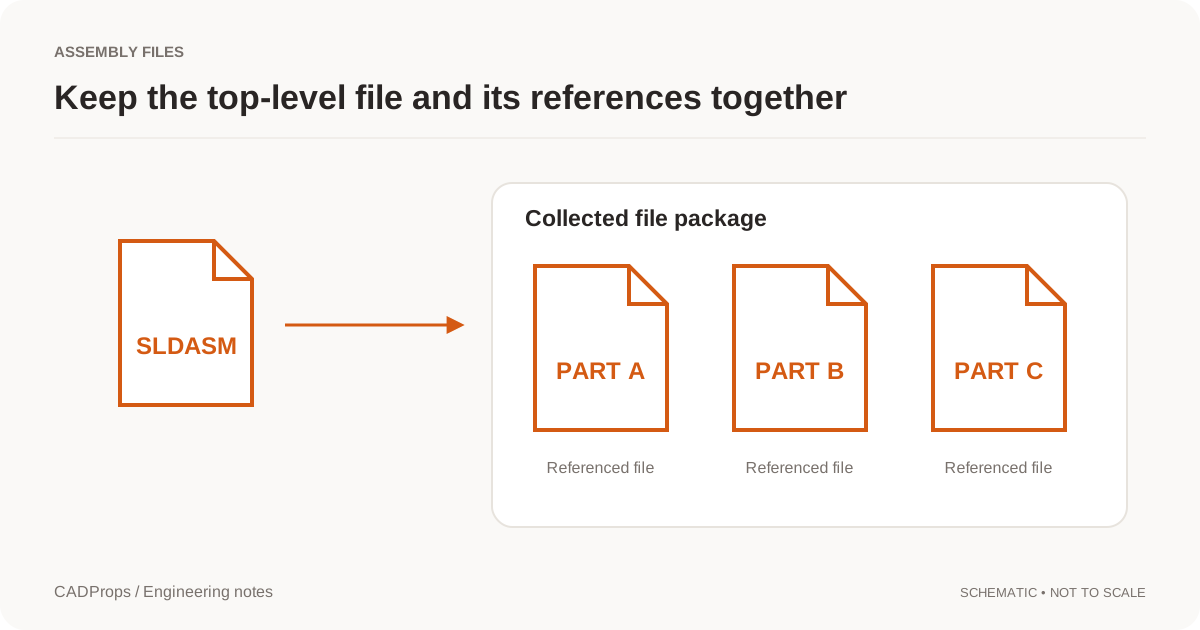
A native top-level assembly can depend on external part and subassembly files. SOLIDWORKS Pack and Go is one documented example of collecting related references into a package. Pack and Go overview.
For a native package, the first question is whether every required reference resolves when the package is opened away from the sender's original workstation.
Neutral STEP assembly
A STEP file can represent parts and assemblies, but the receiving application may display product structure differently from the authoring CAD. NIST's STEP tools show that assemblies and BOM-like product information can be represented in STEP. NIST STEP File Analyzer.
For a STEP handoff, check what structure actually survived the export. Do not assume the component tree, names or instance count are identical to the native model merely because all visible geometry appears present.
Reopen the exact deliverable independently
Do not inspect only the source CAD session that created the package.
For a native package, open the archive from a clean location or use the CAD assembly ZIP viewer and select the intended root model.
For a neutral assembly, open the delivered file in the STEP viewer.
Record:
- root assembly or delivered file name;
- revision/configuration when known;
- loaded component/body count;
- warnings or unresolved references;
- gross assembly dimensions;
- whether component placement is plausible.
If the tool reports partial geometry, stop treating aggregate volume, mass or dimensions as the complete assembly result.
Compare the component list with the quote scope
Use the released BOM, part list or RFQ line items when those are authoritative.
Create a simple reconciliation table:
| Item | CAD status | RFQ status | Action |
|---|---|---|---|
| Base plate | present | make | include |
| Motor | present | purchased | exclude from machining quote |
| Guard | missing | make | request missing file |
| Fastener set | simplified | purchased | confirm exclusion |
| Fixture | present | context only | exclude |
This makes intentional exclusions visible. It also prevents a supplier from pricing every visible component when the buyer intended only custom parts.
The STEP BOM guide explains why product structure inside a STEP file should not automatically be treated as the commercial or ERP BOM.
Check three assembly anchors
Do not try to measure every interface during RFQ intake. Pick a few checks that reveal the most common handoff mistakes.
Useful anchors include:
- overall assembly envelope;
- center distance between two major interfaces;
- location of a mounting face or shaft axis;
- orientation of a distinctive subassembly;
- count of repeated components that materially affect quantity.
A gross envelope catches the wrong configuration or scale. An interface check catches placement mistakes. A repeated-component count catches a common quantity error.
These are nominal geometry checks, not tolerance inspection.
Treat missing references differently from intentional suppression
A component can be absent for several reasons:
- the sender forgot to package the referenced file;
- the active configuration intentionally suppresses it;
- it is a purchased item intentionally excluded from the RFQ;
- a lightweight/simplified representation was exported;
- the neutral export flattened or omitted product structure;
- the RFQ covers only a selected subset.
Do not "fix" every absence by searching for a file with the same name. Ask what the released configuration and RFQ scope require.
The native-format troubleshooting guides for SOLIDWORKS assemblies, CATIA and Inventor show why unresolved references are a packaging problem, not proof that the geometry never existed.
Check quantity twice: design quantity and order quantity
Assemblies create a subtle quoting trap.
The CAD may contain four identical brackets because four are used per machine. The RFQ may ask for ten machines. The manufacturing quantity is therefore forty brackets, not four and not ten.
Keep these values separate:
- quantity per assembly;
- number of assemblies ordered;
- spare/service quantity;
- prototype quantity;
- production quantity.
Do not expect the CAD tree to encode the commercial order quantity.
Verify revision consistency across the package
A top-level assembly revision does not guarantee every external component file belongs to the same released state.
Check the release system, package manifest or drawing set for component revision control. If an old part file is accidentally combined with a new top-level assembly, the assembly may still open normally.
For neutral exports, tie the STEP file to the native source revision and export date/configuration. The supplier handoff checklist covers fixed-version delivery in more detail.
A five-minute assembly RFQ gate
Before asking for price:
- State exactly what the supplier is pricing.
- Identify the root assembly and released revision/configuration.
- Open the actual delivered native package or STEP independently.
- Resolve or explain every missing-component warning.
- Compare loaded components with the released BOM or RFQ line items.
- Mark purchased, reference and intentionally excluded components.
- Check one gross dimension and two key interface/placement anchors.
- Reconcile quantity per assembly with order quantity.
- Confirm drawings/specifications exist for the parts that need manufacturing requirements.
- Record open questions instead of letting the supplier infer scope.
If any missing item can change material, process, setup, quantity or assembly effort, the RFQ is not ready.
Where CADProps helps
CADProps can help open supported STEP assemblies and bounded native CAD packages, surface missing-component warnings, inspect loaded geometry, measure nominal dimensions and batch-review properties.
It does not decide the commercial BOM, infer which visible parts are purchased, reconstruct files that were never packaged, or certify that the assembly is complete against a PLM release.
Use the viewer to gather evidence. Use the released BOM, drawings and RFQ instructions to define what the supplier must actually quote.
Original article: CADProps · https://www.cadprops.com/guides/check-cad-assembly-before-rfq/