

A quick CAD check should not require a desktop installation. CADProps lets you open supported parts and assemblies in your browser, see the shape, check dimensions and move on with your review. Viewing and measuring are free and do not require an account.
Open your CAD file or try the sample flange bearing.
Get from a file to a useful view quickly
When a supplier sends a part, the first questions are often simple: is this the right shape, how large is it, and where are the important holes or interfaces? CADProps puts the model and its available properties in one workspace, so you can start with the part itself instead of setting up a CAD application.
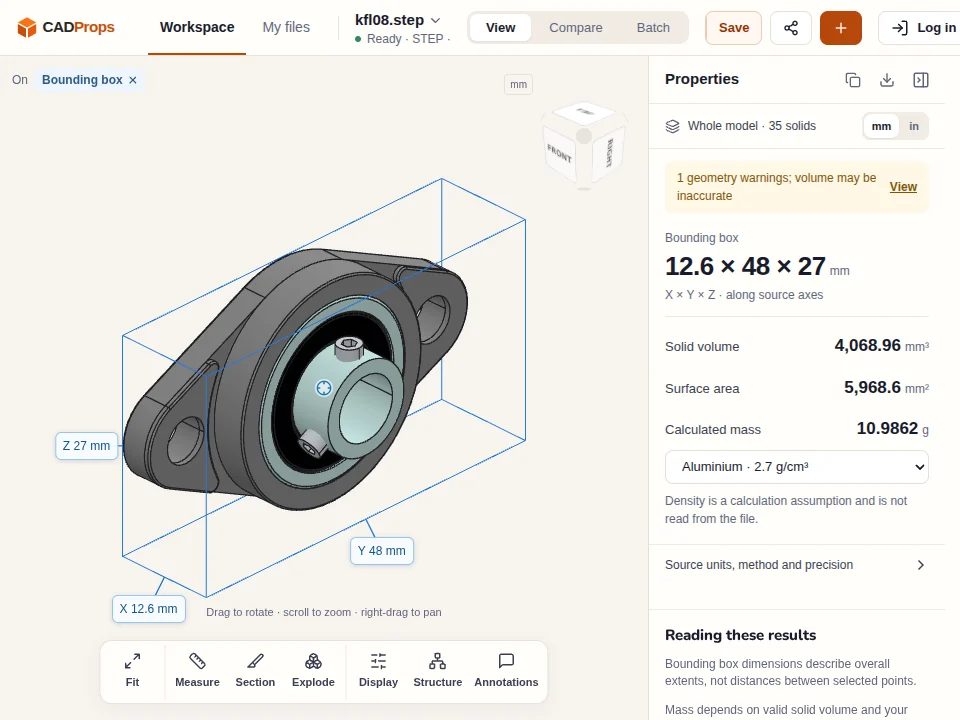
Rotate and zoom to inspect the shape. Check the X, Y and Z dimensions beside the model. Use the supported measurement tools when you need a closer look at an edge, hole or distance. For suitable STEP geometry, surface area and closed-solid volume are available too.
The two STEP parts below showed visible 3D in 2.9 and 3.2 seconds after upload on the production website. They are public examples you can download and open yourself.
Open an assembly and start reviewing its components
A single part is only one side of CAD inspection. An assembly review also needs the component arrangement: what sits inside the housing, what connects to the frame, and which parts need a closer look?
CADProps supports Inventor IAM assemblies and ZIP packages containing supported assemblies with their referenced parts. Keep the original folders and references together. Once a 3D view appears, you can rotate the model and use the component, visibility, section and exploded-view tools as they become available.
The Cabin IAM example below opened in 10.3 seconds after upload. Its preview is approximate, with area and volume unavailable.
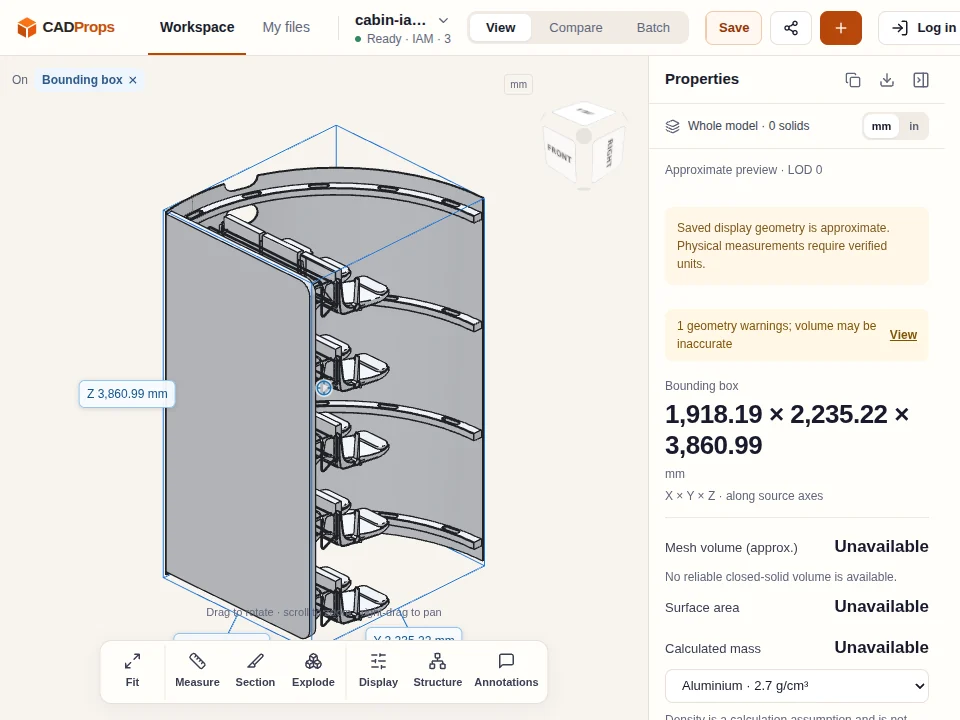
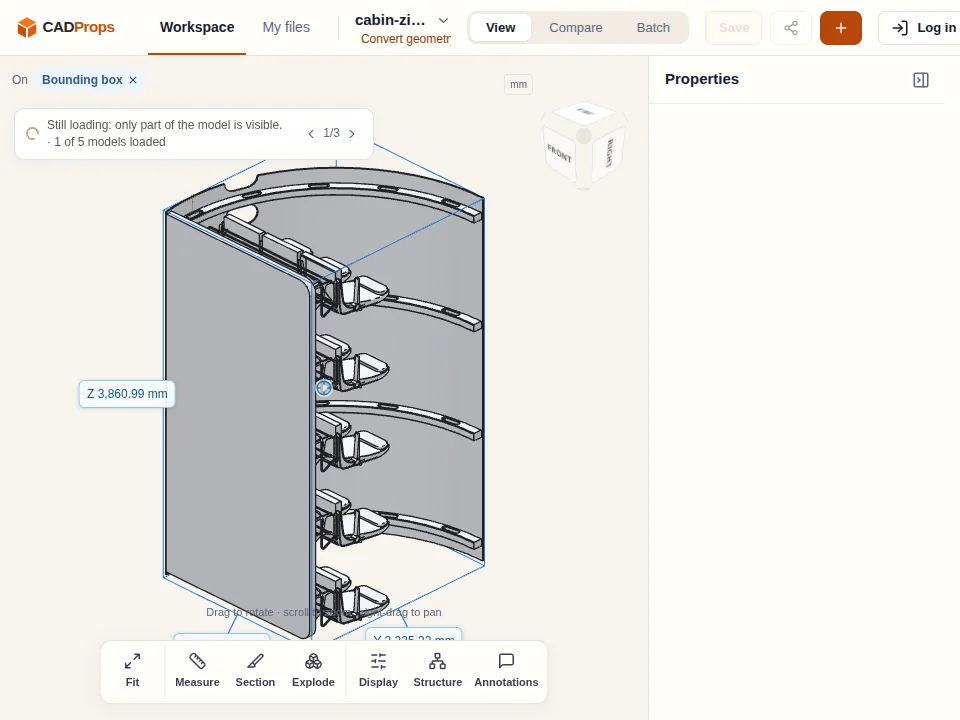
An 11.38 MB Cabin assembly package showed visible 3D in just 20 seconds after upload. You can begin looking at the cabin and seat arrangement while the remaining components load. The final displayed result contained 227,186 triangles across four loaded components, with processing observed finished at 30.0 seconds. These are display triangles, rather than exact CAD faces. The package was marked incomplete, so its final view and warnings need checking before using properties.
Open Inventor parts and assemblies · View a CAD ZIP package
Loading speed with real parts and assemblies
These examples cover two STEP parts, an Inventor assembly and two assembly packages. The main timing is from upload completion to the first visible 3D frame in the browser. Upload time is listed separately; the final-status column records when processing was observed complete, which can be earlier or later than the first rendered frame.
| Public model | File size (MB) | Upload | First visible 3D after upload | Final status observed after upload | Result |
|---|---|---|---|---|---|
| Bearing housing STEP | 0.09 | 0.1 s | 2.9 s | 1.0 s | CAD geometry; no warning |
| KFL08 bearing STEP | 1.19 | 0.2 s | 3.2 s | 7.1 s | CAD geometry; geometry warning |
| Cabin IAM | 3.65 | 0.4 s | 10.3 s | 10.5 s | Approximate view; area and volume unavailable |
| Cabin assembly ZIP | 11.38 | 1.0 s | 19.9 s | 30.0 s | Incomplete result; 227,186 display triangles, 4 components |
| Tower Bridge assembly ZIP | 17.86 | Not verified | Not verified | Not verified | Timing not verified; browser run interrupted; incomplete result |
MB uses decimal bytes. The Tower Bridge input was uploaded once, but its browser run was interrupted before the timing record was saved; no speed claim is made for it.
Conditions: measured on the production website on 2026-10-09, with a production allocation of six CPU cores and 11 GiB of memory. We uploaded one input at a time, once per model, using automated Chromium at 960 × 720 with software rendering. The screenshots come from those uploads. The waiting time includes opening the workspace after the file transfer; upload verification is excluded. Upload time is separate; caching was not controlled. Network, browser, hardware, model complexity and service load affect waiting time. Thumbnail images do not count as visible 3D. These are single observations, not averages or a guarantee for every CAD file.
Public model sources
- Bearing housing: CADProps original under CC0 1.0. Download the STEP part.
- KFL08 flange bearing: hasecilu, FreeCAD Parts Library, CC BY 3.0. Download the STEP part.
- Cabin and Tower Bridge assemblies: How to CAD Almost Anything: Inventor edition, MIT license. Cabin uses Session 6; Tower Bridge uses Session 5. ZIP inputs contain the selected assembly and its local component files, with their names preserved. Follow the repository's license and credit notices when redistributing them.
One workspace for your next step
After a quick visual check, stay in the same workspace to measure, section, compare or export the properties available for the model. STEP/STP, IGES, supported meshes and native CAD formats each have their own capabilities; the format guide lists the current boundaries.
A fast view helps you get started. Important dimensions still need verified units and suitable geometry, and estimated weight needs a confirmed density. Approximate previews and incomplete assemblies are identified in the workspace. Conversion, saving files across devices and creating share links require sign-in; recipients can view shared models without an account. Files are processed on CADProps servers, with the retention and deletion rules in the privacy policy.
Start viewing your CAD file · STEP viewer · Sample models
Original article: CADProps · https://www.cadprops.com/fast-cad-viewer/