

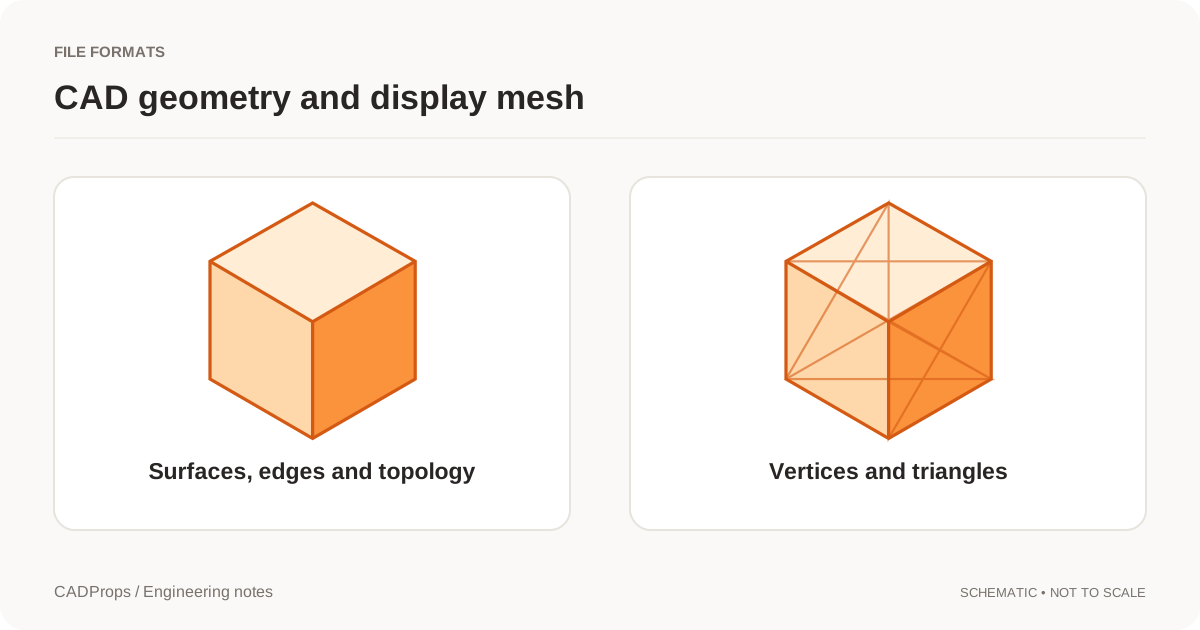
An STL file is a triangle mesh: a list of flat triangles that approximate the surface of a part. To measure one without installing CAD or slicer software, open it in the STL viewer, read the bounding box and mesh volume in Properties, then pick two points with Measure to check a distance. Before you trust any of the numbers, compare one dimension with a value you already know, because an STL file does not say whether its coordinates are millimetres or inches.
What is inside an STL file
Every STL file stores the same thing: triangles, each with a normal vector and three corner points. There are two encodings. Library of Congress STL format description
| Encoding | How to recognise it | Layout |
|---|---|---|
| ASCII | Opens as readable text in an editor | Starts with solid, repeats facet normal, outer loop, three vertex lines, endloop and endfacet for each triangle, and ends with endsolid |
| Binary | Shows unreadable bytes in an editor | An 80-byte header, a 4-byte triangle count, then 50 bytes per triangle: twelve 32-bit numbers for the normal and three corners, plus a 2-byte attribute field |
Because each binary triangle takes exactly 50 bytes, a binary STL is 84 + 50 × n bytes long, where n is the triangle count. The box.stl sample is 684 bytes: 84 + 50 × 12, so it holds 12 triangles, two for each face of a box. If a binary file's size does not fit that formula, the file was truncated or is not a plain binary STL.
What is missing matters as much as what is there. STL has no unit field, no standard way to store colour or materials, no part names or assembly structure, and no curves. A cylinder is stored as a ring of flat facets, and a hole is the space those facets surround.
Open and measure an STL file
- Keep the original
.stlfile unchanged. - Open the STL viewer and select or drop the file. It is processed on the server; viewing and measuring need no account, and guest files are temporary.
- Read Properties: the bounding box, Mesh volume (approx.), Surface area and the source units line.
- Compare one extent with a dimension you trust before you use the others.
- Click Measure, then Distance and Two points, and pick two points on the model.
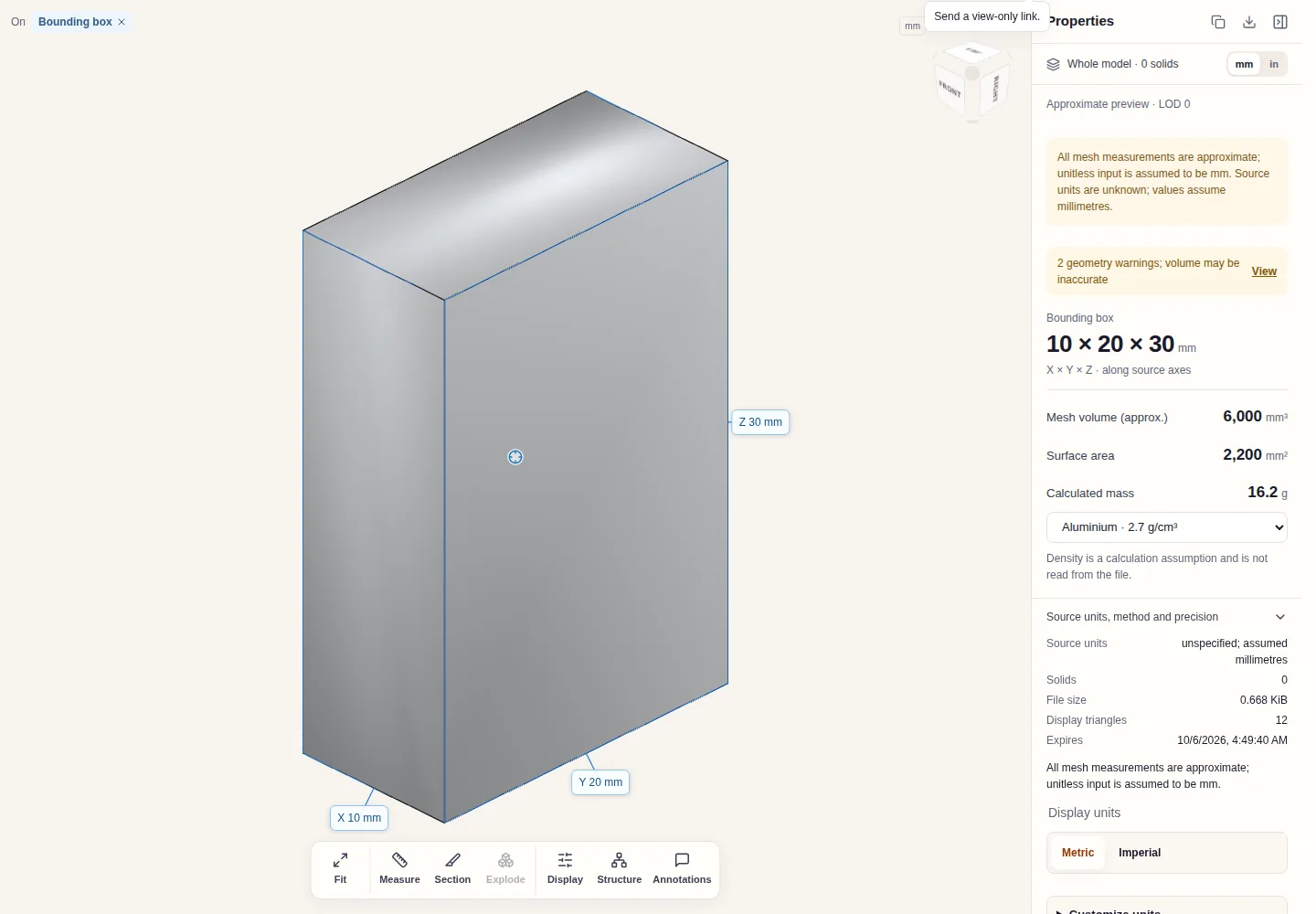
The panel labels the result as an approximate preview and shows two geometry warnings. Both apply to every STL file: values come from the mesh rather than exact CAD geometry, and the unit is assumed. The solid count is 0 because a mesh has no B-Rep solids, but a closed mesh still gets a volume, marked as approximate.
Calculated mass multiplies that volume by the density you choose. Density is never read from the file, and it only makes sense once the scale is confirmed.
Measure a distance between two points
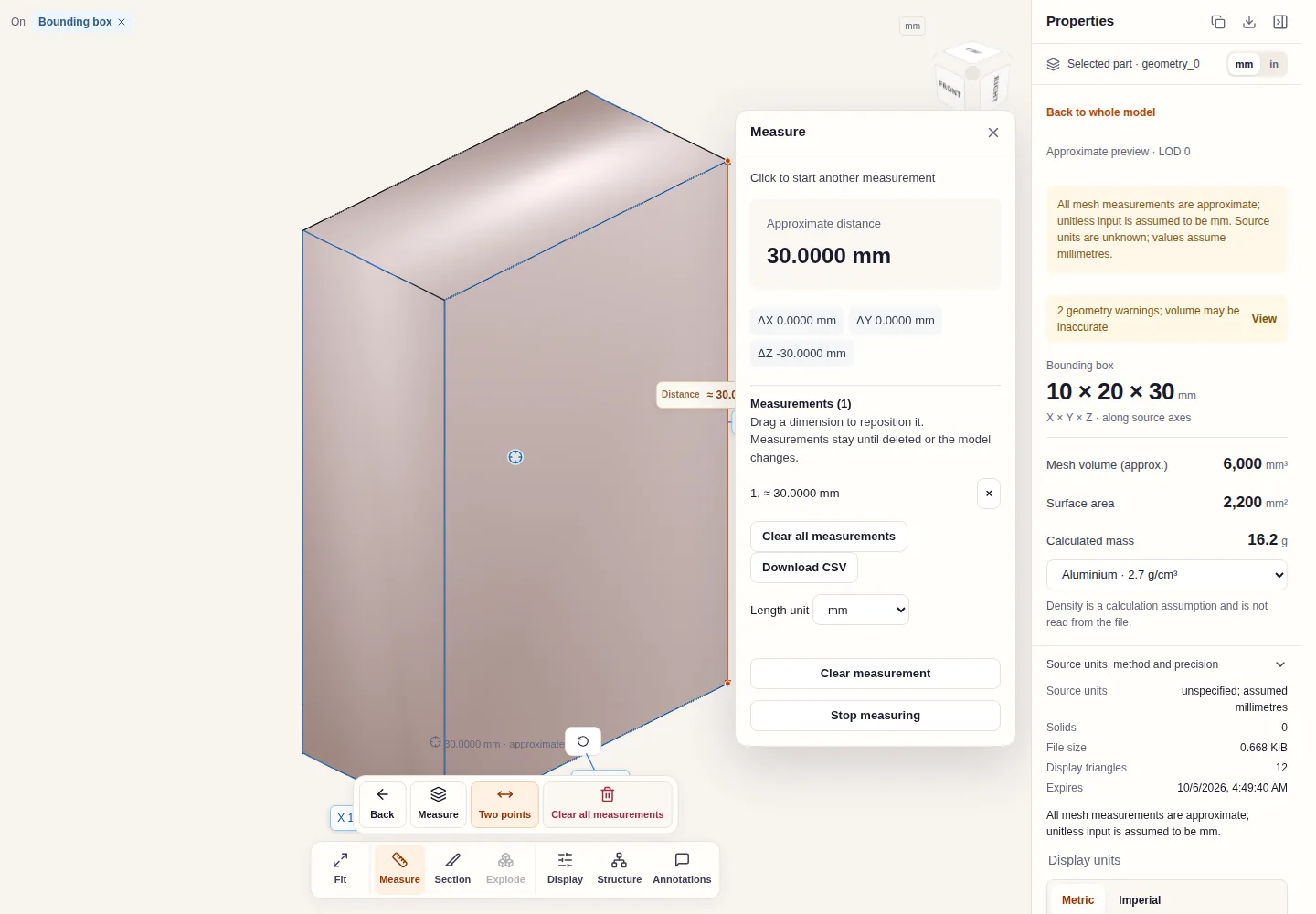
The result shows the straight-line distance and its X, Y and Z components. The components make it easy to check a height or width without picking points that line up perfectly. Each result is added to a Measurements list that you can download as CSV, and the Length unit selector converts the readout to centimetres, metres or inches without changing the file.
Distances on an STL are labelled approximate because the points land on the mesh. On a flat face or a straight edge that is usually close to exact. On a curved surface, the facets cut corners, so a distance across a round boss can read slightly short of the true diameter when a pick lands on a flat facet between its corners. The coarser the export, the bigger that gap; STL export settings explains how chord height and angle control it.
The measurement modes available for an STL are Distance (two points) and Point coordinates. Edge length, hole and circle diameter, angle between faces and picked-face area need B-Rep geometry, so they appear for STEP, IGES and other CAD inputs but not for a mesh.
Check the scale before anything else
STL files carry no unit, so 25 can mean 25 mm or 25 inches. CADProps reads the coordinates as millimetres and says so in Source units, method and precision. If a part you know is 1 inch long measures 1 mm, the file was exported in inches, and every length is 25.4 times too small. Volume is off by 25.4³, about 16,387 times.
The mm and in buttons change only how values are displayed. They do not rescale the mesh, so they cannot repair a file exported in the wrong unit. Do STL files have units? walks through the check and the fix at the source.
When volume is missing
Volume needs a closed mesh with consistently oriented triangles. If the mesh has holes, gaps or flipped facets, CADProps shows volume and mass as unavailable instead of reporting zero or estimating from the bounding box. Why STL volume is zero or missing lists the common causes, and watertight meshes explains what "closed" means in practice.
STL compared with a CAD file
An STL is often the only file a supplier, printer or customer sends. It is enough for many checks, but it is a different kind of data from STEP or a native CAD file:
| Question | STL mesh | CAD file such as STEP |
|---|---|---|
| Overall dimensions | Yes, after confirming the unit | Yes, with units from the file |
| Point-to-point distance | Approximate | Approximate for picked points; exact for supported edges |
| Hole diameter | Only estimated from facet points | Read from cylindrical faces |
| Volume and mass | Approximate, closed meshes only | From valid closed solids |
| Part names and assembly | No | Often, depending on the export |
| Editable features | No | No in STEP; yes only in the native CAD file |
When you need exact hole sizes, tolerances checked against a drawing, or assembly structure, ask the sender for STEP. STEP vs STL compares the two formats in more depth. A mesh cannot be turned back into the original CAD surfaces, so converting an STL to STEP would not recover the exact geometry.
Convert or share the result
If another program needs OBJ, use STL to OBJ and reopen the result to compare its dimensions with the source. Both are meshes, so the conversion does not change the precision. All mesh formats and their unit rules are collected on the mesh formats hub.
Original article: CADProps · https://www.cadprops.com/guides/open-stl-file-and-measure/