

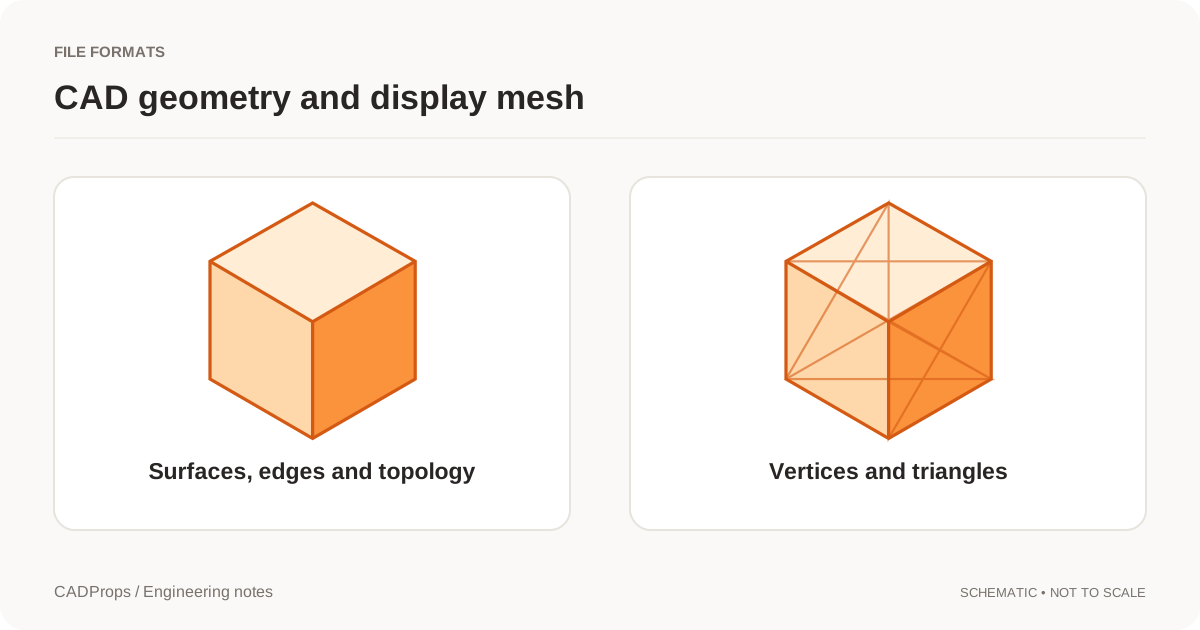
An STL file can look like a perfectly normal part in a 3D viewer and still have no reliable enclosed volume. The reason is simple: rendering only needs triangles to draw; volume needs those triangles to form a consistent closed boundary.
CADProps estimates STL properties from the mesh. It can report dimensions and surface area from readable triangles, but reliable volume and density-based mass require a suitable closed mesh. If the mesh is open or inconsistent, CADProps leaves volume unavailable instead of inventing a number.
That distinction matters when somebody reports “STL volume is zero.” The real result may be zero, unavailable, wrong because of units, or unreliable because the mesh is not watertight. Those are different problems.
Why a visible STL can have no volume
STL describes a surface as triangles. The format is widely used for tessellated geometry and does not preserve the analytic CAD surfaces or feature history from which the mesh may have been exported. The Library of Congress STL format description is useful background on the mesh representation.
For an enclosed object, the triangles must collectively define an inside and an outside. If a boundary has gaps, disconnected regions or inconsistent orientation, the surface may not define one trustworthy enclosed region.
Think of the difference this way:
- a sheet of triangles can be rendered from the camera;
- a closed shell can enclose space;
- only a valid closed result should be used for a physical volume calculation.
A missing face the size of a pinhole can be nearly invisible on screen while still breaking the mathematical enclosure.
Common causes of missing or unreliable STL volume
| Symptom | Likely issue | What to do next |
|---|---|---|
| Model looks correct but volume is unavailable | Open mesh or inconsistent topology | Inspect/repair the mesh in the source CAD or a mesh-repair tool |
| Model has obvious gaps | Missing triangles or failed export | Re-export from the source model |
| Some surfaces appear inside-out | Inconsistent face orientation | Repair normals/orientation and validate the result |
| Several shells overlap | Non-manifold or duplicated geometry | Remove duplicate/intersecting shells or export a clean body |
| Volume exists but is wildly too large/small | Unit assumption is wrong | Verify source units and scale |
| Volume changes after a coarse/fine export | Tessellation changed the approximation | Export at an appropriate mesh tolerance or use the original CAD solid for exact properties |
Do not treat “repair” as automatically correct. A repair tool can close a gap in more than one way. If the missing surface is functionally important, compare the repaired mesh with the source CAD or drawing.
Watertightness and units are different problems
STL does not reliably declare a physical unit. CADProps therefore has to use an explicit unit assumption for the coordinates. Read Do STL Files Have Units? before trusting millimetres, inches or mass derived from the mesh.
A unit error does not normally make an otherwise closed mesh lose its volume. It makes the volume the wrong magnitude.
For example, if a model intended in inches is interpreted as millimetres, every linear dimension is off by a factor of 25.4. Volume scales with the cube of length, so the volume error becomes much larger than the dimension error.
By contrast, an open mesh may have no defensible enclosed volume at any scale.
Use this diagnostic order:
- Is the mesh structurally closed enough for a volume calculation?
- Are the units correct?
- Is the tessellation fine enough for the accuracy you need?
- Is the selected material density correct if you are calculating mass?
Changing units cannot repair a hole in the mesh.
Why CADProps does not replace missing volume with zero
A true zero-volume result and an unavailable result have different engineering meanings. A flat surface can have no enclosed volume. A damaged model can also fail to produce a volume. Reporting both as 0 hides the reason and can propagate bad numbers into quoting or material estimates.
CADProps therefore keeps the unavailable state visible when the mesh does not meet the requirement for a reliable closed-volume calculation. If mass depends on that volume, mass should remain unavailable too.
This is the same principle used throughout the site: absence of a trustworthy calculation should not be disguised as a precise numeric result.
Check the mesh before estimating weight
Mass is derived from volume and density. If either input is unsupported or wrong, the mass is wrong.
Before selecting aluminum, steel, resin or another density, confirm:
- the STL corresponds to the intended revision;
- the mesh is closed enough for volume;
- the source unit assumption is correct;
- the model is not a hollow shell when you expected a solid part;
- duplicate shells are not being counted twice;
- the density represents the material state you actually want to estimate.
A plausible mass does not prove that the mesh is correct. Always use one known dimension as a sanity check.
Re-exporting from CAD is usually better than guessing a repair
If you still have the original CAD model, return to it instead of repeatedly editing a defective STL. Confirm that the source body is the intended one, then export again with suitable tessellation settings.
The STL export settings guide explains the trade-off between mesh resolution, file size and geometric approximation. Extremely coarse tessellation can distort curved surfaces; extremely fine tessellation increases file size without restoring native CAD semantics.
If the downstream task needs exact volume or accurate feature geometry, consider keeping a solid CAD exchange format such as STEP for analysis and generating STL only where a mesh is actually required.
When a repaired STL is acceptable
A repaired mesh can be appropriate for visualization or additive-manufacturing preparation if the repair is verified. The standard should depend on what the file will control.
For a display model, closing small gaps may be enough. For a print, confirm the slicer interprets the intended shells. For engineering costing, compare repaired dimensions and volume with a known source. For machining or dimensional inspection, prefer the original CAD geometry when available.
Record that the STL was repaired if the derived volume or mass is used outside the immediate viewing session. That preserves traceability when somebody later compares the number with a CAD model or drawing.
A short troubleshooting checklist
When an STL volume appears as zero, missing or suspicious:
- Open the original STL without renaming or resaving it.
- Check whether the viewer reports the mesh as open or unsuitable for volume.
- Inspect for gaps, disconnected shells, flipped faces and duplicated geometry.
- Verify one known dimension and the intended unit.
- Re-export from the original CAD body when possible.
- If you repair the mesh, compare the repaired result with the source before using volume or mass.
- Keep mesh-derived values labeled as approximate where appropriate.
STL is excellent for many mesh workflows, but a shaded preview is not evidence that the file encloses a valid physical volume. Start with mesh closure, then units, then density.
Original article: CADProps · https://www.cadprops.com/guides/why-stl-volume-is-zero/