

Use Section box in the CADProps STEP viewer when the area you want to see is obscured from several sides. A single plane can expose a bore along its axis. A box lets you keep a smaller region in view while you rotate around it.
Set the box around the area you want to inspect
- Open the STEP model and locate the area in the full view. For an assembly, use Structure to identify the relevant components.
- Open Section and choose Section box. Select the box face to move, for example X −. Drag its handle to bring the boundary toward the area you need.
- Choose the opposite face if the far side also gets in the way. Adjust one axis at a time so it is clear which boundary caused a feature to disappear.
- Hide the cutting plane graphic if it obscures the result. The cut stays active. Use Reset section if the box has moved away from the detail, or Exit section to see the complete model again.
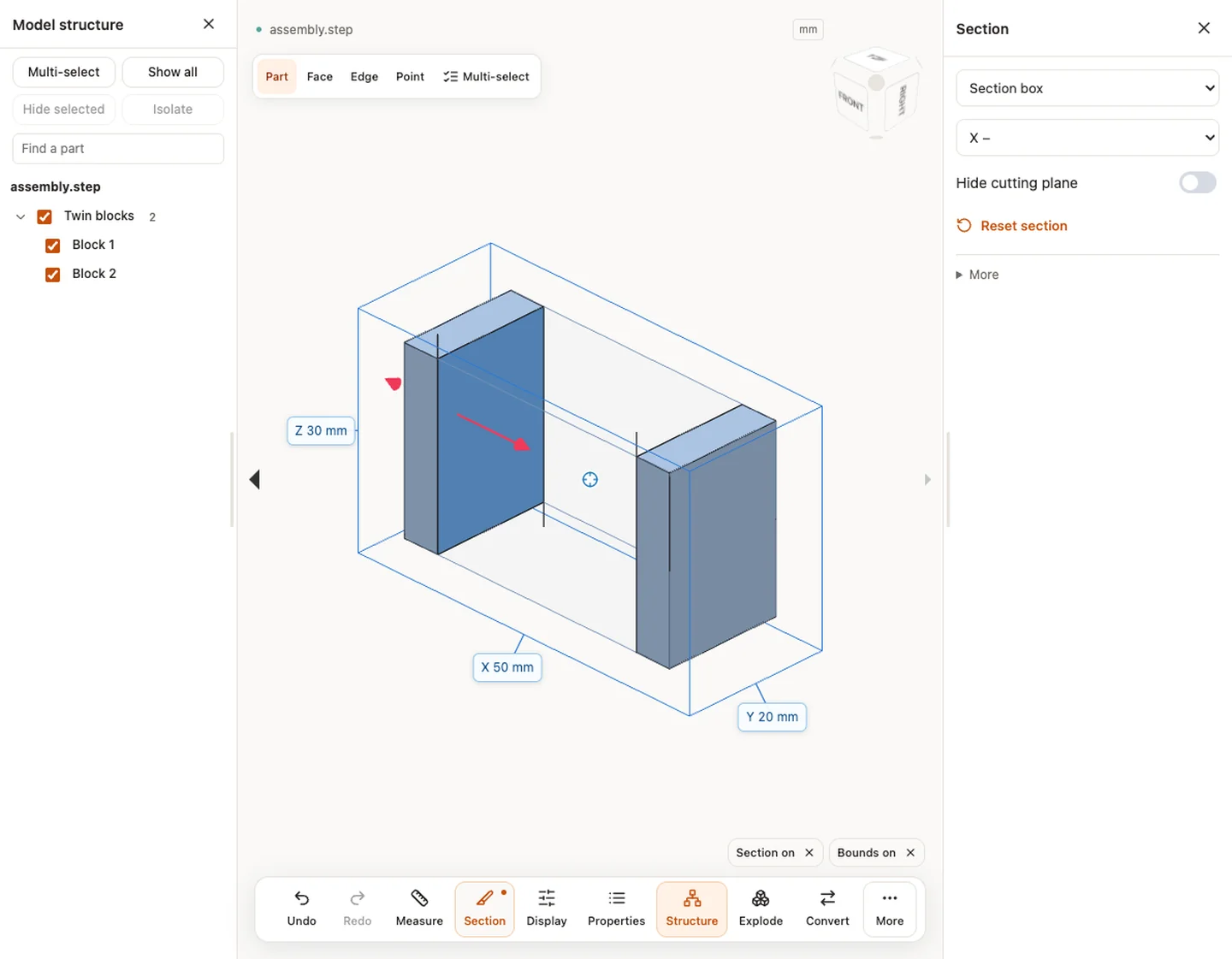
Keep the mating surfaces in view
Suppose a small bracket attaches to the inner wall of an enclosure. Narrow the box around the fastener and wall so the opposite side of the enclosure no longer blocks the view. Leave enough room to see both mating surfaces. If a fastener disappears as you drag a box face, widen that boundary and check the full view before deciding it is absent from the model.
The section changes what the viewer draws. Measurements still refer to the original geometry, and the CAD export uses the original model. If you want to show the inspection to a colleague, use Share → Export current view as an image and note the file revision. When the task is to follow one passage through a solid, use the single-plane workflow.
Original article: CADProps · https://www.cadprops.com/guides/use-step-section-box/