
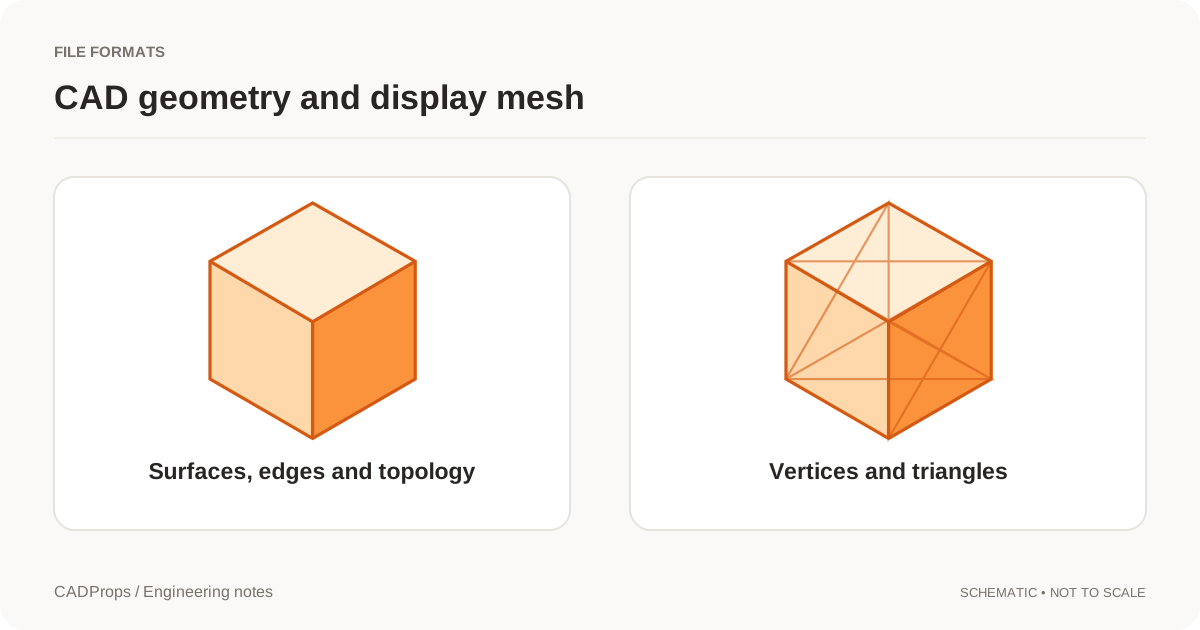
Open your STEP in the CADProps dimensions tool, choose Measure → Perimeter, and click inside the face. The result adds the CAD edges on its boundary, including any holes in that face. That total is useful when you need the length of every cut edge on a plate.
Check the outside outline and the hole
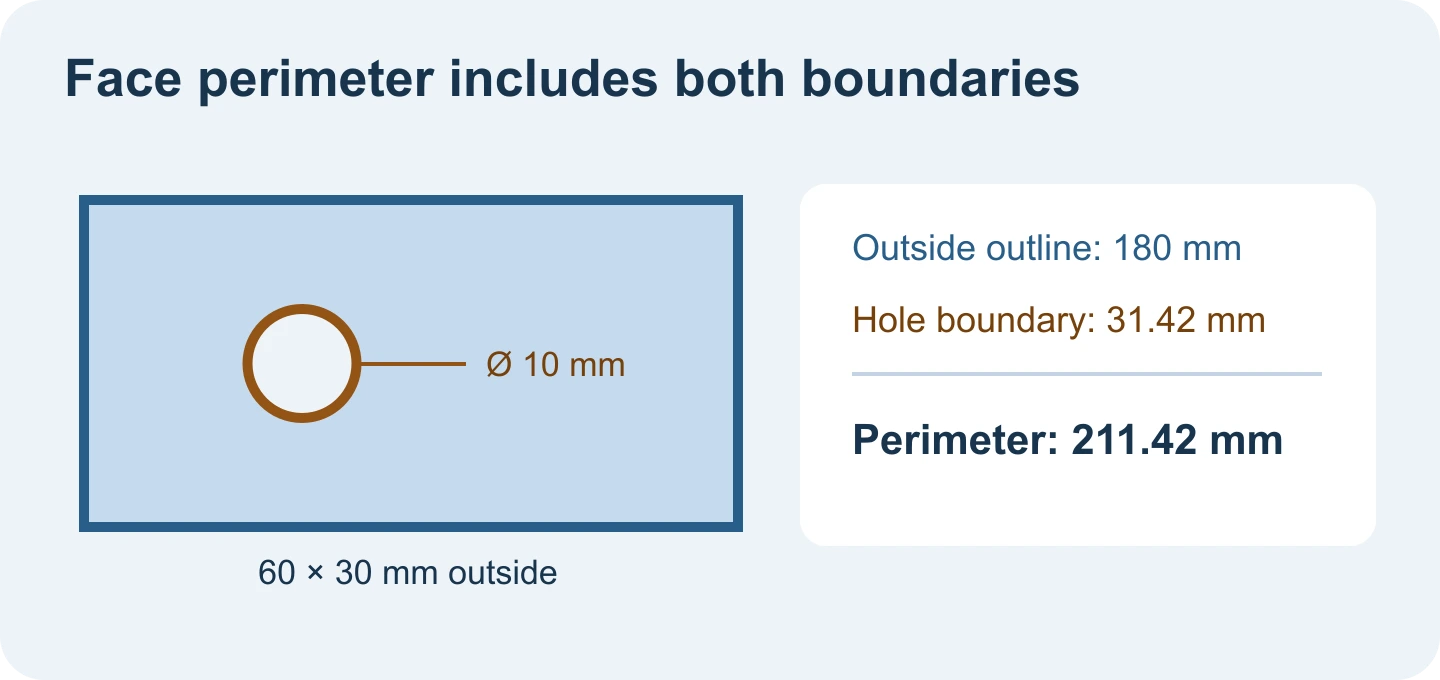
- Open the perimeter sample. The top face is a 60 × 30 mm rectangle with a 10 mm hole.
- Select the broad top face away from the hole and outside edges. Perimeter should read about 211.42 mm. The outside rectangle contributes 180 mm and the hole adds about 31.42 mm.
- To check just the hole boundary, use Edge and click its circular rim. To check only the outside loop, measure and sum the four straight outside edges.
If the result is unexpectedly low, check the face highlight. A pick on a side wall or on the cylindrical hole wall selects a different face with its own boundaries. If Perimeter is unavailable, check whether the file opened as a mesh. For an exact face perimeter, request a STEP export with readable CAD faces.
Original article: CADProps · https://www.cadprops.com/guides/measure-step-face-perimeter-with-hole/