

Open the STEP in the CADProps dimensions tool. Choose Measure → Angle → Cone angle, then click the sloping wall of the countersink. CADProps reads the included angle from the conical CAD face. Compare that value with the included angle called out in the drawing.
Where to click on a 90° countersink
- Open the countersink sample. The wider opening is on the top of the plate.
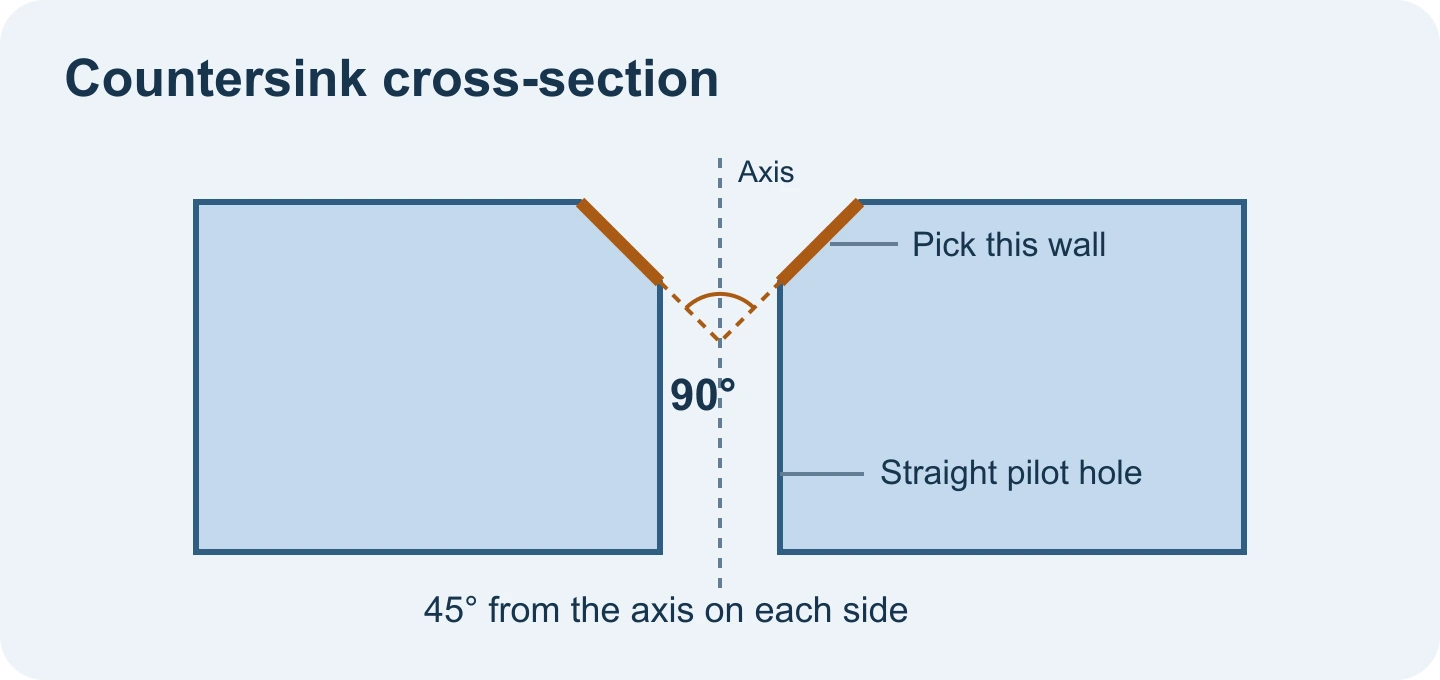
- Tilt the plate until you can see the sloped ring inside the opening. With Cone angle active, pick the ring between the top rim and the smaller through hole.
- Read 90°. In a cross-section through the hole axis, each sloping wall is 45° from the axis. The included angle spans both slopes, so the measurement is twice that value.
When the viewer rejects the pick
The top surface is flat and the pilot wall is cylindrical. Move the pointer to the sloping face and pick again. Zoom in if the rim takes up only a few pixels. If the result is from an older upload, reopen the original STEP to refresh its geometry. When the file contains triangles only or the transition was modeled as a curved blend, ask the sender for an export with the original conical face or check the drawing callout.
For a complete inspection, use the drawing for the mouth diameter, depth and tolerance. The angle measures one selected face.
Original article: CADProps · https://www.cadprops.com/guides/measure-step-countersink-angle/