

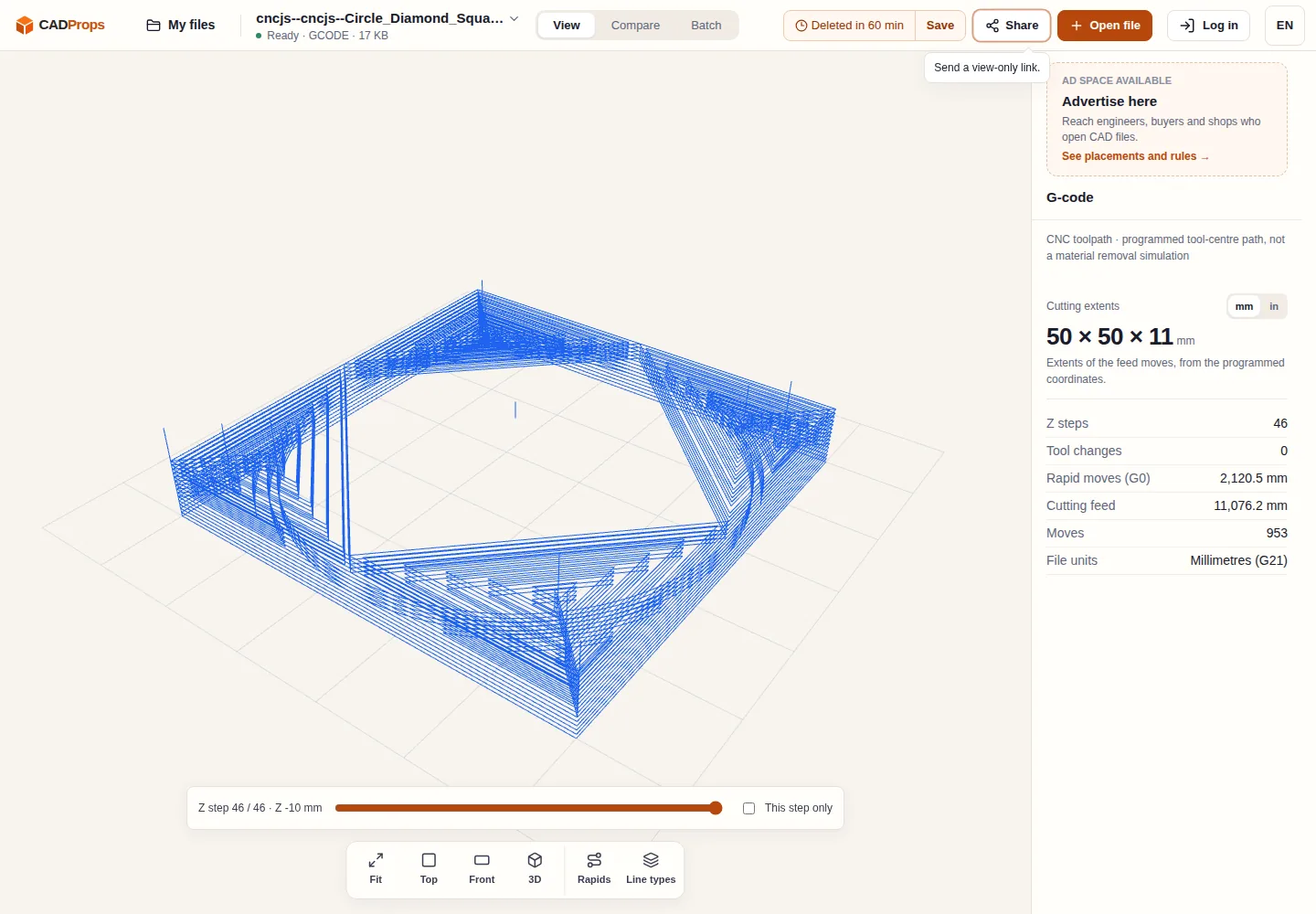
A diagonal move appears to cross your part when you open an NC file. In the CADProps G-code viewer, turn on Rapids and look at the same move from the front. The top view can show where the tool moves in X and Y while hiding the height at which that move occurs.
Find the transition between two cuts
- Open the text NC, NGC, TAP or G-code file and pause playback. Enable Rapids, which starts off in the CNC view.
- Use Top to locate the transition, then Front or 3D to see whether the path changes Z before crossing. Scrub through the move to see the order.
- Step through the nearby Z levels. This step only helps isolate the current cutting level. Turn it off when you need context from the rest of the program.
- Check the program's units in the details panel. Cutting extents describe the feed paths. They do not include the clearance height of the rapids.
Know when to verify in the controller or CAM system
A program that uses different fixture offsets can appear to cut in the same place because CADProps draws G54 through G59 in one coordinate system. If moves overlap unexpectedly, check the active offset and fixture locations in the CAM or controller preview. Canned drilling cycles show a simplified plunge and retract. If a macro or subprogram is skipped, verify the full path in the system that can execute it. LinuxCNC G-code reference
Use the preview to find a suspicious segment and hand that question back to the person responsible for the setup. A programmed centreline does not include cutter, holder, clamps, stock or machine travel. Even when the move is visibly above the part in this view, check actual clearance in the appropriate setup.
Sample: cncjs examples, MIT licence.
Original article: CADProps · https://www.cadprops.com/guides/check-cnc-gcode-rapid-moves/