# STL Viewer Online: Mesh Dimensions, Area & Volume
Open binary or ASCII STL files, inspect the triangle mesh and estimate dimensions, area and closed-mesh volume.
Open binary or ASCII STL files, inspect the triangle mesh and estimate dimensions, area and closed-mesh volume.
## Open your file
Open binary or ASCII STL files, inspect the triangle mesh and estimate dimensions, area and closed-mesh volume. Select or drop the file to start processing immediately. For guests, temporary workspace copies remain limited to the browser session and expire after the configured retention period. Signed-in files are saved to the account library when space is available; otherwise they remain temporary.
## What is supported
STL has no reliable unit declaration. Coordinates assume millimetres. Mesh measurements are approximate; open or inconsistent meshes have no volume or mass.
## Read the result responsibly
Display units can be changed without changing source geometry. Confirm source units and material density before using physical properties. A preview is not a manufacturing validation.
## Open an STL file
1. [Open the viewer](https://www.cadprops.com/workspace/index.md) and select or drop a binary or ASCII `.stl` file.
2. Wait while the file is processed on the server. Viewing and measuring need no account, and guest files are temporary.
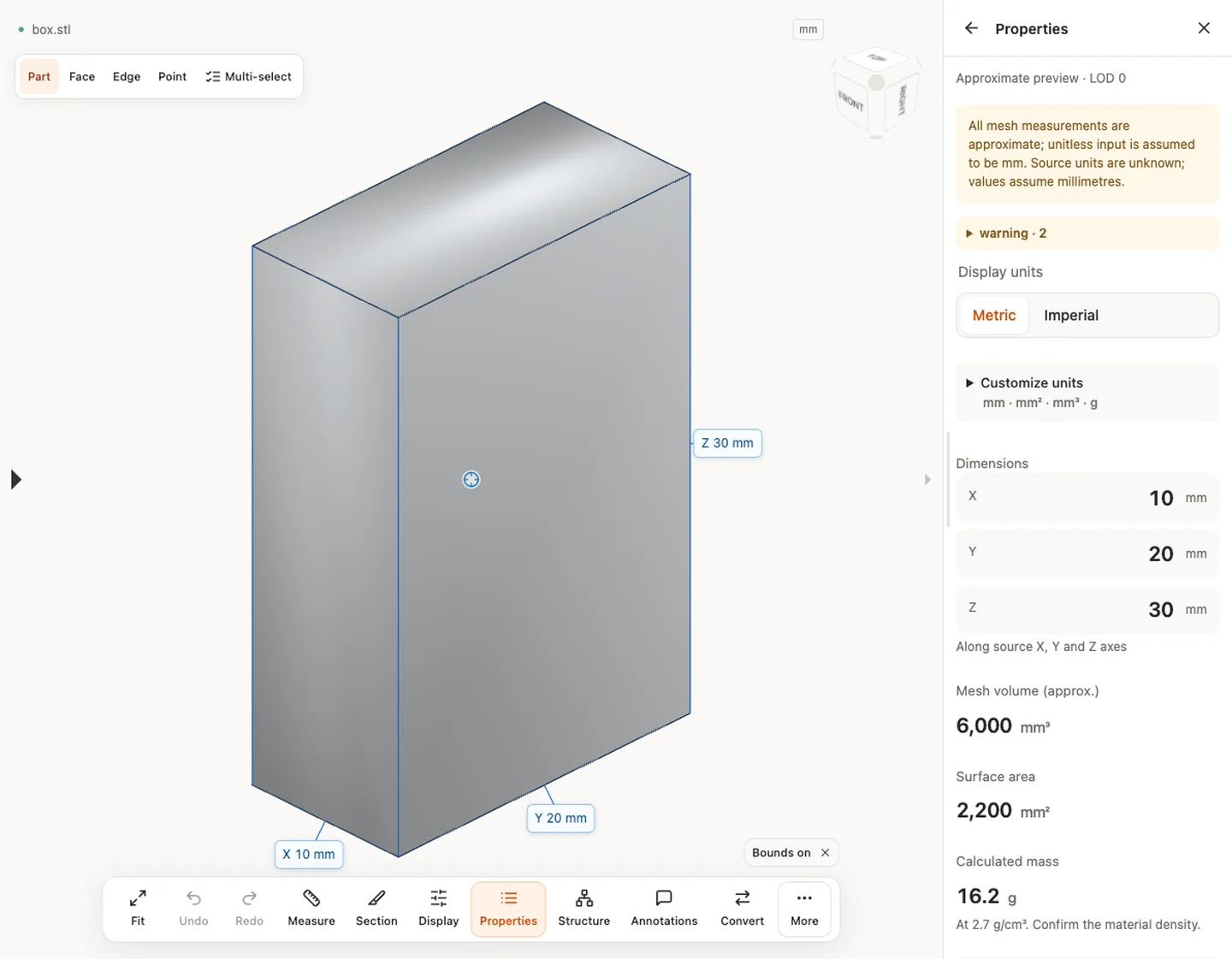
3. Read **Properties**: the X × Y × Z bounding box, **Mesh volume (approx.)**, **Surface area** and the two geometry warnings that every STL carries, approximate mesh values and an assumed unit.
4. Compare one extent with a dimension you already know before using any other number.
[How to open and measure an STL file](https://www.cadprops.com/guides/open-stl-file-and-measure/index.md) explains the binary and ASCII layouts and walks through a two-point measurement on the box sample.
## Measure distances on a mesh
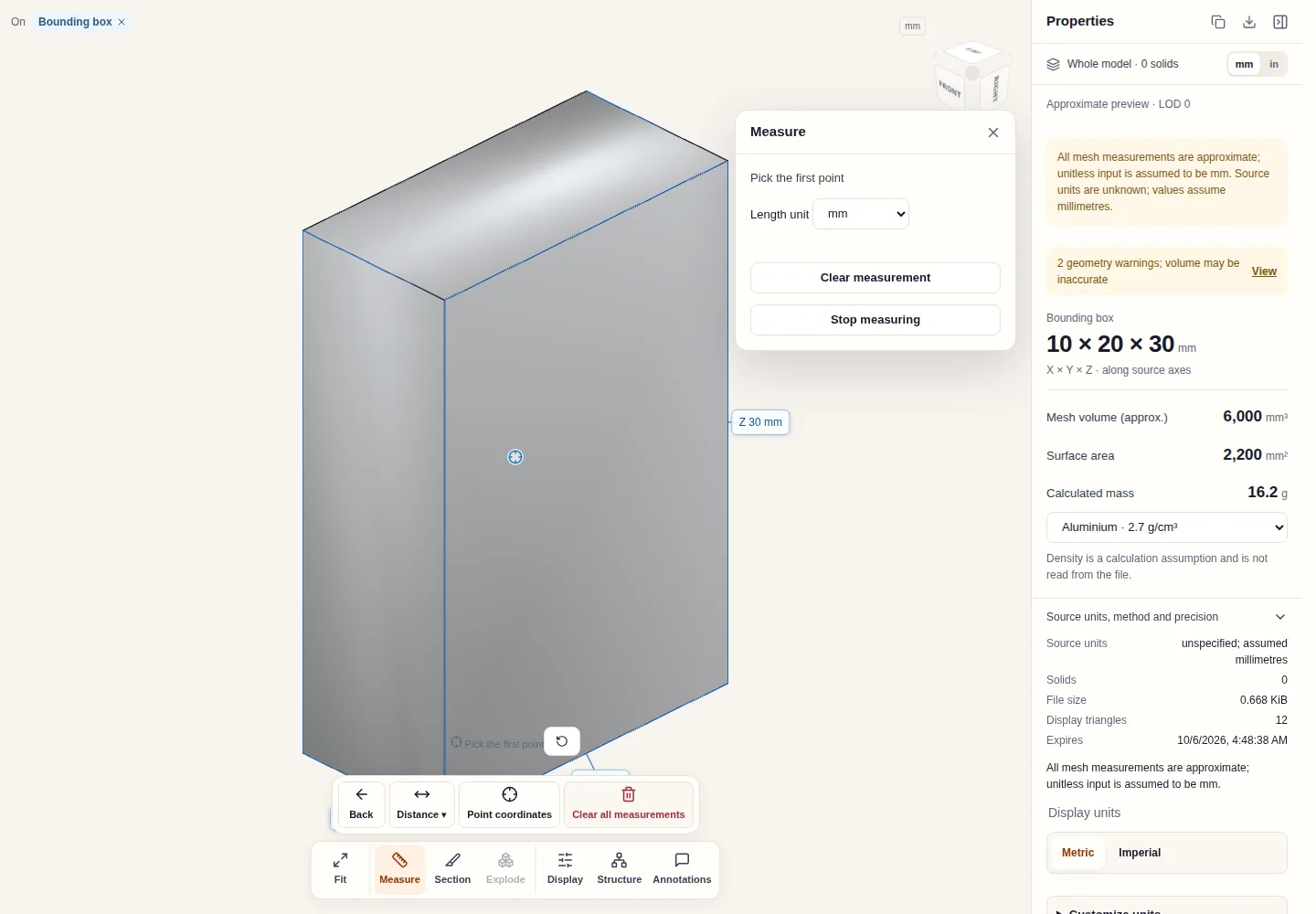
box.stl in Measure: the toolbar offers Distance and Point coordinates, and the panel asks for the first point with a length unit selector.
An STL has no B-Rep faces or edges, so measurement works on the mesh itself:
- **Distance → Two points** gives the straight-line distance between two picked points, with its ΔX, ΔY and ΔZ components. On the box sample, two corners of a vertical edge read 30.0000 mm.
- **Point coordinates** reads the X, Y and Z position of a picked point.
- Results collect in a **Measurements** list that downloads as CSV. **Length unit** switches the readout between mm, cm, m, µm, inches and feet.
Picks land on the triangles, so every distance is labelled approximate. Across a curved surface, a pick between facet corners can read slightly short of the true size. Edge length, hole diameter and picked-face area need B-Rep geometry; for those, open the [STEP viewer](https://www.cadprops.com/tools/step-viewer/index.md) with a STEP export of the part.
## Check units before you trust a number
STL has no unit field. CADProps reads coordinates as millimetres and states "unspecified; assumed millimetres" under **Source units, method and precision**. A part that is 25.4 times too small was exported in inches. The **mm** and **in** buttons only change the display and do not rescale the mesh; see [do STL files have units?](https://www.cadprops.com/guides/stl-files-have-units/index.md) for the check and the fix at the source.
## When volume or mass is unavailable
Volume and mass need a closed mesh with consistently oriented triangles. Open edges, gaps and flipped facets leave them unavailable instead of reported as zero. [Why STL volume is zero or missing](https://www.cadprops.com/guides/why-stl-volume-is-zero/index.md) lists the usual causes. When volume is available, **Calculated mass** uses the density you pick; density is never read from the file.
## Checks specific to STL files
- **Binary or ASCII.** Both encodings open. A binary STL is exactly 84 + 50 bytes per triangle, so a file that does not fit that size was probably truncated in transit.
- **Facet density.** Coarse exports turn circles into visible polygons and shift measured sizes. [STL export settings](https://www.cadprops.com/guides/stl-export-settings/index.md) covers chord height and angle.
- **No names or colours.** STL carries no part names, assembly structure or standard colour, so the model appears as one body.
- **Not a CAD file.** A mesh cannot be converted back into exact surfaces. [STEP vs STL](https://www.cadprops.com/guides/step-vs-stl/index.md) explains when to ask for STEP instead.
**Input formats:** STL
[Open this tool](https://www.cadprops.com/workspace/index.md)
General steps for uploading, viewing, sectioning, measuring, converting and exporting are explained once in [How it works](https://www.cadprops.com/how-it-works/index.md). This page covers what is specific to this file type.
## Real CADProps screenshots
The screenshots show the English interface. Captions and instructions describe the same operations.
Properties — box.stl · 10 × 20 × 30 mm · 6,000 mm³ · 2,200 mm²
[Sample source and verification](https://www.cadprops.com/examples/index.md)
## When a result needs another check
Viewing can start without an account. Conversion, account storage and share creation require signing in. Temporary files expire after the displayed retention period. Read the privacy statement for server processing and deletion, and the accuracy notes before using numerical results. Do not assume that hiding a part, clipping it or exploding an assembly changes the exported source geometry.
[When a result needs another check](https://www.cadprops.com/accuracy/index.md) · [Input formats](https://www.cadprops.com/supported-formats/index.md)
## Continue with a related task
- [Convert STEP to STL Online](https://www.cadprops.com/tools/step-to-stl/index.md)
- [STEP File Dimensions Online: Measure X, Y, Z & Distances](https://www.cadprops.com/tools/cad-dimensions/index.md)
- [Compare CAD Files Online: STEP Geometry & Properties](https://www.cadprops.com/tools/compare-cad-files/index.md)
## Capabilities and limits
- Open binary or ASCII STL files, inspect the triangle mesh and estimate dimensions, area and closed-mesh volume.
- STL does not declare a standard length unit; verify scale before using approximate mesh properties.
- Files are uploaded for server processing; support depends on format, version and geometry.
- Viewing and measuring do not require an account. Sign in to convert, save files across devices or create share links.
## Questions about this task
### How can I open a binary or ASCII STL file online?
Open binary or ASCII STL files, inspect the triangle mesh and estimate dimensions, area and closed-mesh volume. Select or drop the file to start processing immediately. For guests, temporary workspace copies remain limited to the browser session and expire after the configured retention period. Signed-in files are saved to the account library when space is available; otherwise they remain temporary.
### How can I check whether my STL uses millimetres or inches?
STL has no reliable unit declaration. Compare the reported dimensions with a known length from the source drawing. CADProps assumes millimetres: if a 1-inch reference measures 1 mm instead of 25.4 mm, the STL coordinates need a 25.4 scale correction in the source or export workflow. Changing display units does not rescale the mesh. Mesh properties remain approximate; open or inconsistent meshes have no volume or mass.
### Why is the volume of my STL mesh unavailable?
Volume and mass require a closed, consistently oriented mesh. Open or inconsistent STL meshes have no usable volume or mass. Even for a closed mesh, properties are approximate and the assumed millimetre scale must be checked.
HTML page: https://www.cadprops.com/tools/stl-viewer/