# SolidWorks to STEP Converter: SLDPRT & SLDASM
Convert SLDASM assemblies and SLDPRT parts to STEP online. Package SLDASM dependencies in ZIP and check missing parts and units before export. Sign in to convert.
Convert a SolidWorks SLDPRT part or SLDASM assembly to STEP. What you get depends on the file: an SLDPRT gives an exact STEP when its Parasolid body is rebuilt into a closed, valid solid with verified units; an SLDASM, and any part that does not qualify, exports a mesh STEP built from the saved display triangles. View and measure without an account; sign in to convert.
## What the STEP export contains
Exact STEP keeps surfaces and edges, so CAD and CAM applications can use it as solid geometry. Mesh STEP stores display triangles in a STEP file: suitable for visual review and overall size, not for machining features or surface edits. The Convert dialog offers exact STEP only when it is available for the uploaded file; STL, OBJ and GLB come from the same preview.
## SLDPRT: exact STEP when the body is read completely
An SLDPRT stores its geometry as a Parasolid body alongside the display triangles SolidWorks saved. CADProps reads that body in-house and rebuilds every face. Exact STEP is offered when the result is a closed, valid solid with verified units. If the file has a saved display and the rebuilt solid's bounding box clearly disagrees with it (usually an older feature state or a different part), the solid is rejected and the export is a mesh STEP. A shape fitted or stitched from display triangles is never presented as exact; it stays a mesh STEP. A part saved without display geometry can still give exact STEP when its body rebuilds into a closed, valid solid; which configuration it shows cannot be verified then, so confirm the intended configuration in SolidWorks. Otherwise such a part shows an approximate rebuilt preview or its saved thumbnail.
## SLDASM: mesh STEP of the loaded components
Upload the SLDASM, or a ZIP with the root SLDASM, nested assemblies and referenced SLDPRT files from the same release, keeping relative folders. CADProps shows the components it can read and warns when references are missing. The STEP export is a mesh STEP of the loaded components; for exact assembly geometry, ask for a STEP export from SolidWorks.
## STEP does not carry SolidWorks history
The conversion transfers geometry for cross-CAD use; it does not reconstruct SolidWorks sketches, mates, equations, configurations or the feature tree.
## Verify scale and geometry after conversion
Check one known dimension, body/component count, placements and at least one critical hole, pocket or mating surface. A unit or missing-reference problem can survive a technically successful conversion.
## Check version support when a file will not open
Compatibility with every SolidWorks release is not established. SLDDRW drawings are not an input; export PDF, DWG or DXF from SolidWorks instead. Record the saving release when asking the sender for a fresh export.
## Plan the upload and account step
Use the upload limit shown in the workspace and only upload files you are authorized to share with CADProps. Processing runs on the server. Your files stay private, and temporary files are deleted together with their previews and results when they expire; the privacy policy has the details. Sign in before starting conversion.
**Input formats:** SLDPRT / SLDASM
**Points:** viewing and measuring are free. A new account gets 3 free conversion points; free points are valid for 90 days. One point converts one file to every output format for 30 days, and a failed or incomplete conversion uses none. See [pricing](https://www.cadprops.com/pricing/).
[Open this tool](https://www.cadprops.com/workspace/index.md)
General steps for uploading, viewing, sectioning, measuring, converting and exporting are explained once in [How it works](https://www.cadprops.com/how-it-works/index.md). This page covers what is specific to this file type.
## Real CADProps screenshots
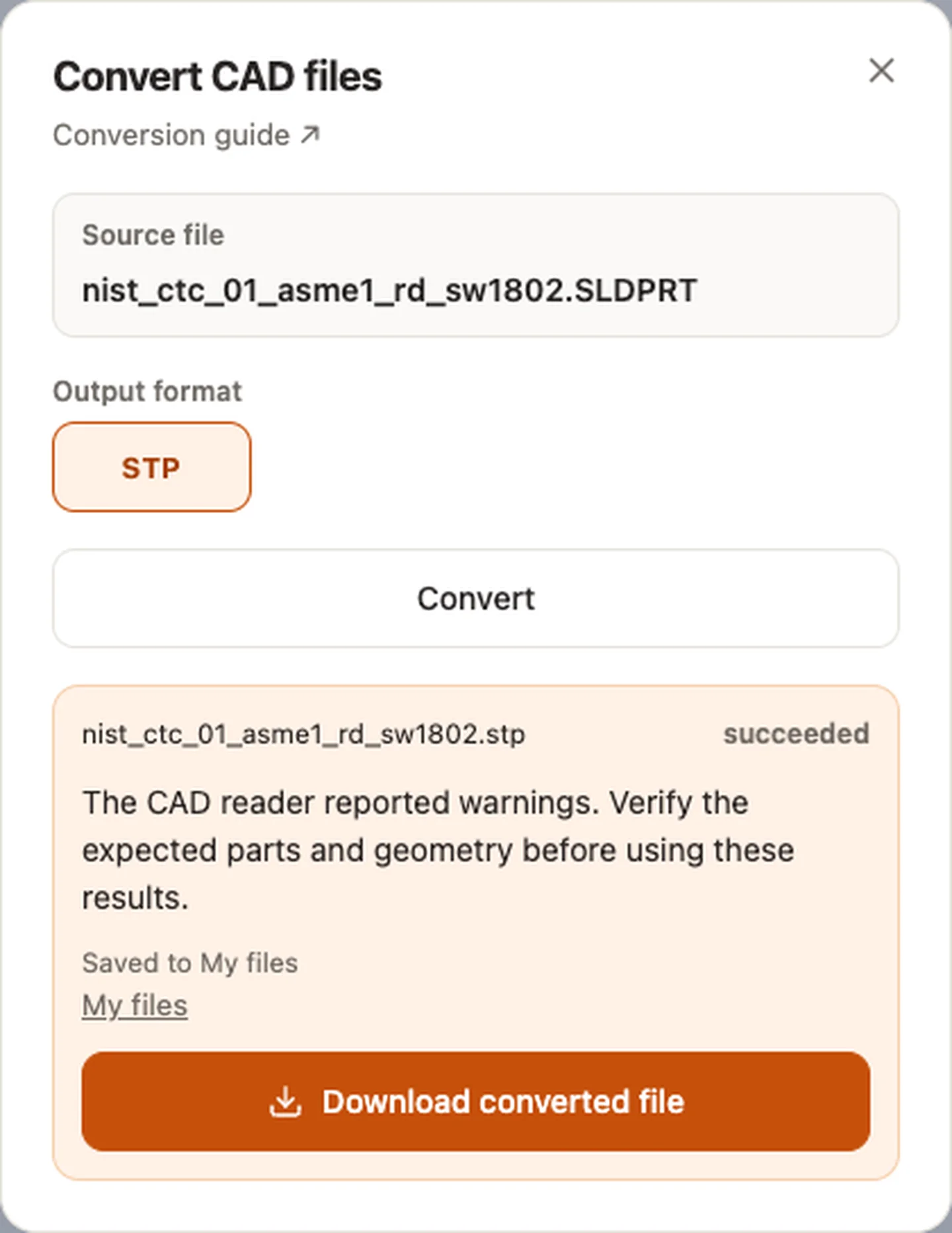
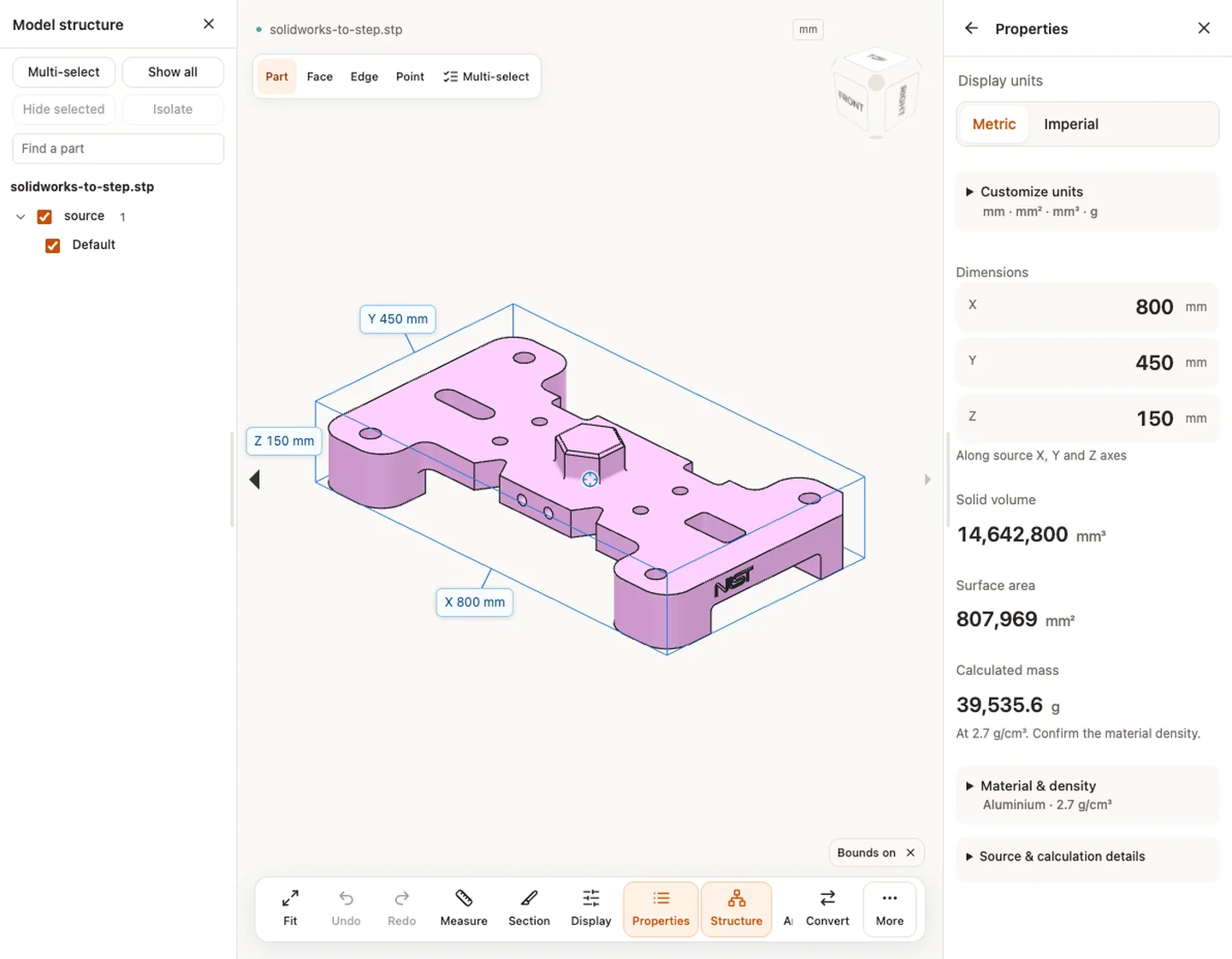
The screenshots show the English interface. Captions and instructions describe the same operations.
Convert CAD files — nist_ctc_01_asme1_rd_sw1802.SLDPRT
[Sample source and verification](https://www.nist.gov/ctl/smart-connected-systems-division/smart-connected-manufacturing-systems-group/mbe-pmi-0)
Properties — solidworks-to-step.stp · 800 × 450 × 150 mm · 14,642,817.837 mm³ · 807,968.657 mm²
## When a result needs another check
Viewing can start without an account. Conversion, account storage and share creation require signing in. Temporary files expire after the displayed retention period. Read the privacy statement for server processing and deletion, and the accuracy notes before using numerical results. Do not assume that hiding a part, clipping it or exploding an assembly changes the exported source geometry.
[When a result needs another check](https://www.cadprops.com/accuracy/index.md) · [Input formats](https://www.cadprops.com/supported-formats/index.md)
## Continue with a related task
- [SLDPRT & SLDASM Viewer Online: Open SolidWorks Files](https://www.cadprops.com/tools/solidworks-viewer/index.md)
- [STEP File Viewer Online: Open STP Files, No Account](https://www.cadprops.com/tools/step-viewer/index.md)
- [STEP File Dimensions Online: Measure X, Y, Z & Distances](https://www.cadprops.com/tools/cad-dimensions/index.md)
## Capabilities and limits
- Convert SLDPRT to STEP online, or package SLDASM dependencies in ZIP. Check missing parts and units before export. Sign in to convert.
- SLDPRT gives exact STEP only when its body is read completely; SLDASM exports mesh STEP. Native feature history is not preserved.
- Files are uploaded for server processing; support depends on format, version and geometry.
- Viewing and measuring do not require an account. Free conversion points are valid for 90 days. Sign in to convert, save files across devices or create share links.
## Questions about this task
### Can I convert SLDPRT to STEP online?
Yes, after signing in. You get exact STEP when the part's Parasolid body is rebuilt into a closed, valid solid with verified units; otherwise a mesh STEP built from the display triangles.
### Can I convert SLDASM to STEP online?
Yes, as a mesh STEP of the components CADProps can read. Exact assembly STEP is not available; export it from SolidWorks when the recipient needs solid geometry.
### What is the difference between exact STEP and mesh STEP?
Exact STEP contains surfaces and edges that CAD and CAM applications can use as solids. Mesh STEP contains triangles: fine for viewing and overall size, not for machining features or surface edits.
### Will STEP preserve SolidWorks features and mates?
No. STEP is a neutral exchange format and does not preserve the original SolidWorks parametric feature history or assembly mates as native editable features.
### Can renaming SLDPRT to STEP convert the file?
No. Renaming changes only the filename. A real translation step is required.
### Do I need an account to convert files?
View and measure without an account. Register or sign in to convert, save files and create share links. Recipients can view shared models without an account.
### Which SolidWorks versions can I convert?
The accepted extension does not imply compatibility with every SolidWorks release. If a file cannot be read or shows only a thumbnail, confirm the source release or request a fresh STEP export from SolidWorks.
### Can I convert SLDASM to STP instead of STEP?
STP and STEP are filename extensions for the same exchange format. SLDASM files export as mesh STEP either way. Changing a native file extension alone does not convert its contents.
HTML page: https://www.cadprops.com/tools/solidworks-to-step/