# G-code Viewer Online: Preview 3D Print and CNC Toolpaths
Open G-code online and preview 3D printing or CNC toolpaths layer by layer. Check extents, filament use and feed lengths. Lines are drawn from the program, not simulated.
G-code is the list of moves a 3D printer or CNC machine follows. CADProps opens `.gcode`, `.gco`, `.nc`, `.ngc` and `.tap` files and draws those moves as coloured lines, so you can check what a slicer or CAM post-processor produced before the file goes to the machine. The browser reads the program itself, which means the preview appears without waiting for the upload; the file is still uploaded in the background so you can reopen, save and share it.
## Open a G-code file
1. Select or drop one G-code file, or press **3D print demo** or **CNC demo** to open a sample that starts playing straight away, shown with its model. A sliced print or CNC program of a few megabytes usually appears within a second or two on a desktop computer.
2. Drag the progress bar to move through the program in file order. The layer or Z step and its height are shown above the bar and follow it. The arrow buttons beside the bar, or the arrow keys while the bar has focus, step one whole layer or Z step at a time. Tick **This layer only** to hide everything below.
3. Press play to watch the moves being drawn, with a dot at the current nozzle or tool position, and pick a playback speed. The same bar shows how far playback has got.
4. Switch line types on and off under **Line types**. Travel (3D printing) or rapid moves (CNC) start hidden; turn them on with **Travel** or **Rapids**.
5. Press **Reference model** to show the part's model with the toolpath, cut at the current layer. STEP, IGES, native CAD files and mesh formats all work. See **Check the toolpath against the model** below.
6. Use **Fit**, **Top**, **Front** and **3D** to change the view, and read the extents, layer count and path lengths in the details panel.
The file type is recognised from its content, so a `.nc` or `.tap` file that contains G-code opens the same way. Prusa binary G-code (`.bgcode`) and resin slices are not supported.
## 3D printing files
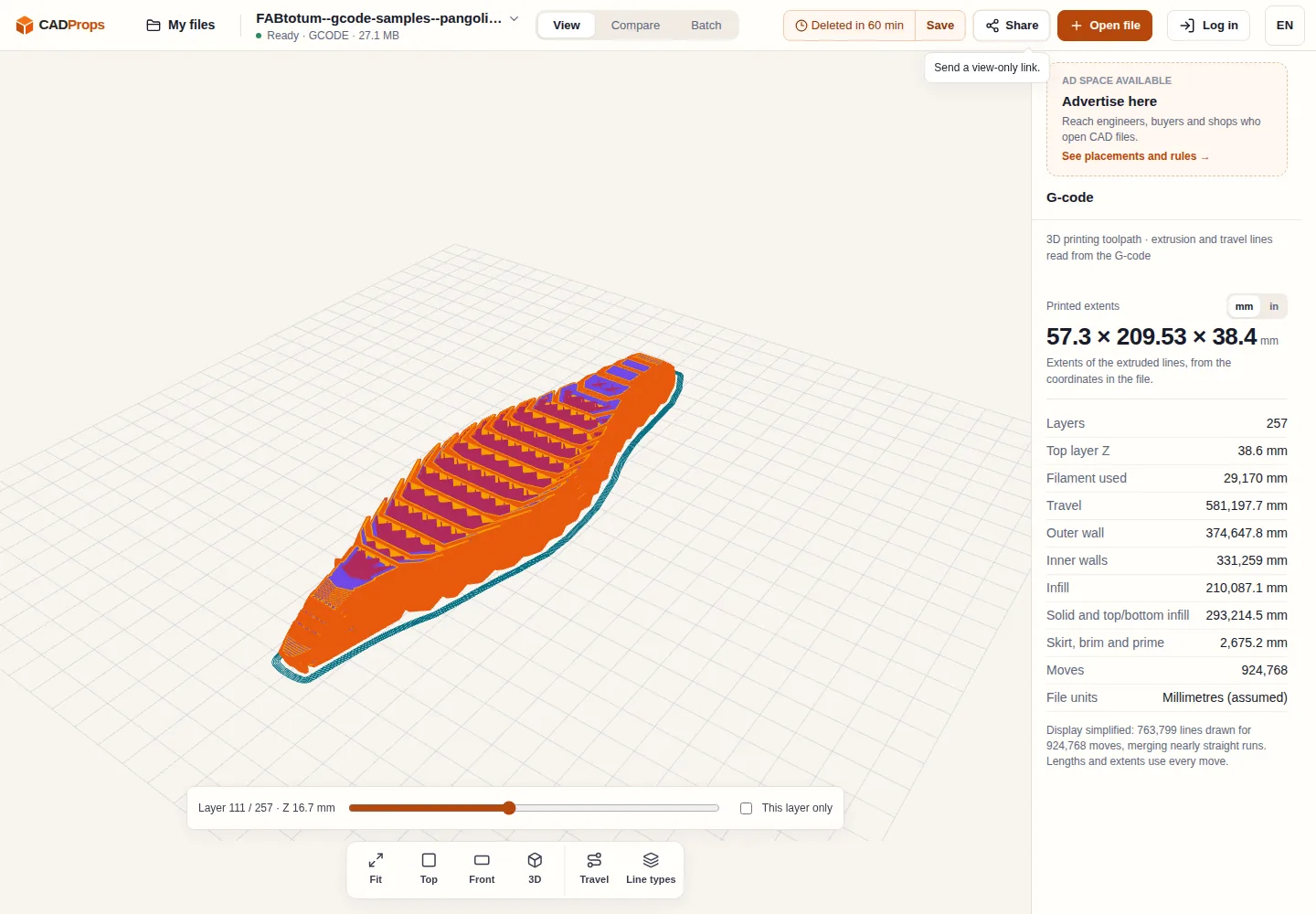
A 27 MB FABtotum print sample shown up to layer 111 of 257. Printed extents 57.3 × 209.53 × 38.4 mm and 29,170 mm of filament, read from the file; the display merged nearly straight runs into 763,799 lines. Sample: FABtotum gcode-samples pangolin.gcode, CC0 1.0. Screenshot: CADProps.
Moves that push filament (the E value increases) are drawn as extrusion; the rest are travel. When the slicer writes feature comments, as Cura, PrusaSlicer, OrcaSlicer, Bambu Studio and Simplify3D do, extrusion is split into outer wall, inner walls, infill, solid and top/bottom infill, bridges, supports and skirt or brim, each with its own colour. Without those comments every extrusion has one colour.
Layers come from the slicer's layer-change comments, or from changes in Z when there are none. The progress bar follows the order of the file, so a print sliced object by object ("one at a time") shows each object's layers in turn.
The details panel lists:
- **Printed extents** of the extruded lines. They follow the nozzle path, so the height runs from the first layer's nozzle height to the last and is about one first-layer height less than the printed part.
- **Top layer Z** and the number of layers.
- **Filament used**, the net length of filament fed in from the E values, with retractions subtracted. It is a length, not a weight; multiply by the filament's cross-section and density if you need grams.
- Path lengths for travel and each line type.
The sample is from the [FABtotum gcode-samples repository](https://github.com/FABtotum/gcode-samples), published under the [CC0 1.0 dedication](https://www.cadprops.com/assets/evidence/gcode-2026-10-24/fabtotum--gcode-samples--LICENSE.txt).
## CNC programs
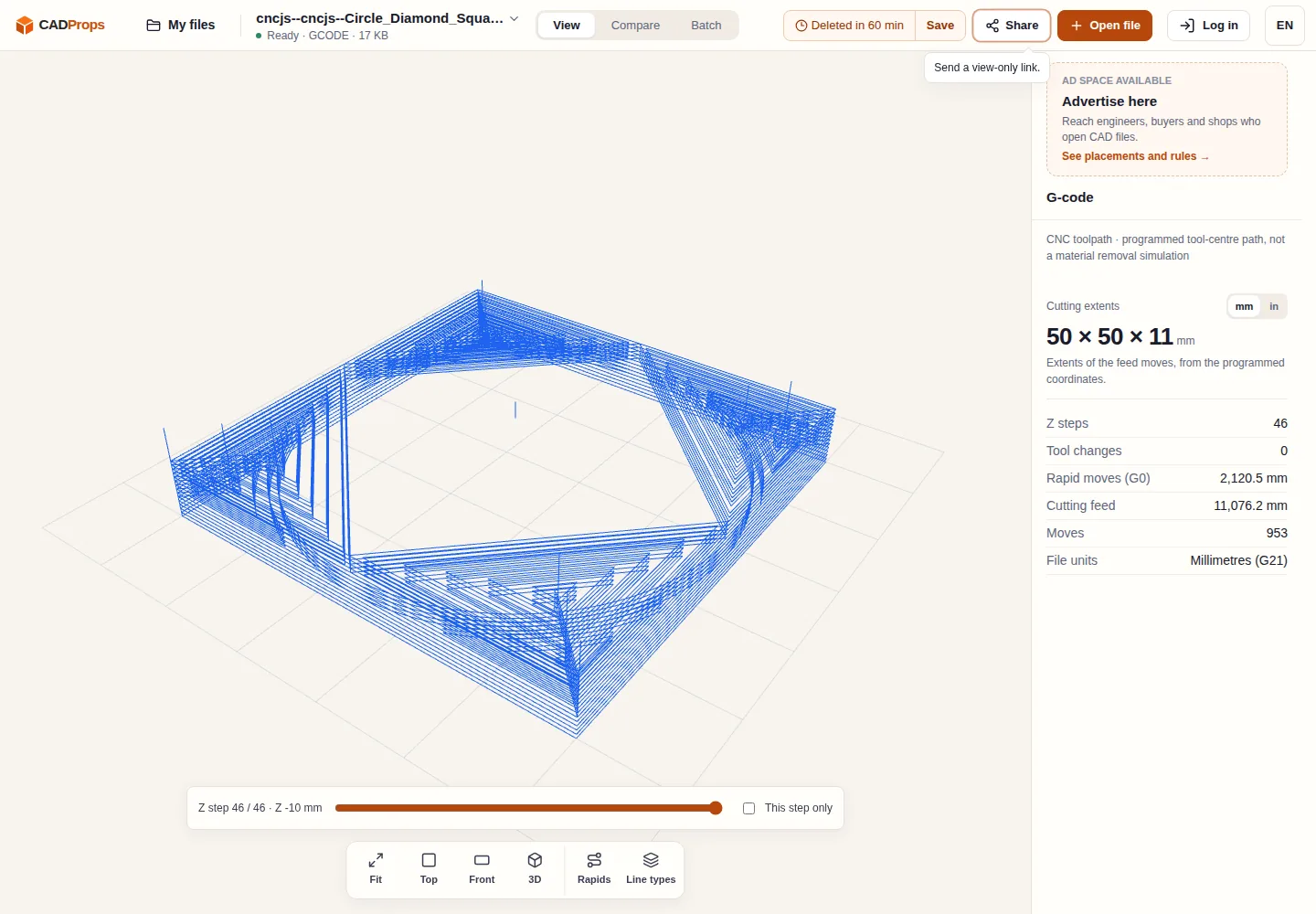
A cncjs calibration program in the 3D view: cutting extents 50 × 50 × 11 mm, 46 Z steps, 11,076.2 mm of cutting feed and 2,120.5 mm of rapids, in G21 millimetres. Sample: cncjs examples Circle_Diamond_Square_Calibration.gcode, MIT licence. Screenshot: CADProps.
For milling, routing and laser programs, G0 moves are drawn as rapids and G1, G2 and G3 moves as cutting feed. Arcs are read in the XY, XZ and YZ planes (G17, G18, G19), with centres given by I, J, K or by a radius R, including full circles and helical moves. The program also follows absolute and incremental distance (G90, G91), coordinate offsets set with G92, returns to home with G28 and tool changes.
The layer steps follow the Z levels at which cutting happens, which is useful for checking step-downs. The details panel shows the cutting extents (the feed moves only, so the clearance height of rapids does not inflate them), the number of tool changes, and the rapid and feed path lengths.
The lines are the programmed tool-centre path. They do not show the tool diameter, the material that would be removed, fixtures, machine travel limits or collisions, and work offsets G54 to G59 are drawn in one coordinate system. Canned drilling cycles (G81 to G89) are drawn as a rapid to the hole, a straight plunge and a retract; peck depths and dwell times are not shown. Programs that rely on macro variables, expressions or subprogram calls, which are common in LinuxCNC and Fanuc macro code, have those lines skipped and a warning tells you the drawing may be incomplete. Use your CAM software or the controller's own preview to verify a program before running it.
The sample is from the [cncjs examples](https://github.com/cncjs/cncjs/tree/master/examples/gcode), under the [MIT licence](https://www.cadprops.com/assets/evidence/gcode-2026-10-24/cncjs--cncjs--LICENSE.txt).
## Check the toolpath against the model
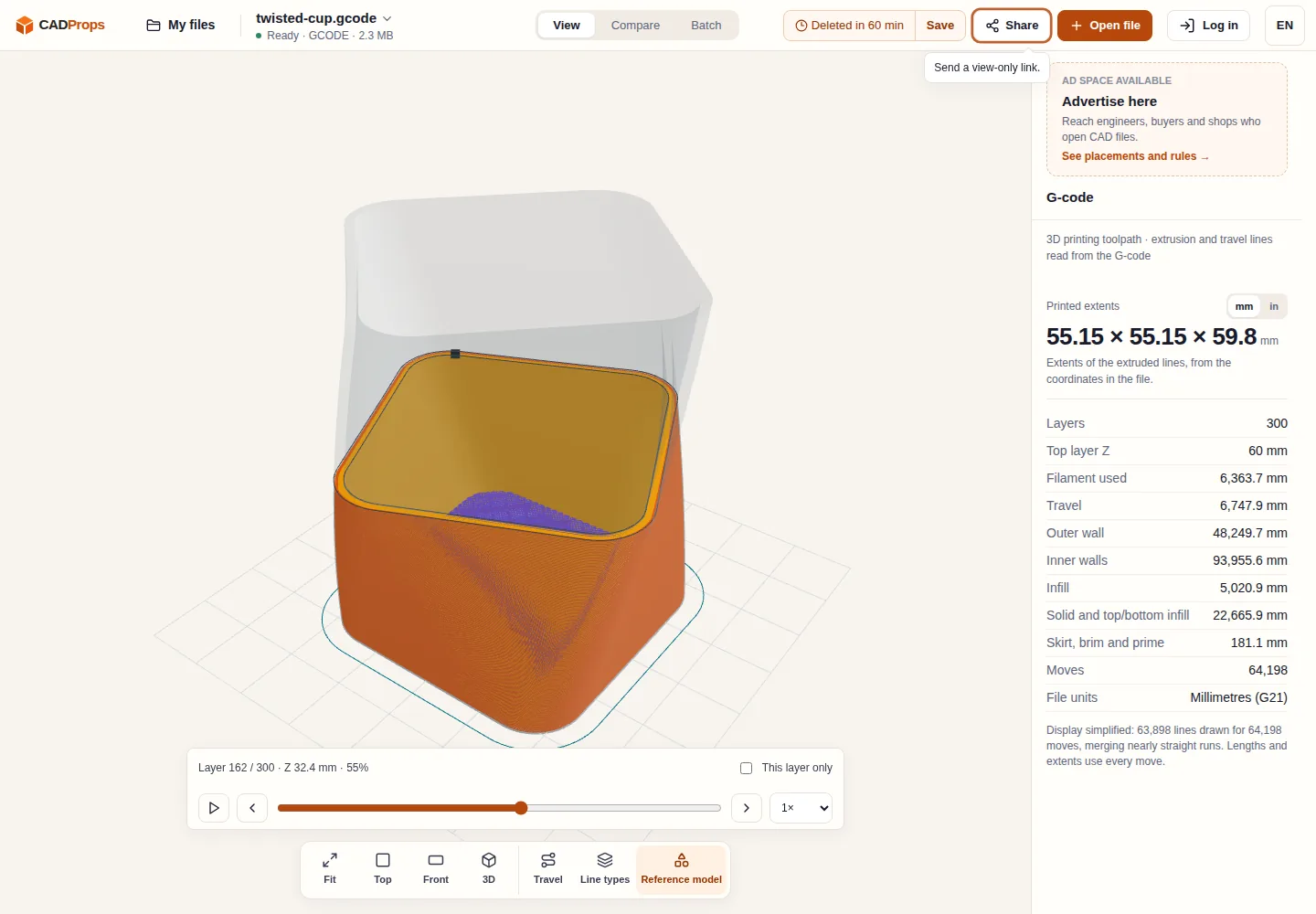
The 3D print demo at layer 162 of 300: the printed walls and base sit inside the translucent STL model, and the part of the model still to be printed is shown faintly above the current layer. Sample: CADProps twisted cup print program and model. Screenshot: CADProps.
G-code does not record which model it was made from, so the viewer can show one next to it for comparison:
1. Press **Reference model**, then **Choose model**, and select the file the program was made from. Any 3D format CADProps opens can be used: STEP, IGES, SolidWorks, Inventor, CATIA, Creo, NX, Solid Edge, Parasolid, ACIS, Rhino, Fusion, JT, STL, OBJ, 3MF, PLY, glTF and the others on the [supported formats](https://www.cadprops.com/supported-formats/index.md) page.
2. Check **Placement**. A 3D printing model is centred on the printed extents with its underside at Z 0, as slicers place parts on the bed. A CNC model is placed with its top face at Z 0 and either its lower-left corner or its centre at X 0 Y 0, whichever overlaps the toolpath; you can also centre it on the toolpath or keep the coordinates saved in the model.
3. Use **Move model** to shift it in X, Y or Z if your slicer or CAM work origin was somewhere else.
4. Play the program or drag the progress bar. The model is drawn translucent up to the current layer or Z step and faint above it, with a dark outline where that layer cuts the model. Untick **Cut at the current layer** to show the whole model.
In a print, the outer wall should follow the model's outline about half a line width inside it, because the lines are the nozzle centre. In a CNC program, an outside profile runs one tool radius outside the part and pocket passes stay inside the pocket walls. A path that is offset, scaled or shaped differently from the model usually means the wrong work origin, units or file.
STL, OBJ and 3MF models are read in your browser tab and are not uploaded. Other formats are uploaded and converted on the server like any file you open, so they take a few seconds, count as a file in your session and appear in your files; the display mesh is what is shown with the toolpath. In the same browser, reopening the G-code shows the model chosen for it again. Units come from the file where it declares them; STL and OBJ carry none and are read as millimetres. A file from which no 3D geometry can be read, such as a native file that holds only a thumbnail, is reported instead of shown.
Placement uses the bounding box only: it does not register features, simulate the stock or check the tool against the part. Both demos open with their own model already placed.
## Units, speed and simplified lines
G20 programs are converted from inches to millimetres and G21 programs are read as millimetres. A file with neither is assumed to be in millimetres and marked as assumed, which is normal for many printer files. Switch the display between millimetres and inches without changing the file.
To keep the preview fast, consecutive moves that lie almost on a straight line are merged before drawing, and very large files are merged more coarsely. The details panel says when this happened. Extents, lengths and filament use are always calculated from every move in the file, not from the simplified lines.
## Saving, sharing and limits
G-code has no conversion: there is no solid, mesh or STEP to export, and area, volume and mass do not apply. After signing in, the uploaded file can be saved to My files and shared with a view-only link; the recipient's browser downloads the stored copy and draws it the same way. Files up to 95 MiB can be uploaded. Guest copies expire at the displayed deadline and can be deleted earlier; see the [privacy policy](https://www.cadprops.com/privacy/index.md) for how uploads are handled.
## Related reading
- [What a G-code file contains and how to open one](https://www.cadprops.com/guides/open-gcode-file-online/index.md)
- [Preparing a STEP file for a CNC quote](https://www.cadprops.com/guides/prepare-step-file-for-cnc-quote/index.md)
- [STL export settings for 3D printing](https://www.cadprops.com/guides/stl-export-settings/index.md)
- [All supported formats and their limits](https://www.cadprops.com/supported-formats/index.md)
## Capabilities and limits
- Preview 3D printing and CNC G-code as coloured lines with one progress bar for layers and playback, line-type filters, extents, filament use and path lengths, and show the part model (STEP, native CAD or mesh) cut at the current layer.
- Programmed path only: no material removal, tool shape, collision or machine-limit checks. Macros, variables and subprograms are skipped with a warning.
- The browser draws the preview; the file is also uploaded so it can be reopened, saved and shared.
- View without an account. Sign in for account storage or share creation; guest copies are temporary. There is no conversion for G-code.
## Questions about this task
### Can I view a G-code file online without installing a slicer or CAM software?
Yes. Select a .gcode, .gco, .nc, .ngc or .tap file and CADProps draws its moves in the browser. 3D printing files show walls, infill, supports and travel by line type when the slicer writes type comments; CNC programs show rapids and cutting feed. Viewing does not require an account.
### Is the G-code viewer a CNC simulator?
No. It draws the programmed path as lines. Material removal, tool diameter, machine limits, collisions and controller-specific behaviour are not modelled. Canned drilling cycles are drawn as simple plunges, and macro variables, expressions and subprograms are skipped with a warning.
### How are G-code units and extents worked out?
G20 programs are converted from inches and G21 programs are read as millimetres; files without either are assumed to be millimetres and marked as assumed. Print extents cover the extruded lines and CNC extents cover the feed moves, using the programmed coordinates. Filament use is the net extrusion length from the E values, not a weight.
### Is my G-code uploaded?
Yes. The preview is drawn in your browser, but the file is also uploaded to CADProps servers so it can be reopened, saved and shared. Guest copies expire at the displayed deadline and can be deleted earlier. Account storage and share creation require signing in.
### Can I compare G-code with the 3D model it was made from?
Yes. Press Reference model and choose the part: STEP, IGES, native CAD files such as SolidWorks, Inventor or CATIA, or a mesh such as STL or 3MF. It is placed against the toolpath by its bounding box, can be moved in X, Y and Z, and is cut at the current layer or Z step as the program plays. STL, OBJ and 3MF are read in your browser; other formats are uploaded and converted like any opened file. It is a visual check, not a stock or collision simulation.
HTML page: https://www.cadprops.com/tools/gcode-viewer/