# How to Rotate a STEP Model Around a Small Feature
Set a rotation center on a STEP model in CADProps, inspect a hole or local feature, then restore the model center when navigation becomes awkward.
A small hole is easy to lose when a long part rotates around its middle. In the [CADProps STEP viewer](https://www.cadprops.com/tools/step-viewer/index.md), use **Display → Set rotation center** to put the pivot on the area you want to inspect. You can then turn the model around that point instead of repeatedly finding the feature again.
## Put the rotation center on a visible face
1. Open the STEP or STP file and wait for the model to appear. If you want a known example, download the public [bearing housing](https://www.cadprops.com/samples/bearing-housing.step) and open it in the viewer.
2. Find the feature in the full view. Open **Display**, then choose **Set rotation center** in the **View** group.
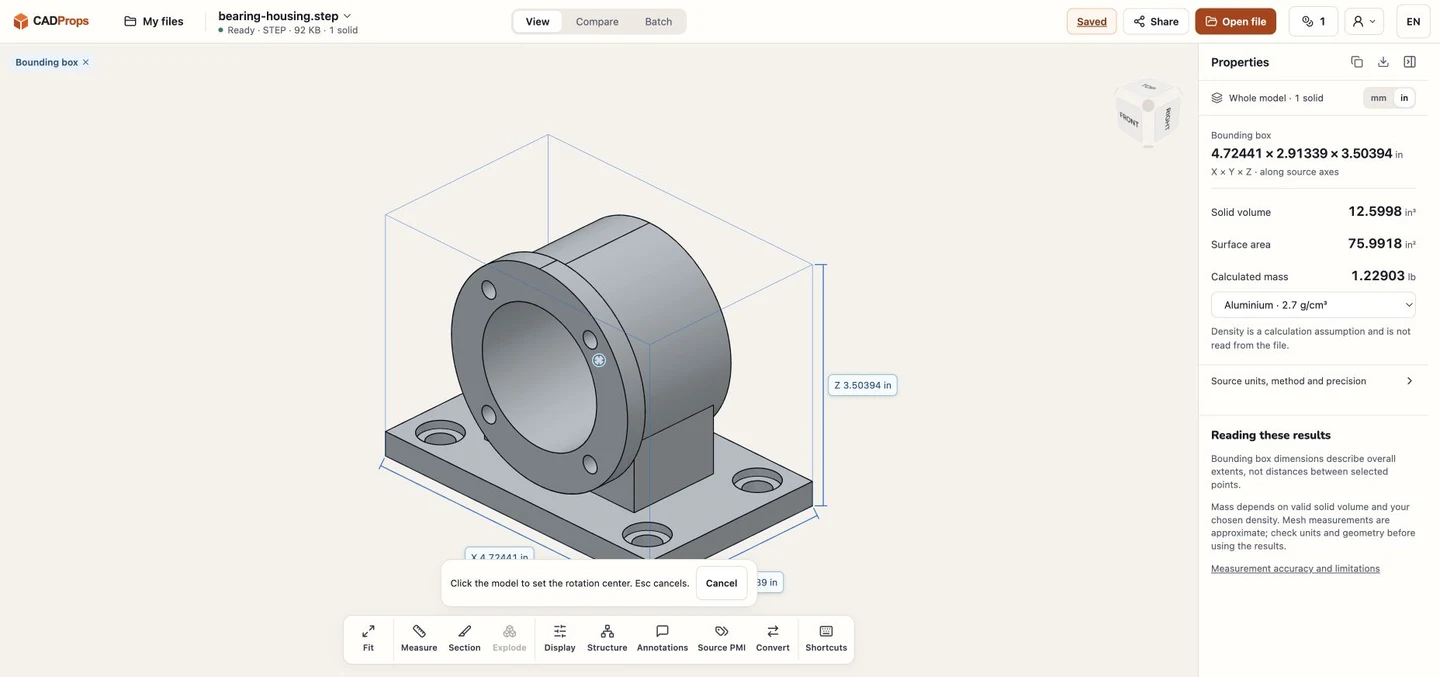
3. The viewer asks you to click the model. Click a visible surface near the feature. For a hole, use the surrounding face rather than the empty opening. Press **Esc** if you want to cancel without choosing a point.
4. Drag to rotate. The rotation-center marker gives you a reference while you inspect the surrounding geometry. Scroll to adjust the zoom and right-drag to pan as needed.
Actual English interface, 11 November 2026. Set rotation center closes the Display panel and asks you to select a point on the public CADProps bearing housing.
## Try it at a mounting hole
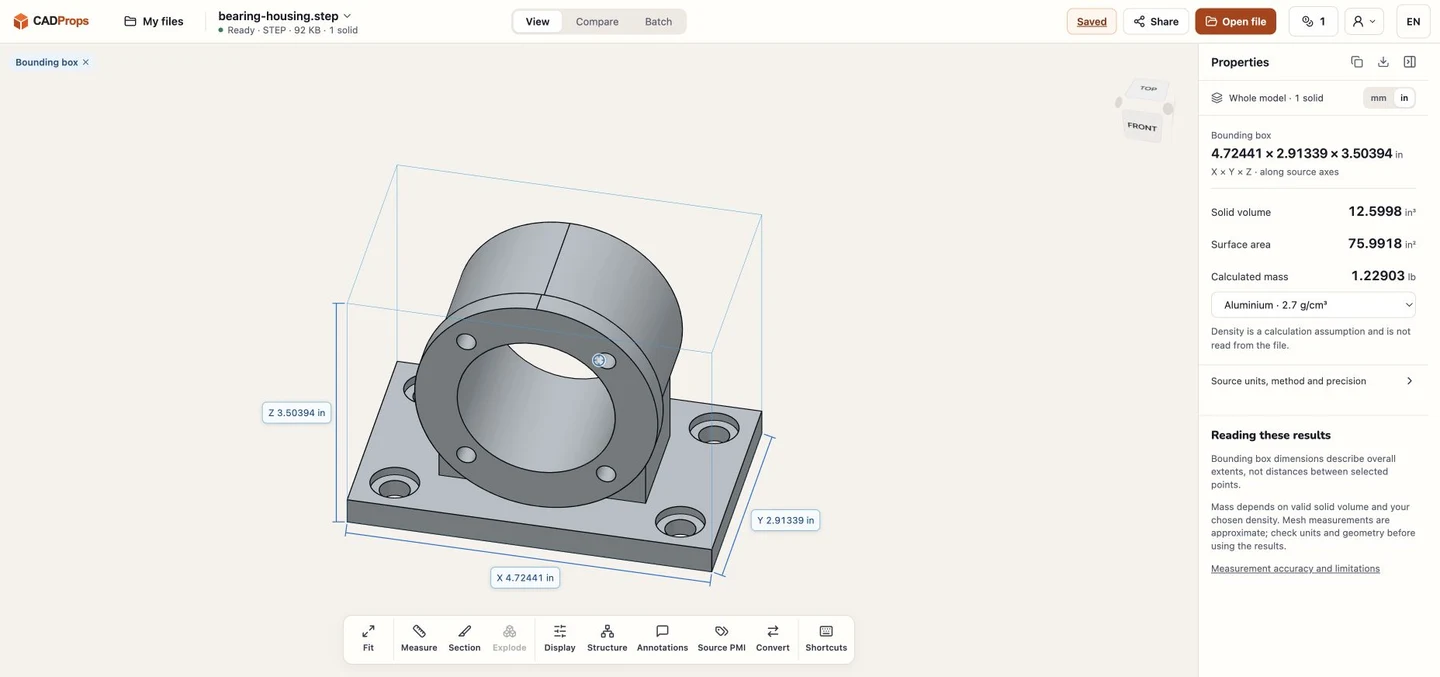
On the bearing housing, choose the front face next to one of the small holes around the central bore. Rotate a little to inspect the relationship between that hole, the front flange and the cylindrical housing behind it. In this test, the chosen point stayed at the rotation marker while the housing turned around it.
The model's overall X, Y and Z dimensions remained the same after the turn. Changing the viewing pivot changes navigation; it does not move the source geometry or establish a new manufacturing datum. Use **Measure** when you need a numerical distance. The marker itself is not a hole-center measurement or an inspection result.
The same sample after a drag rotation. The small marker remains near the selected hole while the model orientation changes; the properties still describe the original geometry.
## Recover when rotation feels awkward
Open **Display → Restore model center** to return the pivot to the model center. Use **Fit** when you also need to bring the complete model back into view. Restoring the pivot and fitting the model solve different problems: one changes the point you rotate around, the other helps you find the full model again.
If the target face is hidden behind another part, changing the pivot will not expose it. [Isolate the relevant assembly component](https://www.cadprops.com/guides/isolate-part-in-step-assembly/index.md) or use a [section box](https://www.cadprops.com/guides/use-step-section-box/index.md) to clear the obstruction first. If a click is difficult to place, cancel, zoom closer and choose a visible surface near the area. Do not infer that a hole is absent just because its opening is obscured from the current angle.
## Related reading
- [How to Make an Exploded STEP Assembly View for Review](https://www.cadprops.com/guides/explode-step-assembly-for-review/index.md)
- [How to Isolate a Part in a STEP Assembly in CADProps](https://www.cadprops.com/guides/isolate-part-in-step-assembly/index.md)
- [How to Make One Part Transparent in a STEP Assembly](https://www.cadprops.com/guides/make-step-assembly-part-transparent/index.md)
- [STEP File (.step, .stp): What It Is and How to Open It](https://www.cadprops.com/guides/step-file-what-it-is-how-to-open/index.md)
- [How to Use a Section Box in a STEP Model](https://www.cadprops.com/guides/use-step-section-box/index.md)
Original article: https://www.cadprops.com/guides/set-step-model-rotation-center/
HTML page: https://www.cadprops.com/guides/set-step-model-rotation-center/