# How to Save and Restore Inspection Views in a STEP Model
Save two angles of a STEP model in CADProps and switch between them while inspecting the same file. See where saved views are kept.
The bore and the mounting feet on a bearing housing are easier to check from different angles. Open the file in the [CADProps STEP viewer](https://www.cadprops.com/tools/step-viewer/index.md) and use **Display → Save current view** to keep both angles available while you inspect the part. Select a saved view to restore its framing, zoom and display settings.
## Save the overview and a second angle
1. Open your STEP or STP file and wait for the model to load. To follow the example, use the public [bearing housing sample](https://www.cadprops.com/samples/bearing-housing.step).
2. Use **Fit** to frame the model. Open **Display**, scroll to **View** and select **Save current view**. The first entry appears as **View 1**.
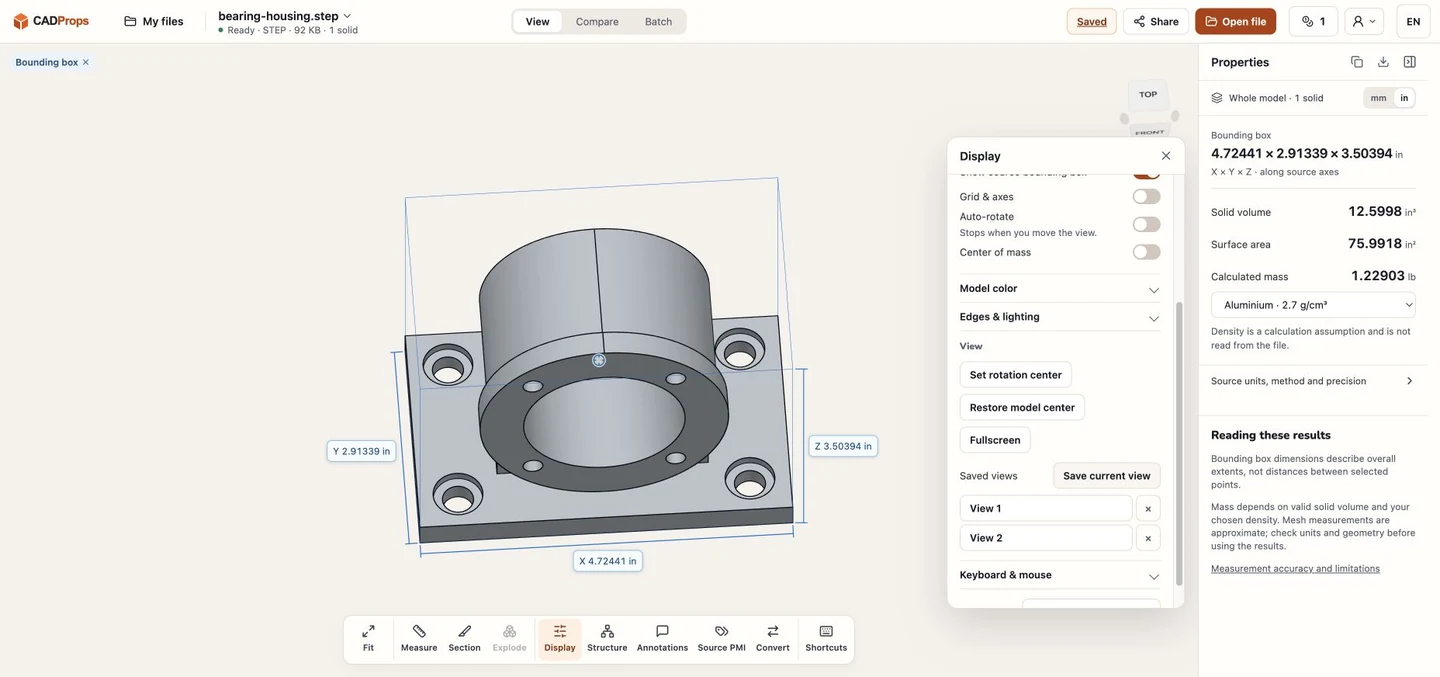
3. Drag the model until you can see all four holes in the base. Use the scroll wheel to adjust the framing if needed. Select **Save current view** again to create **View 2**.
4. Select **View 1**, then **View 2**, and check that each angle shows the surfaces you intended to inspect. If you saved the wrong angle, use the × beside that entry and save the corrected view.
The public bearing housing tilted toward its base. This angle shows all four mounting holes. The two saved views are listed in the Display panel.
## Switch back without losing the inspection angle
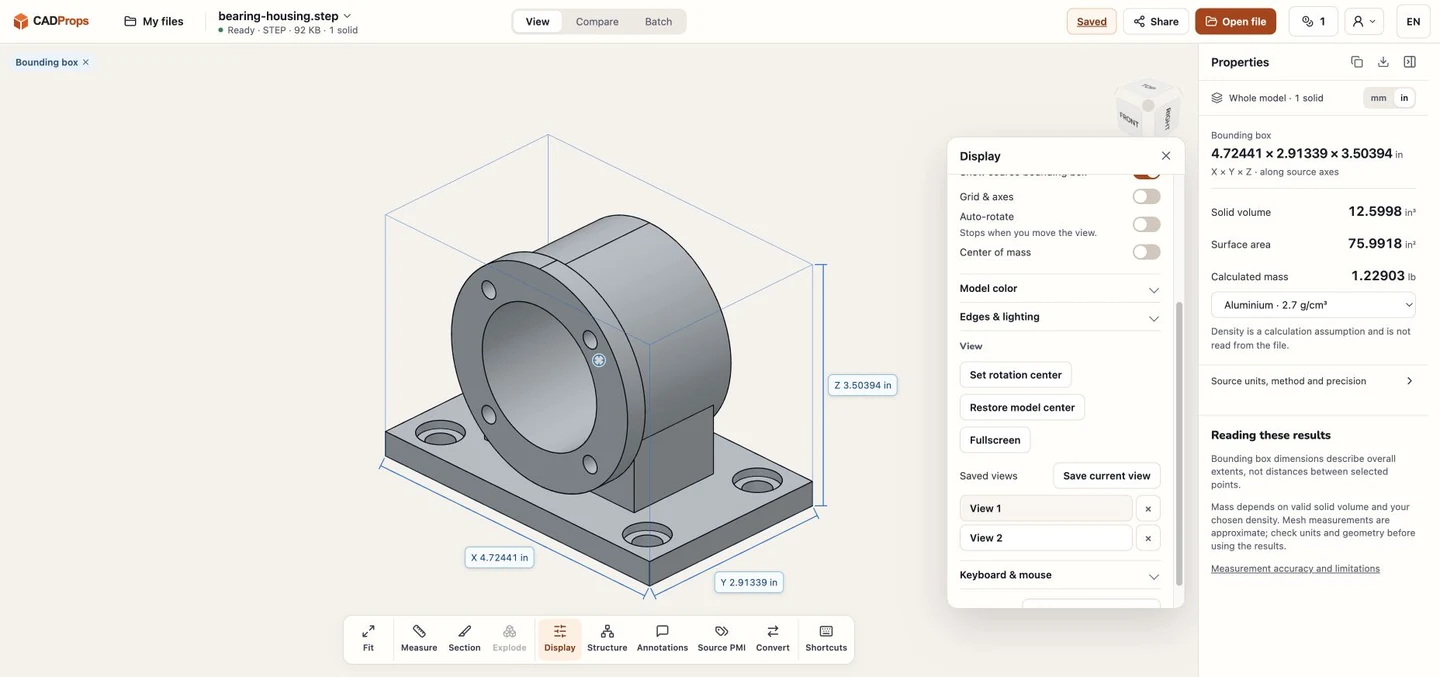
Select **View 1** to see how the front flange sits on the base. When you need to check the bolt pattern again, select **View 2**. If you only need to turn the model around a point near a small feature, use the [rotation center control](https://www.cadprops.com/guides/set-step-model-rotation-center/index.md).
Selecting View 1 restores the three-quarter angle. The bounding-box values in Properties stay the same as in View 2.
## Find the views when you reopen the model
CADProps keeps up to 12 views for the same model record in the current browser. If the list is empty after reopening the file, check that you opened the same record in the same browser and that its review data is still available. Uploading the same filename again creates a separate record. If you want to send someone a specific angle, restore it and use **Share → Export current view as an image**. For a comment attached to a particular feature, use [Annotations](https://www.cadprops.com/guides/annotate-cad-model-online/index.md).
## Related reading
- [Annotate a CAD Model Online and Share Review Notes](https://www.cadprops.com/guides/annotate-cad-model-online/index.md)
- [How to Make an Exploded STEP Assembly View for Review](https://www.cadprops.com/guides/explode-step-assembly-for-review/index.md)
- [How to Isolate a Part in a STEP Assembly in CADProps](https://www.cadprops.com/guides/isolate-part-in-step-assembly/index.md)
- [How to Make One Part Transparent in a STEP Assembly](https://www.cadprops.com/guides/make-step-assembly-part-transparent/index.md)
- [How to Rotate a STEP Model Around a Small Feature](https://www.cadprops.com/guides/set-step-model-rotation-center/index.md)
- [STEP File (.step, .stp): What It Is and How to Open It](https://www.cadprops.com/guides/step-file-what-it-is-how-to-open/index.md)
Original article: https://www.cadprops.com/guides/save-step-inspection-views/
HTML page: https://www.cadprops.com/guides/save-step-inspection-views/