# Measure STEP Files Online: Dimensions, Distances & Units
Measure STEP files online, check X/Y/Z dimensions, verify units, distinguish bounding boxes from local measurements, and record the geometry scope correctly.
Measuring a STEP file online can mean several different things. You may want the overall X/Y/Z size, the distance between two faces, the diameter of a cylindrical feature, or a quick check that the model matches a drawing.
[Open the matching tool](https://www.cadprops.com/tools/cad-dimensions/index.md). Viewing is available without an account; sign in when the conversion workflow requires it.
## A repeatable canvas-to-CSV workflow
Open STEP/STP, wait for the canvas and inspect Properties. The overall X/Y/Z values are the axis-aligned envelope in source coordinates; they are not a local face distance or a minimum stock box. Use the supported measurement controls to select the actual faces, edges or points for a local question. Record method, unit and scope. Download the properties CSV from Files and reopen it to check headers and unavailable values. Valid solid volume is not X × Y × Z, and estimated mass additionally needs a confirmed density.
Those are different measurements. The safest workflow is to identify the question first, verify the model units, then use the measurement mode that matches the task.
Open the file in the [STEP dimensions tool](https://www.cadprops.com/tools/cad-dimensions/index.md) when you need overall size or supported local measurements.
## Start with overall STEP dimensions
The fastest sanity check is the axis-aligned bounding box.
It reports how far the included geometry extends along the current X, Y and Z axes. For a block aligned with the axes, those numbers may look like familiar length, width and height.
For a rotated part, the same physical geometry can produce different X and Y extents.
That is why a STEP bounding box is not automatically the minimum possible box or the correct machining stock size. See the [STEP bounding-box guide](https://www.cadprops.com/guides/step-file-bounding-box/index.md) for the orientation details.
## Verify units before measuring anything else
A measurement is only useful when the scale is correct.
Use one dimension that you already know from a drawing, specification or the sender. Compare the expected value with the viewer result.
If a part expected to be 50 mm appears close to 1,270 mm, the ratio is 25.4. That strongly suggests an inch/millimetre interpretation issue and should be investigated before further calculations.
Do not use screen size as evidence. Fit-to-view changes the camera, not the physical geometry.
The [25.4 scale guide](https://www.cadprops.com/guides/cad-model-wrong-scale-25-4/index.md) explains this failure mode.
## Bounding dimensions and local distances are different
An overall envelope answers:
> How much space does the model occupy along these axes?
A local distance answers:
> How far apart are these selected geometric locations?
Those questions can have very different answers.
For example, the overall Z size of a housing may be 80 mm while the distance between two mounting faces is 52 mm. Neither value is wrong; they describe different geometry.
Record the measurement mode with the result.
## Use CAD geometry when the feature matters
A shaded 3D view is usually rendered from triangles. The underlying STEP file may also contain B-Rep faces, edges and analytic geometry.
Where supported, use the CAD geometry for engineering measurements such as edge length or cylindrical diameter. A picked point-to-point distance on a display mesh is useful for quick checks but should be labelled according to its method.
More decimal places do not improve a measurement that came from an approximate display representation.
## Hole diameter is not the same as a screen-space circle
When a cylindrical face is recognized from the CAD geometry, its radius or diameter can be reported from the underlying representation.
That is different from estimating a diameter from a screenshot or fitting a circle to coarse triangles.
For important features, confirm that the measurement tool has identified the intended geometry rather than assuming every circular-looking edge represents the same thing.
## Measurement does not define tolerance
A STEP viewer can report that two modeled faces are 20.000 mm apart. It cannot infer that the manufacturing tolerance is plus or minus 0.01 mm unless that requirement is explicitly available from the controlling specification or model-based definition.
Keep three concepts separate:
| Quantity | Meaning |
|---|---|
| Modeled dimension | Current geometry in the file |
| Measurement result | What the selected tool calculated |
| Manufacturing tolerance | Allowed variation defined by the engineering requirement |
A measurement result is evidence about the model, not automatic acceptance criteria.
## Assemblies need a clear scope
For a STEP assembly, decide whether the measurement covers the whole loaded assembly or one component.
Missing components can make the overall envelope too small. A stray body or misplaced component can make it too large.
Before recording dimensions, inspect the component list and warnings.
A useful note is:
STEP assembly Rev B; complete loaded scope; source coordinates; overall extents 420 x 265 x 190 mm.
That tells the next person much more than a screenshot showing three numbers.
## How dimensions connect to volume and weight
Overall dimensions are useful for sanity checks, but do not multiply the bounding box to estimate the actual part volume unless the part truly fills the box.
Holes, pockets, curved surfaces and cutouts reduce material volume.
For actual solid volume, use the [STEP volume workflow](https://www.cadprops.com/guides/calculate-step-volume/index.md). For mass, multiply a valid solid volume by an appropriate material density.
## Compare revisions with the same measurement method
If you are comparing two versions, use the same:
- coordinate frame,
- body or assembly scope,
- units,
- measurement mode,
- selected geometry.
Otherwise a difference may come from orientation or selection rather than a design change.
## A repeatable STEP measurement workflow
1. Open the STEP or STP file.
2. Confirm the expected part or assembly.
3. Verify units with one known dimension.
4. Record the overall X/Y/Z extents.
5. Use local geometry measurements only for the feature you actually need.
6. Keep measurement method and scope with the value.
7. Use the drawing or specification for tolerance decisions.
A good measurement workflow does not try to make one number answer every engineering question. It makes the meaning of each number explicit.
## Choose a measurement that answers the actual question
Suppose you need to check whether a housing fits between two mounting faces. The overall X extent can include a flange beyond those faces, so it cannot substitute for their separation. Identify the intended faces, choose a supported local measurement and record the selection. If only a triangle preview is available, label the picked result as approximate and request the engineering solid when precision matters.
For an overall-envelope question, inspect source-axis X/Y/Z and the included body scope. Rotating the camera should not be confused with rotating the source geometry. For a manufacturing-tolerance question, use the controlling drawing or validated PMI rather than deriving acceptance from the number of displayed decimal places.
The properties CSV records available overall properties; it is not an automatic log of every local face, edge or point measurement you performed. Keep a separate note for local selections and their method. Before handing off a result, reopen the CSV and check that blank unavailable values remain blank rather than being interpreted as zero.
## Reproduce the observed result
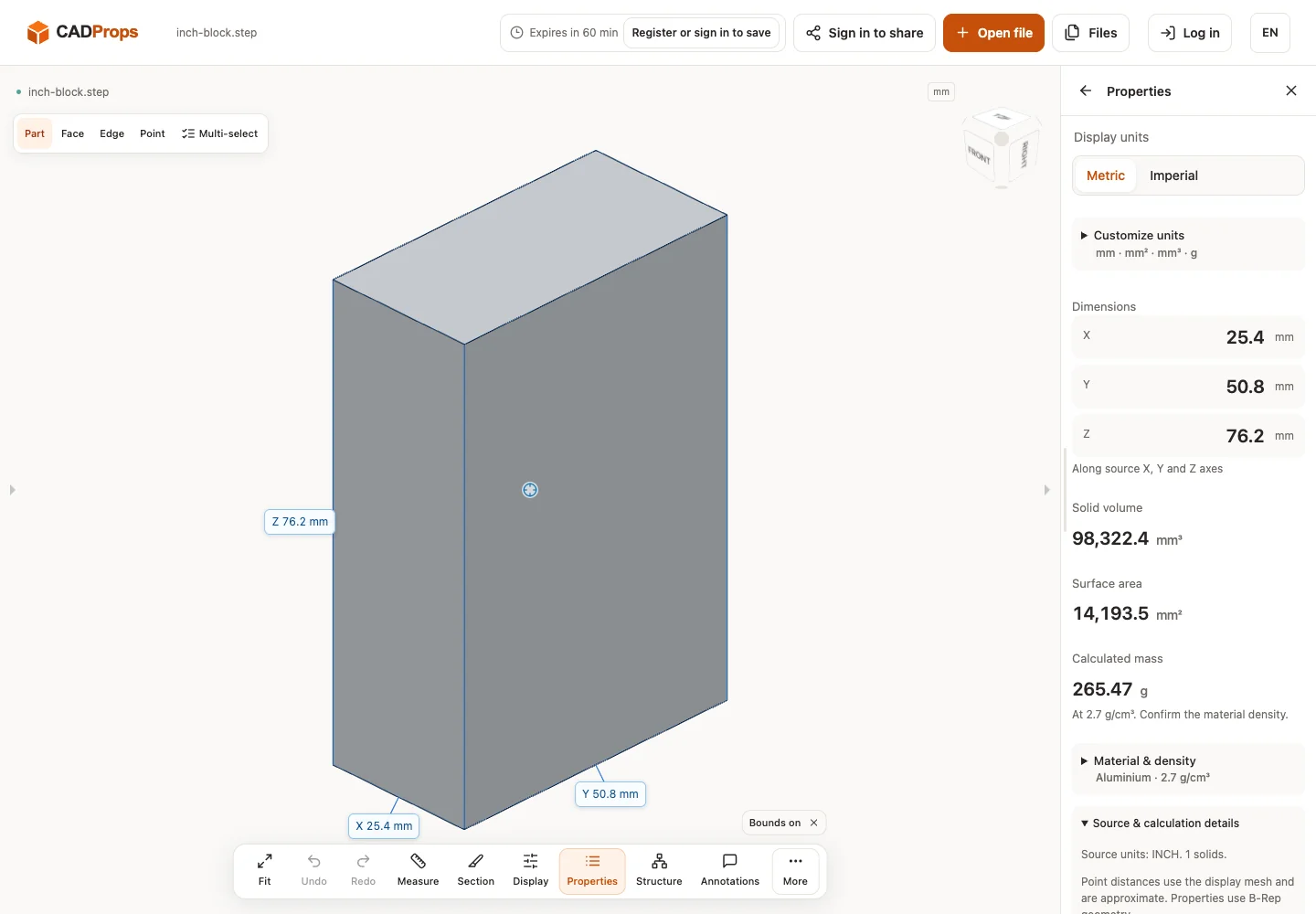
For a check with known expectations, use the inch block for units, the open surface for unavailable volume, or the repeated-instance assembly for included scope. Overall extents and properties CSV are separate from a local face/edge/point measurement. The three recorded runs used the ordinary local processing queue.
[25.4 × 50.8 × 76.2 mm](https://www.cadprops.com/guides/step-inch-unit-check/index.md) · [600 mm²](https://www.cadprops.com/guides/step-open-surface-volume-case/index.md) · [12000 mm³](https://www.cadprops.com/guides/step-assembly-instance-properties-case/index.md)
Actual local English interface, 2026-10-01; CADProps-authored geometry.
## Choose one of seven measurement modes
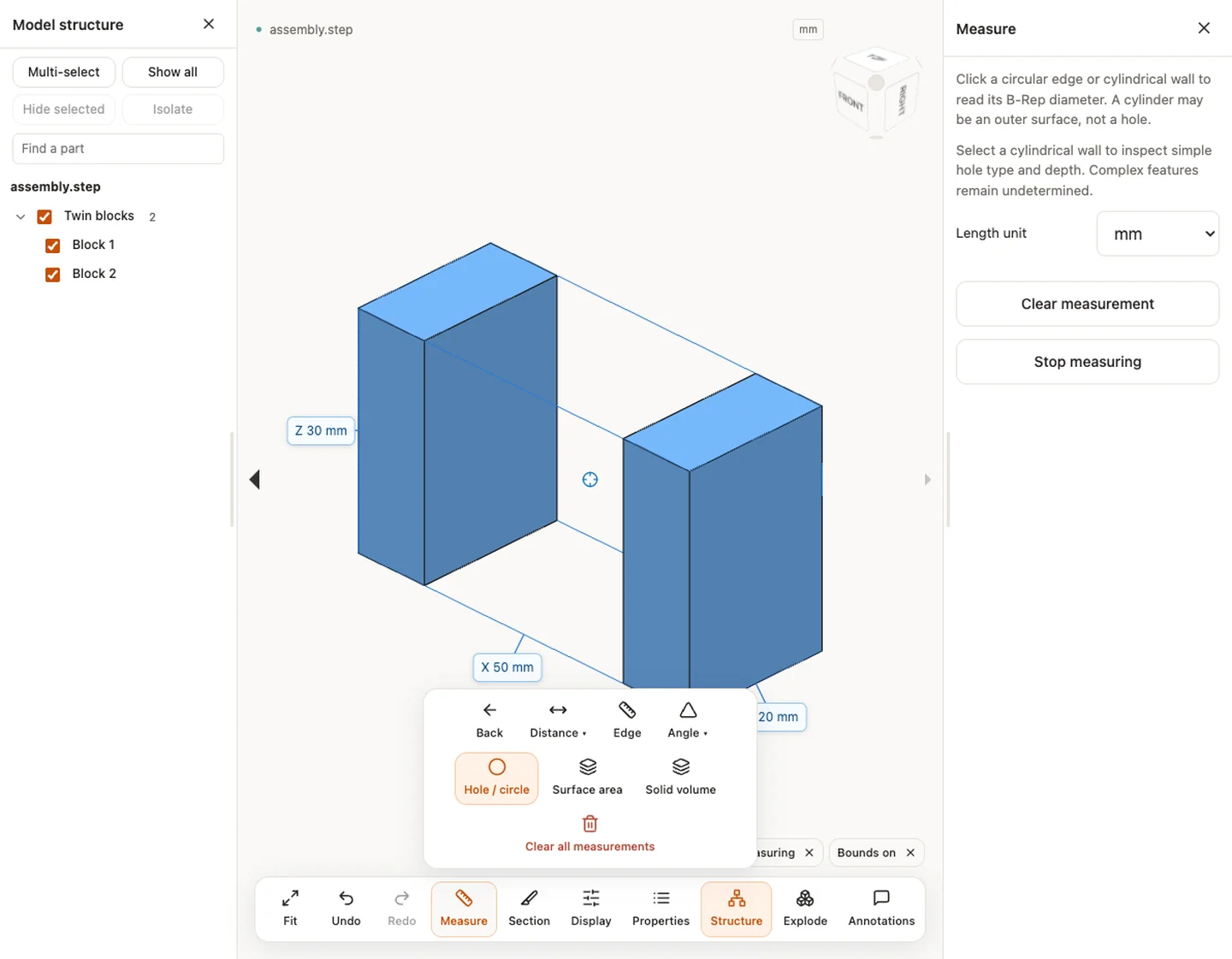
Open **Measure**, choose a mode and follow the selection prompt. B-Rep modes need processed CAD geometry; a triangle-only file cannot provide all of them.
| Mode | Selection and result | Check before using it |
|---|---|---|
| Two points | Click two model points; read distance and X/Y/Z deltas | Mesh picking is approximate |
| Face distance | Select two planar faces | Uses extended planes, not closest trimmed boundaries |
| Edge | Select a CAD edge; read length | Confirm the intended edge |
| Angle | Select two planar faces | A plane angle is not a drawing tolerance |
| Hole / circle | Select a circular edge or cylindrical wall | A cylinder may be an outer surface; simple hole depth may be available, complex holes remain undetermined |
| Surface area | Select a B-Rep face | Local face area differs from whole-model area |
| Solid volume | Select a closed B-Rep solid | One solid differs from an assembly total |
Check the resulting measurement in the numbered list. Drag its label to improve placement, delete one mistaken measurement, or clear the list. **Back** stops measuring. More displayed decimals do not make an approximate pick more accurate.
Choose one of seven measurement modes — assembly.step (STEP)
## Export the correct CSV
For overall file properties, open **Files** and choose **Export CSV · mm / g**. For local picks, use **Download CSV** in the measurement list. These are separate reports; the property report does not automatically include your local measurements.
The measurement CSV includes `kind`, `value`, `unit`, `precision`, `basis`, `part` and point deltas. It uses mm, deg, mm² or mm³ regardless of display units. Check `basis` to distinguish mesh points from B-Rep measurements. The export's `exact` label describes the geometric calculation, not engineering certification. Reopen each CSV, check units and scope, and preserve unavailable values rather than replacing them with zero.
[Follow the full CADProps walkthrough](https://www.cadprops.com/guides/get-started-with-cadprops/index.md)
For fast part and assembly viewing, see [Fast CAD viewing with CADProps](https://www.cadprops.com/fast-cad-viewer/index.md), with real model examples and loading times.
## Related reading
- [STEP File Scale Wrong by 25.4? Fix Inch and mm Units](https://www.cadprops.com/guides/cad-model-wrong-scale-25-4/index.md)
- [How to Calculate Volume from a STEP File](https://www.cadprops.com/guides/calculate-step-volume/index.md)
- [Compare CAD Revisions: Geometry and Property Checks](https://www.cadprops.com/guides/compare-cad-revisions/index.md)
- [How to Use CADProps: Open, Inspect and Save a CAD File](https://www.cadprops.com/guides/get-started-with-cadprops/index.md)
- [Reverse Vending Machine Planning: From CAD Layout to a Better Return Point](https://www.cadprops.com/guides/reverse-vending-machine-site-planning/index.md)
- [STEP AP203 vs AP214 vs AP242: Which Protocol to Export](https://www.cadprops.com/guides/step-ap203-ap214-ap242/index.md)
- [STEP Assembly Instances: Check Repeated-Part Totals](https://www.cadprops.com/guides/step-assembly-instance-properties-case/index.md)
- [STEP File Bounding Box: Get Overall Dimensions Online](https://www.cadprops.com/guides/step-file-bounding-box/index.md)
- [STEP File (.step, .stp): What It Is and How to Open It](https://www.cadprops.com/guides/step-file-what-it-is-how-to-open/index.md)
- [STEP Hole Recognition: Detect Through and Blind Holes](https://www.cadprops.com/guides/step-hole-recognition/index.md)
- [STEP Inch Units: A Reproducible Dimension Check](https://www.cadprops.com/guides/step-inch-unit-check/index.md)
- [Open STEP Surface: Area Available, Volume Unavailable](https://www.cadprops.com/guides/step-open-surface-volume-case/index.md)
- [STEP vs STL: CAD Measurement, Geometry and Accuracy](https://www.cadprops.com/guides/step-vs-stl/index.md)
- [Do STL Files Have Units? How to Fix mm vs Inch Scale](https://www.cadprops.com/guides/stl-files-have-units/index.md)
- [Calculate Surface Area from a STEP File](https://www.cadprops.com/guides/surface-area-from-cad-file/index.md)
Original article: https://www.cadprops.com/guides/measure-step-file/
HTML page: https://www.cadprops.com/guides/measure-step-file/