# IGES File (.igs, .iges): What It Is and How to Open It
An IGES file is an older neutral CAD format for curves, surfaces and some solids. Learn how to open an .igs or .iges file online and check what you received.
An IGES file is a neutral CAD exchange file based on the Initial Graphics Exchange Specification. It arrives as `.igs` or `.iges`; the two extensions are the same format. IGES is older than STEP and is still common for surface models, tooling and legacy handoffs. To look at one without the CAD system that wrote it, open it in the [IGES viewer](https://www.cadprops.com/tools/iges-viewer/index.md), see whether you received a solid, surfaces or only curves, and check one known dimension.
That middle step matters more for IGES than for most formats. The extension says nothing about whether the file holds a closed solid, and the answer decides what you can measure.
## What is inside an IGES file
A standard IGES file is plain ASCII text in fixed 80-character lines. You can open a copy in a text editor. Column 73 of every line holds a letter that tells you which section the line belongs to:
| Letter | Section | What it holds |
|---|---|---|
| `S` | Start | Free text written by the exporter, often the source system or a note |
| `G` | Global | File-wide settings, including the sending system, date and model units |
| `D` | Directory entry | One two-line record per entity: its type number, level, color and pointers |
| `P` | Parameter data | The actual numbers for each entity: coordinates, knots, trimming curves |
| `T` | Terminate | Line counts for the sections above |
If the lines do not follow this layout, the file is not a standard ASCII IGES file. A renamed file from another format will not become readable by changing its extension.
The Global section contains a unit flag. In the specification, `1` means inches and `2` means millimetres, and other values cover further units. Readers convert units on import; Open CASCADE, for example, converts non-millimetre lengths to millimetres. [Open CASCADE IGES translator guide](https://occt3d.com/dev/doc/overview/html/occt_user_guides__iges.html). The flag only helps if the sender set it correctly, so a known dimension is still the real check.
## Curves, surfaces or a solid
IGES describes geometry as numbered entity types. For practical purposes, the files you receive fall into three groups:
| What the file contains | Typical entities | What you can check |
|---|---|---|
| Closed solid | Manifold solid B-Rep (type 186) built from shells and faces | Dimensions, surface area, volume and mass with a confirmed density |
| Surfaces | Trimmed and B-spline surfaces (types 144, 128) | Dimensions and surface area; any volume is approximate at best |
| Curves only | Lines, arcs, splines | Extents and shape as a wireframe; no area, volume or mass |
Surface-only files are very common, because many systems export IGES as a set of trimmed faces even when the source was a solid. A shaded view that looks closed can still be an open set of surfaces. [Why an IGES file shows surfaces instead of a solid](https://www.cadprops.com/guides/iges-surfaces-not-solid/index.md) explains how this happens and what to ask for.
## How to open an IGES file online
1. Keep the original `.igs` or `.iges` file unchanged.
2. Open the [IGES viewer](https://www.cadprops.com/tools/iges-viewer/index.md). It runs in a browser with WebGL on Windows, macOS or Linux.
3. Select the file. It is uploaded for server processing; viewing and measuring do not need an account.
4. Use **Fit** to frame the model. Fit moves the camera only.
5. Look at what loaded: a solid, a set of surfaces, or a wireframe of curves. The **Properties** header shows the solid count.
6. Compare the X, Y and Z extents in **Properties** with a dimension you trust.
7. Use surface area for surfaces. Treat volume and mass as solid properties only when the solid count is above zero and there is no geometry warning.
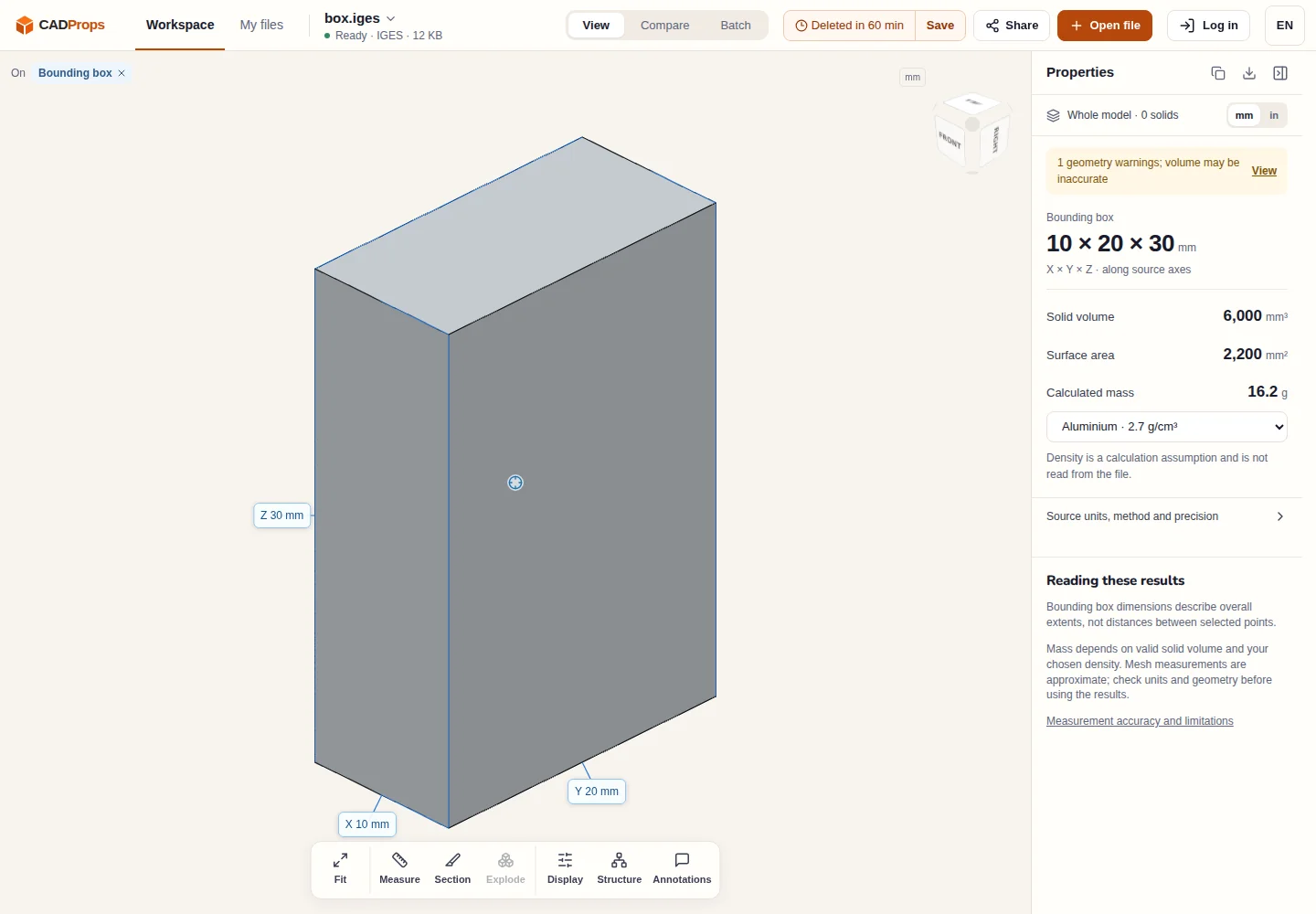
box.iges is a closed box of surfaces, not a solid: 0 solids, a geometry warning, and a volume recovered from the display mesh.
The sample above shows the case to watch for. Its six faces enclose a box, so CADProps recovers an approximate volume of 6,000 mm³ from the display mesh, but the solid count is 0 and the panel warns that volume may be inaccurate. Surface area, which uses the B-Rep faces, is the reliable figure here. When the surfaces do not enclose a space, volume stays unavailable instead of being reported as zero. In either case, do not replace it with a bounding-box estimate.
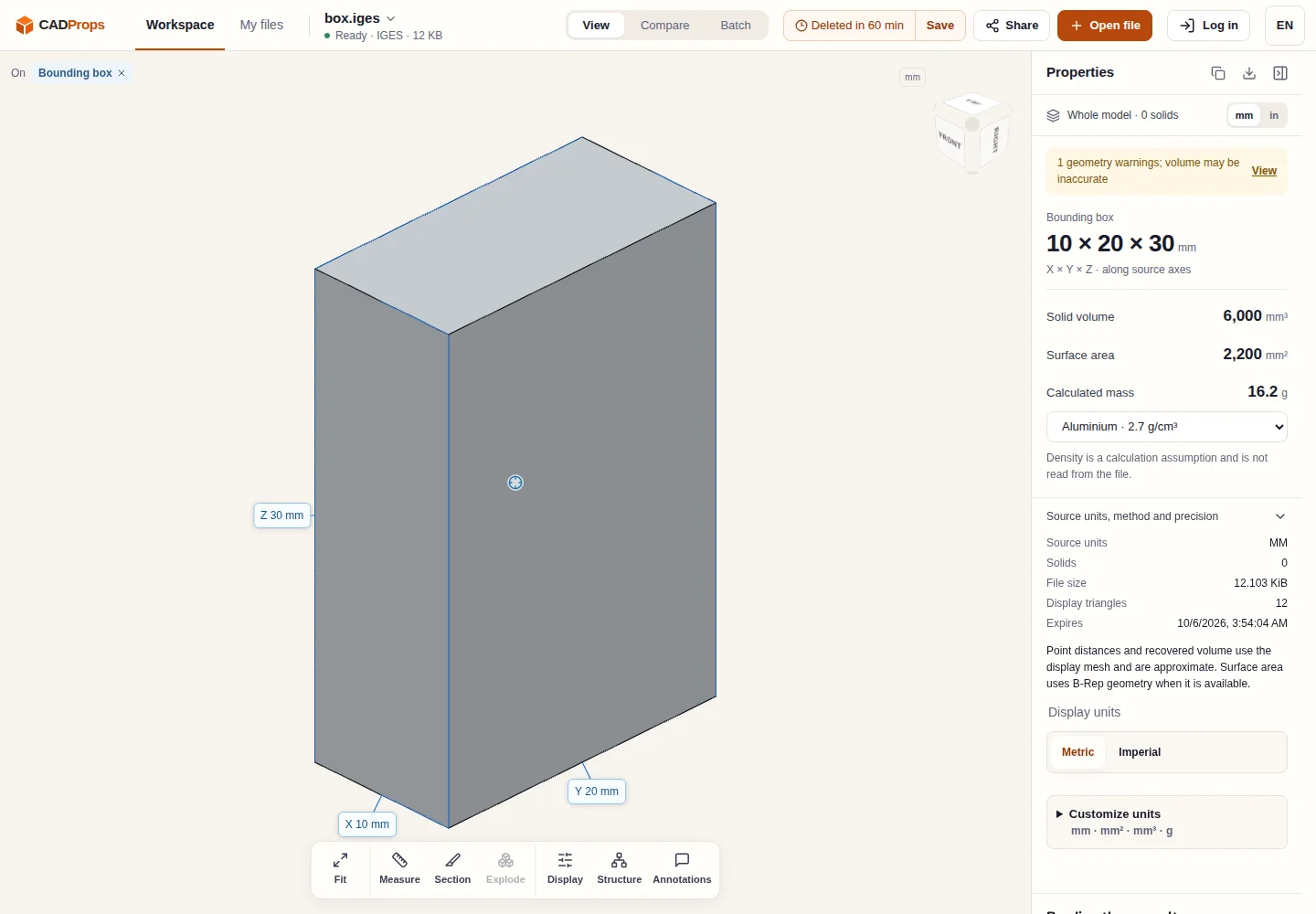
Open **Source units, method and precision** to see the units the reader applied, the solid count and how each value was calculated.
The source units read from the IGES file (MM) and the note that recovered volume comes from the display mesh.
The IGES reader handles self-contained files. External references are not fetched, so a file that depends on other files will load only what it contains.
## What IGES does not carry well
IGES moves geometry. It does not carry the source feature tree, sketches or constraints, and assembly structure is limited compared with STEP. Administrative data can also be dropped on import: Open CASCADE's reader, for example, does not translate level assignments. [Open CASCADE IGES translator guide](https://occt3d.com/dev/doc/overview/html/occt_user_guides__iges.html). If layer or level organisation matters to your job, confirm it in the receiving system rather than assuming it survived.
Readers also differ in which versions and entity types they support. Open CASCADE reads files written to IGES versions up to 5.3. A file that uses entities a reader does not support may open with pieces missing.
## When to ask for STEP instead
IGES is fine when you need to see or measure surfaces. Ask the sender for a STEP export when:
- you need solid volume or mass and the IGES contains only surfaces;
- you need assembly structure, component names or placements;
- the IGES loads incomplete in your receiving system;
- known dimensions disagree after the unit flag has been checked.
[STEP vs IGES](https://www.cadprops.com/guides/step-vs-iges/index.md) compares the two formats in more depth, and the [STEP file guide](https://www.cadprops.com/guides/step-file-what-it-is-how-to-open/index.md) explains what you will get in return. For other neutral formats, see [IGES vs Parasolid](https://www.cadprops.com/guides/iges-vs-parasolid/index.md) and [SAT vs IGES](https://www.cadprops.com/guides/sat-vs-iges/index.md).
## Convert IGES to STEP
If the receiving system prefers STEP, use [IGES to STEP](https://www.cadprops.com/tools/iges-to-step/index.md) after checking the original. Conversion keeps the geometry that could be read. It does not close open surfaces into a solid, so a surface IGES becomes a surface STEP. Reopen the result and compare its dimensions and surface area with the source.
All IGES tools and guides are collected on the [IGES hub](https://www.cadprops.com/iges/index.md). The [box.iges sample](https://www.cadprops.com/samples/box.iges) is useful when you need to tell a file problem from a viewer problem.
## Related reading
- [IGES Surfaces Not Solid? Check Volume and Open Shells](https://www.cadprops.com/guides/iges-surfaces-not-solid/index.md)
- [IGES vs Parasolid: Surfaces, Solids and CAD Exchange](https://www.cadprops.com/guides/iges-vs-parasolid/index.md)
- [Open a Rhino 3DM File Without Rhino](https://www.cadprops.com/guides/open-3dm-without-rhino/index.md)
- [How to Open a CATPart File Online Without CATIA](https://www.cadprops.com/guides/open-catpart-without-catia/index.md)
- [How to Open a CATProduct File Without CATIA](https://www.cadprops.com/guides/open-catproduct-without-catia/index.md)
- [How to Open an IAM File Without Autodesk Inventor](https://www.cadprops.com/guides/open-iam-without-inventor/index.md)
- [How to Open an IPT File Online Without Inventor](https://www.cadprops.com/guides/open-ipt-without-inventor/index.md)
- [JT File (.jt): What It Is and How to Open It Online](https://www.cadprops.com/guides/open-jt-file-online/index.md)
- [How to Open a SAT File Online: ACIS .sat Viewer Guide](https://www.cadprops.com/guides/open-sat-file-online/index.md)
- [SAT vs IGES: ACIS Solids or Neutral CAD Surfaces](https://www.cadprops.com/guides/sat-vs-iges/index.md)
- [STEP File (.step, .stp): What It Is and How to Open It](https://www.cadprops.com/guides/step-file-what-it-is-how-to-open/index.md)
- [STEP vs IGES: Which CAD Exchange Format Fits the Job?](https://www.cadprops.com/guides/step-vs-iges/index.md)
- [Pack a CAD Assembly ZIP: Choose the Root and Keep Paths](https://www.cadprops.com/guides/zip-packaged-cad-models/index.md)
Original article: https://www.cadprops.com/guides/iges-file-what-it-is-how-to-open/
HTML page: https://www.cadprops.com/guides/iges-file-what-it-is-how-to-open/